
Your first drive through Driver OS
A simple path from your first recorded result to a useful focus for your next visit.
What would you like to do?
Find your way around
- Home: your latest day, or latest race when that day is a validated Event day, plus current focus and private plans for the next visit.
- Sessions: every session in the selected day, then its laps, field comparisons and notes.
- Progress: observed history or similar-session comparisons, with a shared chart range.
- Karts: recorded numbers and personal evidence. Use Quick Kart to remember a number at the track.
- Coach: ask about your driving or review your current goal. For eligible accounts, Coach selects relevant history automatically; suggested questions send when clicked.
Your account menu opens Profile, Settings, Help and Sign out. Help opens separately, preserving your place in Driver OS.
Start with what you have
One result is enough to explore Sessions. Missing timing stays unknown, and a single visit is not a trend. Choose a home venue during setup; browsing another venue never moves your results.
Use information buttons beside chart titles for definitions. Hide this day hides only that Home card; Show latest day restores it. New recorded days appear automatically.
Your goals, notes and plans stay private. Community is optional, with separate sharing choices that you control.
How the numbers work · Privacy and sharing · Open Driver OS ↗
Previous interface referencePreserved guidance · 2026-09-28
Your Driver OS
Eligible Real accounts use Home, Sessions, Progress and Karts at /driver. Community · Coming soon is visible in the menu. The blue Quick Kart button and green Coach stay within reach. A new account begins with an empty history, and every recorded result belongs to the authenticated account.
Complete the first-time profile and home-K1 steps once. The venue selector changes only the view you are browsing: choose an away venue or All venues, then return home when ready. A venue selection never moves recorded sessions.
The avatar menu opens full-width Profile, Settings, Help and Sign out. Profile changes your driver name and home K1; your username is permanent. Settings opens native email setup, compact activity/history tables and privacy controls. Help opens a separate tab. The old More tools portal and repeated setup wizard are no longer shown.
The authorized owner has a separate Owner workspace with protected operations and compact ten-row invitation/account tables. Community remains a preview with no sharing. Demo accounts retain their separate fictional experience. Older detailed workflows described below remain preserved at their original routes; they are not presented as settings in the new interface.
Historical detailed-tool preferences
Profile → App preferences lets you choose an explicit home track and whether new tabs start there or at All venues. Existing defaults stay unchanged until you save a choice. Home, Sessions, Progress and Coach share the venue you are browsing; switching venues does not save a preference or rewrite history or goals. Newer visits elsewhere remain linked, and direct Session or Event links open their own evidence. Home-track preferences stay in this account and browser; they do not sync across devices or between Dev and Production.
Where are you right now?
- I have not joined yet: Join early access and finish setup.
- I was just approved: Complete the required Profile step, then return to Home.
- I have a result to review: Bring it into the journal, then open the session.
- I am going to the track: Save the kart number or review the current action on Home.
- Something is not working: Start with the recovery guide.
Your first useful journey
- Use your owner invitation to join early access, verify the newest email and complete setup. A second approval is not required.
- Sign in and complete the required driver profile.
- Connect a supported result source or add known values manually.
- Open Sessions and check the result, laps and source context.
- Add the kart, conditions, tags or short factual note that will matter later.
- Use Progress after you have comparable evidence.
- Use Coach to keep one practical next action visible on Home.
A short synthetic walkthrough of the Driver OS loop. Press play or move through the steps yourself.
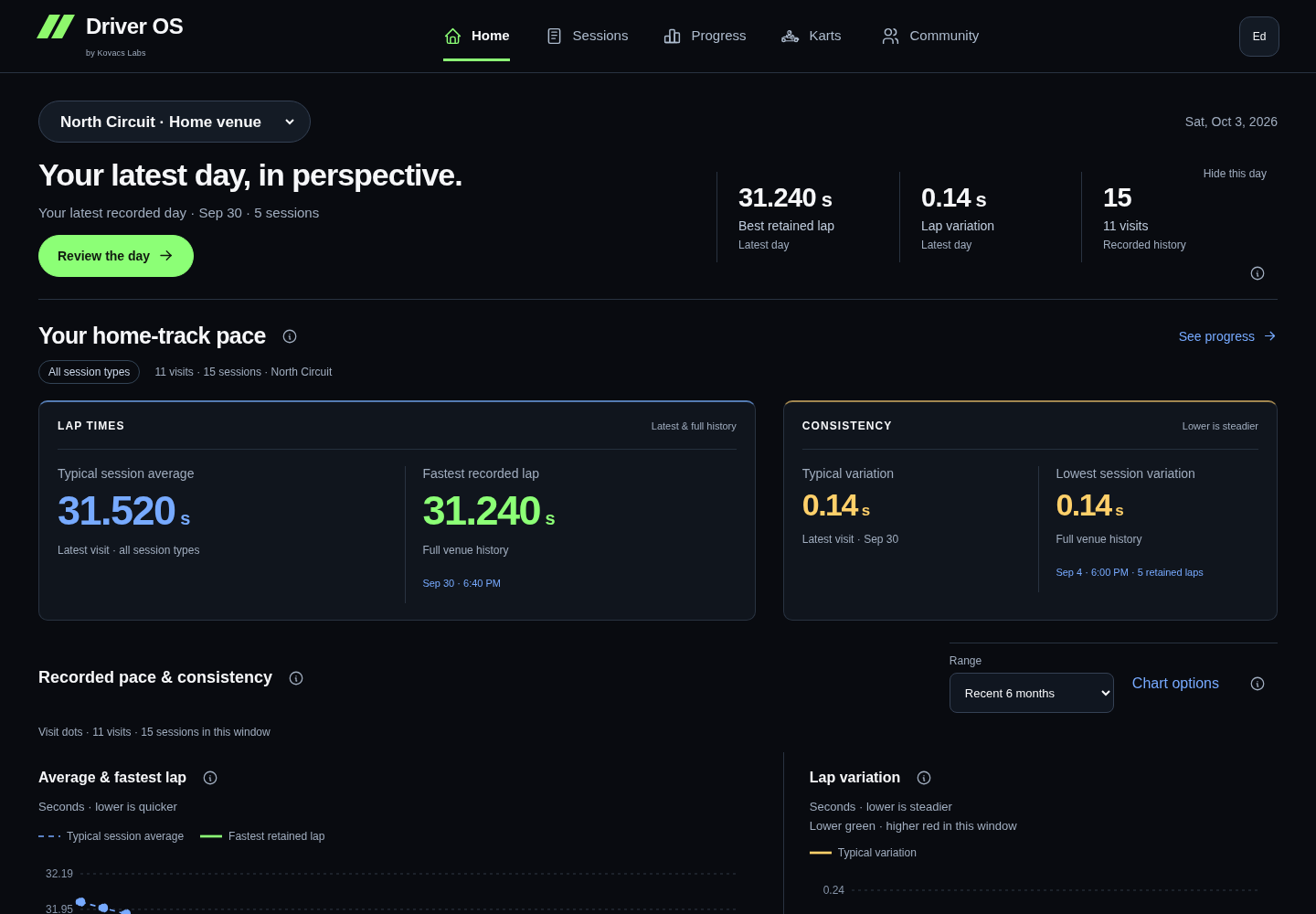 01 / 04HOME
Home keeps the current state and one next useful step visible.
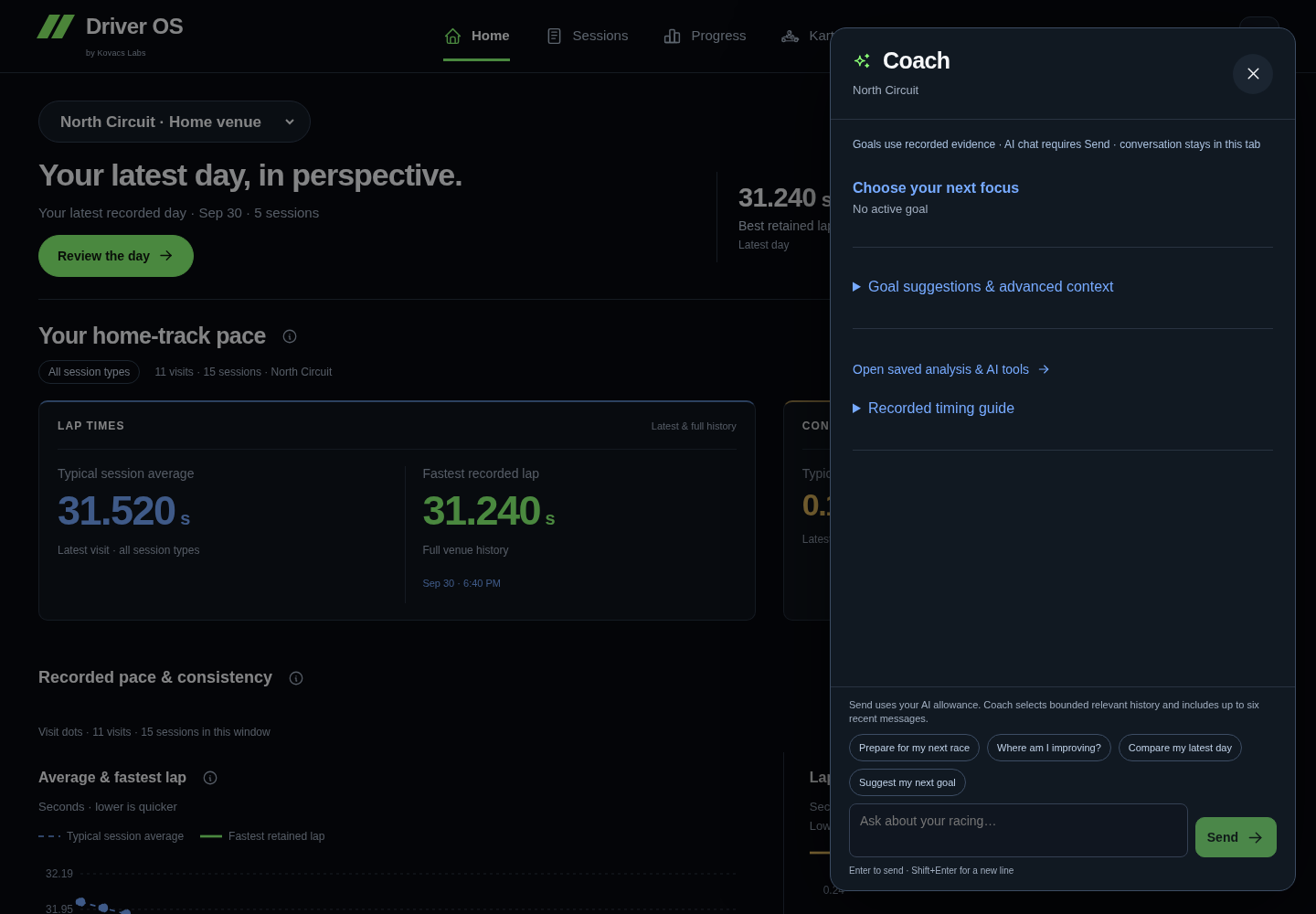
Read the demo transcript
- HOME: Home keeps the current state and one next useful step visible.
- SESSIONS: Sessions preserves the official result, laps and useful context.
- PROGRESS: Progress compares compatible evidence and shows what is changing.
- COACH: Coach retains one practical action for the next drive.
What is optional?
- Automatic K1 result forwarding saves time, but manual entry remains available.
- Quick Kart is useful at the venue, but it is not required.
- Sensor Lab adds experimental context and never blocks the core journal.
- AI explanations are limited to specifically entitled accounts. Race Day Review and other AI tools require their visible request action; opening a page does not start a paid analysis.
What good looks like
You can explain where a result came from, what changed across comparable sessions and what you plan to try next. Driver OS should make that story clearer without hiding the original evidence.
Join and set up Bring in a result Review a session
A short tour, whenever you want
After setup, you can take a five-step tour of Home, Sessions, Progress, Coach, and Connections / Quick Kart. It is optional and does not change your journal.
Replay the short Driver OS tour
Remember your rental kart
Choose Karts on desktop or More → Karts on your phone. Home shows recently used numbers for the current venue. Save kart number works without telemetry; Review saved captures opens the matching controls. History stays separate by venue, fleet and class. Save and review a number.
Join early access and finish the essentials
Verify your account, choose a permanent username and pick your home K1. You can connect results later.
Before you start
Driver OS is in early access. Use the access or invitation path offered to you, then verify your email. Signing in and approval are separate steps: a pending account does not become approved by repeating setup.
Self-service accounts are for people 13 or older. Teens need the required guardian permission and acknowledgements. The Terms and Privacy steps are part of account eligibility; optional sensor choices are separate.
If you received an invitation card
When card invitations are enabled, open the registration address printed on the card and choose Join with an invitation. Enter the card code in the form, along with your email and signup details. Keep the code private; it never belongs in a link. Verify your email to claim the card for one Real account, then finish setup.
Cards stay pending until claimed or revoked. The temporary signup reservation can expire. If you verify later or move to another device, sign in with the same email and choose Resume with a card on the access-recovery screen. Enter the same card; you do not need to choose another username. A card cannot convert an existing Demo, blocked or named-invitation account.
The owner can see which account claimed a card and receives a completion email after verified setup. Cards do not automatically enable Community sharing, Feedback, AI access or sensor features.
When this beta feature is available, Owner → Accounts → Registration delivery status shows completion and email counts. Use Refresh status for a fresh check. Accepted means the email provider received the request; Delivered requires its delivery confirmation. An unavailable status is not confirmation that processing succeeded.
Four short steps
- Profile: enter your driver name and choose your username. Your username is permanent; check it before saving.
- Home K1: search for your usual venue and select the correct location. This is a preference, not evidence of where you have raced.
- Connect: set up your private results address and follow the instructions for your email provider, or continue and do it later.
- First result: check for a result, then finish setup. You can finish while waiting or before you have raced.
A new account starts with its own history. Driver OS does not fill it with someone else's results.
After setup
Use your account menu → Profile to edit your driver name or home K1. Use Settings → Connections for result emails. Completed setup does not need to be repeated to change these choices.
If a save fails, read the message before leaving. A partial save may keep one change while another needs retrying; an error is not confirmation that everything saved.
Bring in a result · Find account settings
If you were invited to Demo
Your invitation selects Demo or Real; there is no public Demo signup switch. Complete genuine email verification and required identity/legal steps. A valid Demo invitation does not need a second approval.
In the focused Demo experience, Demo remains visible and the Nashville records are fictional. Connect and first-result recognition are simulations. demo-results@example.invalid is a non-deliverable example: do not configure forwarding or send email to it. Supported notes, kart numbers, goals and preferences save privately to your Demo account. Existing testers keep their scenario until the owner explicitly resets it.
Invitation feedback access
The owner can select Feedback enabled while inviting you. If selected, it is available after verified signup without a second manual permission change. This choice defaults off and does not enroll you in Community. The owner can change Feedback access later.
Previous interface referencePreserved guidance · 2026-09-28
Set up Driver OS
For an invited Real account, /driver offers Sign in or Join with an invitation, using the newest email link or one-time code. Signup keeps the existing invitation, verified-email, age and required notice checks. Teen accounts require both existing guardian confirmations. A username is chosen once and remains permanent.
First-time setup guides you through driver profile, an explicit home K1, optional email guidance and the first-result review. This path does not ask for a home city. Driver name and home K1 can change later in Profile; your username is displayed as fixed text. The wizard is not offered again after completion. An old setup link opens Profile.
Continue and Finish wait for confirmed saves; errors explain any partial save. Email forwarding can wait. Finishing setup does not create fictional history, enable sensors or request paid AI. Email setup opens within Driver OS and has Back to setup while onboarding is incomplete. Required legal choices are handled in the native account check before racing history becomes available.
Demo Testers retain their separate fictional experience and established setup. No Real history is copied into their accounts.
Before you start
Use an email address you can open on the same phone or computer. Driver OS uses a secure email link and one time code instead of a password. In the invite-only testing flow, the owner must first invite that exact address as a Demo Tester or Real driver. Public interest signup does not grant app access.
Join early access
- Open Driver OS and choose Join with an invitation (or Join early access in the Demo entry).
- Enter the profile details requested on the form and accept the required legal terms.
- Open the newest Driver OS email and use its secure link or one time code.
- Follow the short setup steps after verification. One matching owner invitation is sufficient; an invited tester does not need a second approval after signup.
Sign in to the native iPhone app
In the internal native build, request the email from Driver OS on the iPhone where you want to sign in. Open the newest email on that phone. When the native sign-in service is available, its link returns to Driver OS; a browser may first offer Open Driver OS. The code in the email remains available if the link opens elsewhere or your email app keeps it in a browser.
Finish or recover a recording before signing in. A link requested by a different device or an older request cannot switch the recording account. If the connection drops, keep the app and its saved recordings in place and retry when online.
Open the web app from iPhone
The general web-app button opens Home. Links labeled for Sessions, account settings or a specific Event or session open that destination. When the handoff service is available for your native account, confirm the account shown by Continue as; no new email or code is required. A browser already signed into that account keeps its session. A different account is identified before you choose to switch. The link expires quickly and can be used only once.
If handoff is unavailable, expired or offline, Driver OS offers the ordinary web link. The browser may then need its usual sign-in. This does not sign the native app out. Accounts with additional authentication requirements use normal browser sign-in.
Owner invitations
Invitations and user accounts each show up to 10 entries per page. Use their separate Previous and Next buttons to browse; your unfinished invitation stays in the form.
In Owner → Invitations and access, enter the person's exact email address, select Demo Tester or Real driver, then choose Invite user. New Production invitations open app.kovacslabs.com. Check the delivery status before retrying an uncertain send. One invitation is sufficient; public update subscriptions do not grant app access.
Use Revoke invitation to withdraw an invitation before verified signup. Review the email and access type, then confirm. For an invitation already claimed by an account, use that account's Deactivate access or Deactivate demo access control instead.
A revoked invitation offers Re-invite for the same email and access type. This restores the invitation without sending email; choose Send invitation email afterward when you want to notify the person. If their email is already verified, they can sign in normally without another invitation email.
Under User accounts, the owner can deactivate Demo or Real access while preserving sign-in, profile and records. Restore access is available for deactivated Real drivers. Demo resets remain separate, and these controls never convert Demo data into a Real account. The owner account is protected from access removal.
If an email is already being sent, refresh its delivery status before revoking. An interrupted delivery may require reconciliation; retrying does not start another email. A message already delivered cannot be recalled, but a revoked invitation no longer grants access.
Use Reset demo data to restore a Demo Tester's fictional scenario while keeping completed onboarding. Reset onboarding and demo repeats profile setup. Deactivate demo access stops access and retains the account. Demo accounts cannot be switched to Real from this screen.
Set up your Driver OS
Welcome explains the journal in a few sentences. Choose Continue to start, then use Back whenever you want to review a choice.
- Driver profile: choose the name you want to use for driving and a home city or nearby city. No street address or exact home location is needed. Your unique username is set once; your driver name and city can change later. Required age, Terms, Privacy and parent or guardian choices remain separate and must be complete.
- What do you drive? Choose at least one interest. Rental karting appears first; expand Other driving interests for owned karting, car or motorsport events, and sim racing. Existing selections remain visible. Interests tailor setup and suggestions without hiding history or product areas.
- K1 results: if selected, choose manual forwarding or provider guidance for supported formats. Driver OS receives only the messages you deliberately forward. You can skip this and return to Connections.
- Garage: owned-kart and car interests offer one short vehicle form. Skip it if you want. A vehicle you choose here is added to your existing Garage at Finish. Rental karting does not require a vehicle.
- Discover: optionally select a few directory suggestions near your city. Coverage is limited; a city with no suggestions can still finish setup. Discover remains available later.
- Finish: review the summary and choose Finish setup. A Real journal contains only that driver's evidence. A Demo Tester's fictional pack appears only after this step.
Sensor and AI interest are available through Profile → Your driving choices → Optional setup. They are not separate steps in a new driver's default setup. Existing preferences and unfinished optional-step drafts are preserved. Interest does not enable recording, grant consent or AI access, request analysis, or create a charge.
Continue saves your choices to your account. Unfinished typing and choices are kept for that account in this browser, including when you leave and return later. When revisiting setup from Profile, Close setup returns to Profile and keeps those unfinished changes here; Continue saves them to your account for other devices. If a save fails, your choices stay on screen with a retry message; setup does not silently finish.
Optional steps offer Skip for now. Reopen driving interests in Profile → Your driving choices, and sensor or AI interests under Optional setup. Manage actual forwarding in Connections, consent in Sensor Lab, vehicles in Garage and venue follows in Discover. Changing an interest never deletes history.
Demo Testers keep real verification, username, legal choices and profile details. During setup, forwarding, native recording, vehicle creation and live location providers remain off. After Finish, Demo Connections, Garage and Discover show clearly fictional examples.
Take or replay the short tour
The optional five-step tour introduces Home (current picture and next step), Sessions (individual evidence), Progress (patterns), Coach (an action), and Connections / Quick Kart (results and kart context). It never asks you to create a race or perform a write to advance.
Use Back, Continue, or Skip tour. Escape closes it, Tab stays inside it, and it respects reduced-motion preferences. You can replay it from Profile or here after signing in:
Replay the short Driver OS tour
Know what is optional
- K1 result forwarding is optional and can be added later.
- Sensor Lab is optional and never blocks the journal.
- Model backed AI explanations are limited to specifically entitled accounts.
- Product update emails require a separate optional choice.
Demo Testers use simulated Connections and synthetic sensor summaries. Real results, uploads, analytical sync and live AI are unavailable for that tester kind.
What success looks like
For a Real Tester, Home opens with that account's own empty journal and next useful step. For an invited Demo Tester, the fictional scenario is populated only after required onboarding is complete. A persistent Demo data indicator explains its synthetic records, fixed scenario date and unavailable capabilities. Your verification, username and profile remain real.
If the email or approval step stalls
Use only the newest email. Request a fresh message if the link expired, and enter the newest one time code when signing in from an installed Home Screen app. Private testing access is required means the account has no applicable invitation. Private testing setup is not ready means the invitation is recorded but the testing environment has not been activated; this does not require a second personal approval.
Bring your K1 results into Driver OS
Set up result emails, bring in earlier visits and check what was actually imported.
Open Connections
Choose your account menu → Settings → Connections. The page has Email setup, Recent activity and All receipts. Your private forwarding address appears only when your account is eligible and the service can provide it. Never guess an address from your username.
Bring in one result first
- Open an original, supported K1 result email in your trusted inbox.
- Forward that individual message inline to the address shown in Driver OS.
- Open Recent activity and check its status.
- When the result is imported, open Sessions and check its venue, date and laps.
Bundled conversations, bulk forwarding and .eml attachments are not supported. If the driver identity needs review, use the offered review action; a similar name is not proof that a result belongs to you.
Earlier visits and future visits are different
Earlier visits: forward each original result separately. An automatic rule does not import the messages already in your inbox.
Future visits: follow the provider-specific instructions in Email setup. Complete any forwarding verification and use a narrow rule for supported K1 result emails. Do not forward your whole inbox.
Understand the status
- Received means the email arrived. It does not mean a session was saved.
- Imported means a result was saved; check it in Sessions.
- Duplicate means an existing result was recognized, rather than added twice.
- Needs review, unsupported or error means more action or a supported source is needed. Read the explanation before sending it again.
Keep the original email until you have checked the saved result. A venue appearing in the venue list does not guarantee that every email format from that venue is supported.
Open Connections ↗ · Review a session · Troubleshoot a missing result
Demo uses simulated connections
Invited Demo accounts practice setup with demo-results@example.invalid, a non-deliverable example. Simulate first result recognition records a private Demo choice; it does not send or receive email. Do not configure a forwarding rule for Demo. Real forwarding becomes available only after an owner-reviewed conversion and completion of Real setup.
Previous interface referencePreserved guidance · 2026-09-28
Result email connections
Open the avatar menu → Settings → Manage connections. The full-width Connections page keeps Email setup, Email activity and Received history inside Driver OS, with compact tables showing ten rows per page. Back to Settings returns to account choices; incomplete setup has Back to setup.
Email setup shows your private forwarding address, trusted forwarding inboxes, Google confirmation status and local filter download. Saved changes wait for confirmation. A conflict keeps your draft until you reload saved email settings. Opening or paging the screen never checks mail, retries processing or generates imports. Check now and Open Google confirmation require explicit clicks; finish destination confirmation with Google.
Activity preserves the existing status and consent-based problem reporting. Received history lets you page through account-scoped email metadata without replaying messages. A received email is not yet a saved result, and a saved result is not proof that you reviewed it. Open session links to the recorded result when available.
Choose the path that fits the result
Use automatic forwarding for supported new K1 result emails. Use manual entry when you know the official values but do not have a supported source. Both paths should end in Sessions with the source and original laps still understandable.
Connect supported K1 emails
- Open Connections, then open K1 Email.
- Copy the private forwarding address and add it in Gmail. Return to Driver OS and select Check now, then open the Google confirmation shown to confirm your destination. This check runs when you select it, not automatically.
- Download the two personalized Gmail filters. They are generated in your browser, and Driver OS does not connect to Gmail.
- Import the filter file in Gmail. It contains one exact-sender filter shared by United States and verified UK Canary Wharf results, and one for Canadian results.
- Before saving, verify the United States / UK Canary Wharf sender is member@from.k1speed.com, the Canadian sender is info@k1speed.ca, and both filters use Race Results in the subject, your private forwarding destination, the Kovacs Labs - K1 Results label and Never send it to Spam. Do not select Delete.
- Forward an older original result individually if you want it in the journal. The rule applies only to new messages.
The two exact filters are deliberate. A broader K1 or all-mail rule could forward unrelated private email. Gmail filters do not retroactively forward messages already in the inbox.
Confirm the first successful result
Open the import status, then open Sessions. Confirm the visit date, venue, races and lap evidence before adding context. One source result should create one canonical race rather than a duplicate.
The supported United States and Canadian result formats work across the locations in Driver OS’s maintained K1 location directory, including numbered tracks beyond Track 1. You do not need to visit a location before Driver OS can recognize it. The email must still identify one venue, track and race time clearly and pass the existing sender checks.
Verified UK Canary Wharf Track 1 emails are also supported. They use the existing member@from.k1speed.com sender and Race Results subject rule; no additional forwarding rule is needed. Their printed date uses month/day/year. Driver OS uses Europe/London, including daylight saving, and records their standings as fastest-lap rank rather than a race finish.
Driver OS uses the venue’s local timezone and keeps UK, Canadian and United States ratings separate. An unfamiliar format, ambiguous location or conflicting race details stays visible in Received email history for review. Other UK venues/layouts and other countries’ email systems are not yet verified; worldwide K1 branding does not imply that every result format is supported.
If the email does not state a kart number, race type or racer class, those fields remain unavailable instead of being inferred.
Check import status
K1 email activity is a table of recent loaded emails. Use Previous and Next to move through ten rows at a time, Details for the status explanation, and the result or report action on that row. The page count covers the currently loaded checks, not your complete driving history. On a phone, scroll sideways inside the table to reach every column. Paging does not retry or change an import.
Connections shows your recent imports from receipt through saving and display. For new imports, Results ready means every expected race and numbered lap has been verified in storage. Display confirmation is separate: it is recorded only when the matching lap component renders in your normal Sessions view. It does not mean that you read or reviewed the result.
Earlier imports are identified as earlier history, without rewriting them or pretending they have new completeness checks. Your existing Sessions history remains available. If status checks are unavailable, that does not mean your saved results are missing.
Background checks flag delivery or processing delays and gaps in saved results. The checks read metadata; they do not fetch old emails, run parsers or send real notifications. Open Report a problem to share fixed-choice diagnostic information privately. Your consent allows the owner to inspect that report and its associated import metadata, not your other history. Do not paste original emails or other racers’ names; original-email report uploads are disabled.
In the protected development preview, these checks are read-only. Reports, display acknowledgements, forwarding confirmation, recovery and manual K1 uploads remain paused there. Existing mailbox rules continue to use the production receiver.
Manual entry
Enter only official values you can verify. Leave an unknown field empty instead of estimating it. A manual result should remain visibly different from an automatic supported import.
What Driver OS retains
New imports retain the message identifier, bounded status/reason codes and your minimized timing evidence. Other racers’ names are discarded before durable storage. Driver OS does not retain the forwarded or uploaded email body. The inbound email provider handles delivery under its own terms.
Interrupted, unsupported and duplicate imports
- Repeated supported imports reuse complete matching results. Conflicting evidence is held for review, preserving the saved result.
- If a new upload was interrupted, select the same file again. A complete result is not written twice.
- Needs review, failed earlier imports and unfamiliar formats require a reviewed recovery. Opening the app or changing a parser does not automatically reprocess old mail.
- Report a missing result before forwarding repeatedly. Do not fill gaps with guessed venue, timezone or race details.
Review the first session Connection troubleshooting
Demo Tester connections
In an invited Demo Tester account, Connections contains simulated status cards. There is no functioning inbound results address and no email forwarding, result import, telemetry delivery or analytical sync. Sign-in verification emails still work normally. The instructions below apply to separately approved Real testing capabilities.
Choose how to forward K1 results
Setup offers I’ll forward each result myself or Help me forward results automatically. Copy your private Driver OS forwarding address and send one original Race Results message at a time. If you use a different sending address from your verified sign-in email, add that address through Profile's trusted forwarding controls first.
Gmail reuses the destination confirmation and the two downloadable filters. Keep whole-mail forwarding disabled. Outlook / Hotmail can use two separate rules, each requiring the exact K1 sender and Race Results in the subject. The supported senders are member@from.k1speed.com for US results and info@k1speed.ca for Canadian results.
Yahoo's documented forwarding applies to incoming mail broadly. Driver OS has not verified an iCloud web rule that checks both sender and subject. Use manual forwarding for Yahoo, Apple / iCloud and other providers unless a verified narrow path is available. Never forward your whole mailbox to Driver OS. A saved rule is not proof of delivery; check the imported result in Connections.
Driver OS does not browse your mailbox, request its password or ask for broad email access. An automatic rule remains under your control in your email provider's settings.
Optional sensor tools
In More → Connections → Data Sources, unused Sensor Lab setup is under Optional tools. Existing sensor interest, consent or saved recordings keep Sensor Lab directly visible; a saved source remains accessible after consent is withdrawn. Opening these controls does not enable collection or change consent. Future providers remain under their separate planned-sources section.
Review your first session
Sessions holds your recorded evidence: dates, laps, results and the context you add.
See the whole day, then open a session
Open Sessions to see every session in the latest recorded day for your venue view. Choosing a date keeps the whole day visible. Race and Final rows lead with the recorded place and field size; unknown ranking basis stays explicit. Qualifying keeps timing and supported lap rank together. Each chronological row shows your best lap alongside the other drivers’ best where source evidence is available. The source-average line compares your provider all-lap average with the median of other drivers’ supplied averages; it is not a pooled field lap average or your retained average.
Select a session to open its lap bars. Back to the day returns to all its sessions. Previous and Next browse explicit session details. Long visit histories have a visit list; the selected day itself never hides sessions behind pagination or a session picker.
A link from Progress opens the evidence behind that view. Use its return link to get back to the selected comparison or racing-rhythm view.
Read the recorded evidence
Start with lap times, the result and its stated ranking basis. Fastest-lap rank and finishing position are different. A number such as P1, or a session titled Race, does not establish a race win by itself.
Missing laps or times remain missing. The app does not create laps to fill a gap. Check retained and excluded laps before using a pace summary; exclusion does not erase the original result. Horizontal lap bars open in Retained-lap detail. Switch to All recorded laps for excluded or unclassified timing. Dashed lines mark the available averages. Purple identifies the fastest retained lap in the session, pink the slowest lap in the displayed set, and green the observed retained-lap record at that venue. The venue record does not establish matching conditions.
Opening a session puts its horizontal lap bars first, followed by visible best-lap, source-average and score comparisons with the field. Retained and source all-lap averages stay separately labeled. Use Edit kart & note in the session header to open the existing private editor. Lime circles and labels show your times; blue squares show the other drivers’ best or median. Each metric has its own scale. Missing historical field evidence is distinct from a comparison service that could not load; your own laps stay available in both cases.
The day summary shows session count, recorded laps and your recorded best. Different contexts keep separate chart scales. Missing metadata does not hide same-race observations or imply equal conditions.
Add what only you know
Use the available session controls to record a kart number, notes or driving context. Practice, qualifying and race roles help explain what you were doing. Use Edit day notes & type on the day overview for a separate private day note or to preview a whole-day type correction. Choose which eligible sessions to update; recorded event contexts remain protected. Arrive & drive means ordinary Practice without an Event. Changes apply only after you confirm the preview. A partial save lists what completed and keeps the remaining work available for review. A note about traffic or kart feel is your observation, not a verified explanation of the lap time.
Wait for account confirmation before treating a number as saved. If sign-in fails, keep the number and reconnect before retrying. An unfinished Sessions number stays in this tab during same-account reconnection; closing or reloading the page can discard it. A confirmed save followed by a failed refresh remains saved—reload the data without repeating the save.
If you saved a number with Quick Kart, confirm its exact session in Karts → Review kart numbers. A nearby time alone is not a confirmed match.
Compare carefully
Compare sessions or visits with the same venue and compatible layout, class, fleet and purpose. If required context is missing, a side-by-side summary may still be useful, but it is not a proven pace improvement.
Opponent summaries do not contain full lap sequences. They cannot reconstruct a race replay or explain traffic and mechanical causes.
Open Sessions ↗ · Understand the numbers · See your progress
In the invited Demo scenario
Nashville sessions and events are fictional. You can save private notes and kart numbers, while ranking and event context stay fixed for the scenario. Fastest-lap rank and finishing position remain separate. Full competitor-field distributions and lap replay are unavailable in this focused Demo.
Possible repeat opponents
The owner pilot shows Possible repeat opponents within one recorded visit when retained evidence supports the comparison. A matching name is a clue, not proof of identity. Labels apply only within that visit; separate days, visits, venues and matching-key versions are never joined. Compact cards show the closest observed best-lap gap or the most shared sessions when supported; See session evidence opens the underlying links. Any displayed best-lap gap compares your source best with that driver's source best in the same session.
Coverage shows how many sessions have usable evidence. Missing, changed or ambiguous evidence stays unresolved; a lookup failure has its own Retry action. Private matches do not create Community friends, share data or reconstruct other drivers' laps.
Review a local race video
In the owner pilot, open a Race, Heat, Final or Endurance stint in Sessions, then choose Review video. Practice and qualifying do not offer a new review; an existing saved review remains accessible if its session role is corrected later. Choose helmet footage or a video downloaded from your race link. Driver OS does not fetch the race link or upload your video.
Use the native player to find a moment, then Bookmark current time and add a short private observation. End passage at current time makes a passage. Select two passages with Compare this passage, then use Review A and Review B to inspect them yourself. Use current time as lap 1 start records a manual anchor; it does not establish automatic alignment, telemetry or measured time loss.
Save review stores only notes, bookmark times, duration, the manual anchor and a sampled content fingerprint in your private account. Reopening restores metadata; reselect your local file to play it. You can edit or remove notes without that file. A different file requires an explicit empty replacement review, and existing saved notes remain unchanged until you save the replacement.
A failed confirmation may mean the save completed. Retry the same save to recover its result; a revision conflict requires reloading the saved review. Supported playback depends on your browser and codec; videos need a finite duration of up to four hours. Native iOS capture and automatic video analysis are not part of this feature.
The lap chart’s Field mean best and Field mean source average dashed lines average the other drivers’ recorded values, excluding you. A partially recorded metric stays unavailable. Values outside the retained-lap zoom are labelled; choose All recorded laps to include those references in the chart range. The recorded-lap average is calculated from your supplied laps, while the source average is supplied by the timing provider.
Home and Progress space recorded visits (or months) evenly, with real dates and long-gap markers. This display compresses empty calendar gaps; trend calculations and date filters still use actual elapsed time.
Race days narrows the day overview to recorded race context and explicitly linked practice or qualifying sessions. All visits restores the full history. An explicit session link remains available outside the filter and is labeled accordingly. Filtered session navigation keeps the same scope.
Save session context and ranking separately
Purpose, event membership and result ranking are separate choices. When available, the existing-event review names the exact recorded event; it keeps the original Quick Kart choice and ranking interpretation. A whole-day correction cannot overwrite protected captured event context.
If purpose or event context saves while an explicitly requested ranking save is unavailable or fails, the form confirms the saved context and keeps your ranking input. Reload your saved account data and retry only the ranking choice when that capability is available. Unchanged ranking needs no write. Changed source evidence requires another review. A ranking edit is unavailable where the backing capability is absent; it does not prevent an otherwise valid purpose-only correction.
Review a linked GP
The chronological day overview keeps Practice, Qualifying and Race results together with kart and timing details. Actual grid and net places appear only when verified result evidence supports them; qualifying rank never supplies a starting grid. Net places are not overtakes. DNF, DNS and DSQ retain their recorded status.
A compact Previous GP comparison uses an earlier explicitly linked GP at the same venue and layout. Multiple sessions remain separate observations rather than being paired by timing or best lap; missing stages are shown as not recorded. Incomplete or different context supports recorded facts only; two events do not establish a trend.
Starting position you recorded
In a session's evidence detail, Starting position you recorded keeps your remembered grid separate from imported results. When entry is available, enter a whole position from 1 through the source field size, then save. You can edit or clear it; the private edit history keeps revision numbers and recording times. Clearing retains earlier revisions. Deleting the owning race or account removes this observation and its history. Missing field size prevents a new entry.
Your observation never confirms an official finish or changes the source placing, scores or laps. Racing displays a current saved grid with a recorded-by-you label; net places from it require a confirmed classified finish and do not count overtakes. If the session timing or field changes, an earlier observation is labelled for review. A stale save asks you to reload; your input stays visible and is not silently reapplied. Entry is unavailable in Demo and until its persistence is enabled.
Racing overview
Open Racing overview from Sessions, or choose Racing in Progress, to review an explicitly linked GP and its recorded stages. When the latest recorded day is a validated Event day, Home shows a dismissible latest-race hero. Newer non-Event days keep Latest day, with a compact link to older GP history. Qualifying rank never supplies a race grid. Every recorded qualifier appears separately; multiple sessions never create an official combined qualifying rank or a guessed cross-GP session match.
GP histories keep venue, layout, class, revision, stage, fleet and Real / Demo context separate. Dashed timing lines link observations with explicit comparison limits. Two GPs support a comparison only; a comparable trend requires three distinct comparable GP dates. Open a source session to review its evidence or permitted local video notes. Video analysis and synchronized replay are Coming soon.
Previous interface referencePreserved guidance · 2026-09-28
Sessions in the driving notebook
Choose a recorded date, then a session. Its detail keeps the result's ranking basis, best lap, retained average and variation together. Lap evidence distinguishes all recorded laps from the retained subset. Faded exclusions explain the statistical rule or supplied reason; a slower lap alone does not establish traffic or a yellow flag.
Coherent source-supplied anonymous field data can show that session's comparisons. Unknown ranking basis stays unknown; fastest-lap rank is not a classified finish. The optional Nashville animation uses recorded lap durations and uniform movement on a sourced illustration, not measured speed, position or racing line.
Save a private note, known kart number or explicit context correction on the selected session. Original timing stays intact. Personal session and visit comparisons require matching context. Pagination changes the visible rows, not the calculation's evidence. Return links preserve your place.
The sections below describe the existing detailed review in More tools, including its additional filters, Events, saved analyses and widget layouts.
Review a whole day in C
Sessions opens with a by-day history. Select a date/venue, then use Day overview or a session selector above the evidence. Switch to the compact session table when looking for an individual record. Following evidence and returning keeps the selected context. Opening main Coach from a selected day or session carries that evidence into Coach without saving or changing an action.
Purple identifies the quickest recorded best lap in a day’s group; amber identifies the slowest. Ties remain visible. If purpose or racer class is missing, matching unknown sessions can still show these observed timing colors within that visit. The visible note explains that this does not establish comparable race performance. Known and unknown context never mix, and the colors do not change wider Progress eligibility.
Green requires a known, comparable result: recorded purpose, ranking basis and equal field size remain separate checks. Missing purpose/class cannot earn a green result highlight. A fastest-lap ranking is not a finishing position.
Qualifying and Race selectors give the recorded position and field size priority, while retaining the best lap. The individual result also leads with that placement. Read its ranking-basis label: qualifying order, fastest-lap ranking and classified race finish are different facts. A position with unknown basis stays a recorded position, not a confirmed finishing result.
Review a timing cue, then clear the reminder
A slower-session cue offers Review flagged session so you can compare the laps and recorded context together. Its short chart shows the observed differences from the displayed baseline. It is a prompt to inspect evidence, not an explanation of the cause.
Choose Mark reviewed after you inspect it. Undo restores it immediately; the reviewed-cues section offers Show again later. Only the reminder is hidden, for this account in this browser. Original sessions, chart evidence and saved coaching stay available. Changed evidence can produce a new cue.
Inside a flagged session, Mark date review reviewed clears the same date-and-comparison reminder shown on Home and in Sessions. It covers the flagged sessions for that date, not unrelated reviews. The timing review remains expandable with Show date review again, and Undo restores the reminder immediately.
Before you start
Make sure the result belongs to the expected venue, visit and race. Sessions is the evidence owner, so correct source details here before interpreting a pattern elsewhere.
Open the right session
- Open Sessions and choose the visit date.
- Review the day overview before selecting one race.
- Check the official result, lap list and available standings context.
- Confirm the venue, layout and class before comparing the result with another session.
The same synthetic session is shown in three passes so the source, race evidence and useful context stay connected.
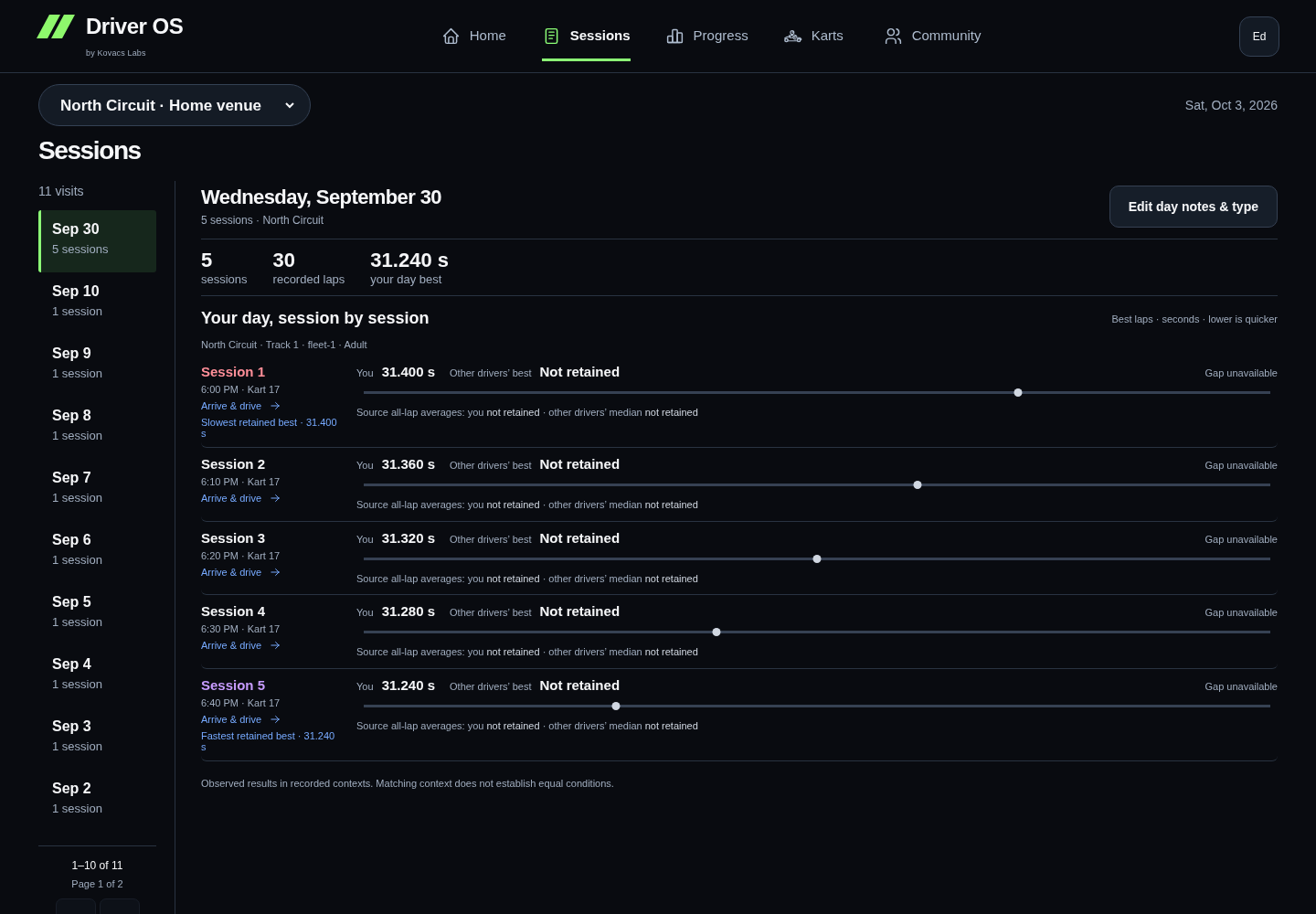 01 / 03START WITH THE DAY
Confirm the date, venue and race order before reading one lap in isolation.
Read the demo transcript
- START WITH THE DAY: Confirm the date, venue and race order before reading one lap in isolation.
- CHECK THE EVIDENCE: Read the official result, valid laps and representative pace together.
- ADD USEFUL CONTEXT: Keep the kart, conditions and factual notes with the session they describe.
Keep an organized Event together
Choose Events & session setup from Sessions to browse existing Events or create an optional container for related driving. This index also keeps Events without a currently loaded timing result accessible. Expand Event format & additional dates to choose Open/walk-in, League/championship, Group/private event, Endurance event or Practice/test when the type is known. Existing format values open automatically. Ordinary visits can stay exactly as they are, without an Event or a classification.
Add each individual session and choose its known purpose. Arrive & drive is a visit without an Event; Practice is practice within a race-day Event. The choices are separate. Qualifying and Race remain available, while an unknown purpose stays Unclassified. Endurance events also offer Endurance stint. Existing Heat, Final and stint records remain readable; editing other details preserves their original type. Indoor or outdoor describes the track, not a separate session type. Give it a useful name such as “Qualifying 1” or “Stint 2.” Attach the saved timing result when one exists; notes and source evidence can be added separately. Missing timing stays missing.
A linked Event appears as one visit in Home and Sessions. Open it for Day overview, then select Practice, Qualifying 1, Qualifying 2 or Race to see that session's timing and result. Repeated sessions are numbered in recorded order. This grouping does not combine statistics from different layouts, classes or vehicles, and does not establish how a result was ranked. Event details & setup keeps editing available. History is never classified automatically.
For a temporary team car, select temporary/team vehicle context. A label is enough to start. Make, model, year, car number and team can remain unknown until you know them. Each stint keeps its own timing, notes and source links.
Read the evidence in layers
For a post-racing overview, choose Review race day on Home or Review this visit within Sessions. Race Day Review follows pace and consistency through the visit, compares prior visits on the same recorded layout, shows anonymous field context and links useful moments back to their Session. Save its primary focus into Coach when you want to keep it for next time.
The summary compares today with your last and usual visit: green ↑ means faster or tighter, amber ↓ means slower or wider, and an equals sign means unchanged. The charts show race-by-race development; Race details & evidence keeps the numbers and Session links close by. Visit history and field trends use the same layout. Missing results leave gaps rather than becoming zero.
The review shows the included race count and last update time. New official results update the review. Different layouts stay separate, and conflicting identities or times require inspection in Sessions. Unmarked laps do not prove clear running; traffic and yellow flags need recorded context. Sensor evidence is optional and never changes official timing.
- Best lap is the quickest saved valid lap.
- Representative pace reduces the influence of excluded or unusual laps while keeping the raw laps visible.
- Lap time variation describes repeatability across the eligible lap set.
- Position and field context appear only when they were actually observed in the source.
Set a missing session purpose
Open a day, select the session, then choose Set session purpose. This opens the context editor with that timing result selected. Its date, venue, layout and a useful session name are filled from the linked timing when available; you can correct them before saving.
Choose Arrive & drive for an ordinary visit without an Event. You do not need an Event name. Choose Practice for a practice session within a selected race-day Event, or Qualifying or Race when those describe the session. A result can remain Unclassified until you know its purpose. Missing purpose is never filled merely because no Event exists. Save the explicit change, or return to the same review without saving. Purpose, optional Event membership and ranking basis remain separate facts; changing purpose does not certify a win or change timing.
Existing records with a saved Practice role and no Event appear as Arrive & drive; Practice with an Event remains Practice. This display distinction does not rewrite imported results.
Read saved analysis and notes in C
At the bottom of a session, expand Follow the evidence → Saved analysis & session notes. The evidence opens on the same C page. Existing notes, recorded tags and saved AI analysis retain their scope; a whole-day note or whole-source-session analysis is not relabeled as a fact about one lap.
Saved AI shows its current, stale or earlier-version status, measurements, limitations, sources, model and version information. Checking for an existing authorized saved answer does not generate a new one. Opening this section does not request AI or change an action. If no matching saved answer is available, the page says so and preserves the timing evidence.
Rating & result details shows the saved driver rating and change, gap to the field-best lap, timing timezone and verified grid/net positions when recorded. Country ratings stay separate; a field-best lap gap is not a finishing-time gap. Day overview totals recorded rating changes with coverage shown.
Day journal & comparison tools keeps existing day notes in their original track and session context. Edit notes, tags & kart opens the selected session's detailed editor; it also retains detailed result and timing tools. Reading saved analysis stays inside the review. Return to review restores your selected day/session and expanded evidence.
Add what timing missed
Save the machine or kart number, traffic or issue tags and a short factual note when they materially change how the run should be read. The note should preserve context, not guess at a cause.
Selecting or clearing Yellow, Traffic or another condition keeps the race’s Details open. You can make consecutive changes and save a note without reopening the section. These tags describe the race context; they do not change official lap timing.
What success looks like
You can return later and understand the result, the laps, the machine and the conditions without reconstructing the day from memory.
If something looks wrong
Do not edit several fields to make the summary look plausible. Check the source and import status first. A missing or unsupported value should remain unknown until you have reliable evidence.
See your Progress Understand the calculations Fix an import problem
Saved page layouts
In the wide review, expand Saved layout & optional Sessions widgets, then choose Customize Sessions to show, hide or reorder the existing race outcomes, representative pace and recorded-lap summaries. Expand a day inside that panel to inspect its optional widgets. These retain the existing saved widget choices and calculations; they are not table-column settings. The wide review’s by-day and individual-session history, selectors and evidence remain available. Save the layout to your account, or reset to default and save.
Use Events & session setup in Sessions to browse whole Events. Opening an Event from this list, a visit card or Progress leads to the same review. Main result labels show your position and field size; expand result details for the recorded ranking basis and source limitations.
Classify a whole driving day
In Sessions → By day, use Edit driving or Edit Event beside a day. The same controls appear inside the day review. The editor includes all loaded timed sessions at that venue on that date, even if the list is filtered. Unclassified sessions are selected first; use Select all or the individual checkboxes to change a different set.
Choose a purpose or Event, then Review changes. The before/after preview shows every selected session. Arrive & drive needs no Event and clears Event membership for the selected sessions. Practice requires an Event. Keeping each session’s purpose lets you attach an Event without flattening a practice/qualifying/race day into a single role.
Save only after reviewing the count and changes. Timing, result ranking, kart numbers, notes and recordings are preserved. If a save stops partway, completed sessions remain saved and the remaining selection stays available to review and retry. Changes made on another device require a fresh review.
Optional session setup
The session editor keeps purpose, official timing, kart number and venue/layout easy to reach. Arrive & drive shows No Event needed; Add/change Event stays available. Event-related purposes or a recorded Event reveal the Event picker.
Rental sessions summarize their vehicle context. Expand Change vehicle context to choose an owned Garage vehicle or temporary/team vehicle. Existing non-rental context opens automatically. More setup options on Events keeps temporary-vehicle creation available. These controls do not remove vehicles or non-K1 history.
Saved evidence references stay visible. Expand Add an evidence reference only when adding one; official timing works without sensor evidence.
Find a pattern without forcing one
Read pace, racing rhythm, competition and K1 score in the right comparison context.
Five ways to look at your history
Pace & consistency opens with every recorded session type at the selected venue. Average and fastest-lap lines show your history; variation shows how closely your retained laps group together. Use the compact All time · 1 year · YTD · 6 months links beneath Recorded pace & consistency. YTD starts on January 1 of the reporting year. Dense histories automatically group into monthly points. Open a visit to inspect its source sessions.
Use Matched contexts for narrower comparisons within a recorded venue, layout, class, fleet and session purpose. The main venue timeline describes observations across different formats and conditions; a quicker window does not establish why you were quicker. Choose a single venue to see lap seconds.
Racing rhythm shows how often you race. It opens on the current month, even when that month has no recorded visits. Use the previous/next arrows to move between months, including across years, or Current month to return to today. You can also choose a year and month. The calendar starts with a whole-month summary; choose a day to preview it beside the calendar, then open its visit if you want the detail. Quantity and pace are different signals. The legend explains the selected context's personal-best and slowest markers. A blue border and checkered flag call out recorded competition days. These use a saved league/endurance event or Heat, Race, Final or Endurance stint type; the marker does not imply a win or assign a missing session type.
Competition separates fastest-lap ranking from finishing order and reports field evidence only when it was supplied. A result in a stronger documented field can have a different meaning from a fastest-lap rank in an arrive-and-drive session. Missing field evidence stays unknown. DNF, DNS and DSQ stay visible when timing comparisons exist. A difference to the quickest best lap is a timing fact, not a finishing deficit.
Racing gives your explicitly linked GPs their own page. Open it from the Progress tabs, Home's compact GP entry, or Racing overview in Sessions. It starts with your latest GP's recorded stages, then shows pace, best laps and positions across your event history. Use the compact GP picker to find a date or event name; choose a layout or stage when needed. Your recorded venue, layout revision, class, stage and fleet remain separate. Dashed timing lines link recorded observations and do not establish a performance change. Three distinct comparable GP dates are needed for a comparable trend; two GPs remain a comparison only. Missing sessions remain gaps, and repeated sessions stay separate.
Qualifying and race timing compare different sessions. When a GP has several qualifiers, each remains a separate recorded observation in its history and timing comparisons; no official combined qualifying rank is created. A personal best across qualifying runs summarizes supplied lap timing without replacing individual runs or source placing. Previous-GP summary changes require timing for every qualifying run and complete matching context across both GPs. Previous-GP comparisons list each session separately when stage counts differ or multiple sessions are recorded. A qualifying rank never supplies the grid. Net places require a confirmed classified finish and retain the source or driver-recorded origin of the starting grid; they do not count overtakes. Finish order, fastest-lap rank, unknown ranking basis and DNF/DNS/DSQ remain distinct. Best lap, retained pace and source all-lap average retain their separate meanings; Racing never changes recorded lap exclusions or infers a finishing deficit from source Gap.
Compact previous-GP widgets appear above the stages; a change is shown only with complete matching context. The full-width field view uses validated anonymous summaries from one selected session, with your value, other-driver mean and difference aligned above a compact distribution. Field fastest is a separate reference; means exclude you. Unavailable field metrics stay hidden. If another session has field evidence, you can select it; the current session uses a short note rather than an empty plot. Means are never borrowed from a different session. Scores remain descriptive context, not an expected finish. Possible repeat opponents, where available, stay within one recorded visit; names are never joined across GPs. Source-session links return to the selected Racing GP. Existing permitted local video review stays in that source session; Racing adds no upload or player. Video analysis and synchronized replay are Coming soon. Demo GP histories are fictional; synthetic review examples never populate another account's real history.
Best recorded start and best classified finish use supported result evidence across all retained, explicitly linked GPs at the selected venue. They stay available independently of the selected GP or chart window; ordinal bests do not normalize different fields, layouts or classes. A current grid saved in Sessions also appears in its Racing stage and as a separate diamond in position history. Best grid · recorded by you keeps these observations separate from source-grid bests and confirmed finishes. Equal start and result positions keep distinct markers. Edits and clears follow the latest saved revision; stale observations stay out of the charts and bests.
The qualifying/race comparison keeps every recorded stage visible with separate best-lap and source-average scales. Position charts span the recorded field and color each supported position within that field, while preserving its original number and status. Missing evidence stays out of the main metrics; information buttons explain the available scope.
K1 score uses the shared All time, 1 year, YTD and 6 months links. YTD starts on January 1 of the reporting year and ends at the reporting date. Your recorded scores share one green line per year, with annual reset breaks. The dashed blue line is the mean of other drivers’ scores in that same recorded result, excluding yours. It appears only for complete, verified US K1RS fields with a matching owner score; missing, solo, partial and unknown-system fields remain gaps. Older source metadata stays available in each point without splitting your personal line into categories. Scores describe source results, not normalized skill. Recorded points are evenly spaced; long calendar gaps retain their actual dates and day counts. Range filters never change your records.
When a chart needs more
One real point can be a baseline. A trend needs more comparable evidence. A missing source value is different from having too few visits; the message tells you which applies.
Unknown layout or class can still allow a descriptive view of recorded values, but does not support a confident personal-best claim. Changing a filter never changes the underlying result.
What a slower day cannot tell you
Timing alone cannot establish whether traffic, driving changes or kart condition caused a slower visit. Add useful observations to the session, and keep the explanation separate from the measurement.
Open Progress ↗ · Review the source session · Choose your next action
Choose the chart window
The horizontal date links change the shared window for pace and variation. Visit or monthly aggregation is automatic. Sample counts and missing values stay visible. Open the adjacent information button for definitions and the historical baseline. Similar sessions keeps recorded contexts separate; missing context is not evidence of an unchanged layout or fleet.
Private active plans appear as blue outlined calendar markers, including dates with no recorded sessions. Select one to see its local date, time and venue, then View plan. Plans never add to recorded visits, session counts or performance marks.
Sessions and Competition share All visits / Race days, defaulting to All visits. Race days includes recorded league/endurance events, race roles, and practice or qualifying explicitly linked to those events. Other sessions on the same date remain separate. The filter is private browsing state for this account, Demo generation and venue; it does not edit session purpose.
Racing uses the same compact All time / 1 year / YTD / 6 months history links. These scope the charts; the GP picker keeps the full recorded history available, and your selected GP and source sessions stay available. Qualifying leads with best recorded lap, while races lead with recorded placing or terminal status. DNF, DNS and DSQ remain visible in GP history.
Previous interface referencePreserved guidance · 2026-09-28
Progress in the driving notebook
Use Pace & consistency, Racing rhythm, Competition and K1 score for different questions. Pace compares compatible recorded visits. Rhythm shows the first imported date and visit frequency, with month and day detail; a gap in imported records does not prove you did not race. Timing highlights apply to the selected comparable group and period.
Competition reviews one recorded field at a time. A finish and a fastest-lap rank remain distinct. Complete source-supplied scores describe the field; post-session scores do not predict where you should have finished. K1 score keeps supplied US K1RS/RPM snapshots within their annual period. Dated public references stay separate from your result.
Karts is a main destination. Repeated uses can show usage and compatible shared-date timing; single uses and unknown numbers remain accessible. These personal associations do not rank mechanical quality. Compare visits and session comparisons compare two compatible parts of your own history. If class, layout version or other comparison context is missing, you can still review the two recorded summaries side by side; pace deltas stay unavailable.
The detailed tools below remain available from More tools, with their existing filters, layouts and source inventories.
Pace, results and kart history
In the wide review, use Pace & results for comparable driving trends or Karts by venue for recorded kart numbers. Karts is also a main desktop destination and the first item in mobile More, backed by this same notebook. Home shows recent numbers for the currently selected venue and a route to full history. Temporary venue changes leave your optional home-track preference unchanged; All venues keeps separate venue groups. The summary uses all loaded dates and purposes at that venue, independently of chart filters and optional saved widgets.
Kart history separates the same number by venue, known fleet and racer class, and leads with recent uses among recurring numbers. Each number shows its last-used date and recorded use count. Unknown fleet/class stays separate. Single-use numbers and venues with no recurring number start collapsed. The coverage count keeps sessions with missing numbers visible. Two recorded uses make a number worth following; they do not establish a performance pattern.
Expand Pace, consistency & comparisons for personal timing and variation. For a kart with same-date comparisons, colored cells show the difference between your representative pace in that number and your other recorded numbers on the same date. Green is quicker and amber is slower, with the difference in seconds written in each cell. The latest six shared dates are shown; earlier dates remain in Comparison details & sources. If there is no same-date comparison, the small bars show recorded use counts instead of implying a pace trend.
Comparisons keep layout, racer class, session purpose, Event format and fleet separate inside each venue. Other contexts are expandable; their times are never pooled. At least three shared dates within one comparison context are needed to describe a repeated direction. Number reuse, conditions, session order and driver development remain uncontrolled. These observations do not prove a kart effect. All recorded uses shows linked sessions, available personal notes/tags, and per-session results against the recorded field. Supported field-best gaps and complete anonymous field-rating snapshots are shown with coverage; missing or conflicting evidence remains unavailable. Field sizes and opponents are not pooled into a kart score. Personal notes describe observations, not established mechanical causes. The paginated source table keeps the full evidence accessible.
Saved kart recordings shows uploaded Watch/phone session-context numbers. A unique recording within three minutes of resolved official timing is combined automatically in C when no competing race, recording or conflicting kart decision exists. Its source stays labelled Recording time match. Matches describe an association; they do not establish a kart effect or align sensor samples to laps.
Phone/Watch quick selections are also shown separately from timing-linked assignments where available. A saved capture, a cloud-delivered recording and a verified timing link are different states. These inventories do not add sessions or lap measurements to the charts. An unavailable cloud inventory does not mean a selection was never saved.
Additional evidence from C
Below the comparable trend charts, More progress evidence names the existing Competition & placements, Field ratings & time patterns, Achievements, and Overall pace & saved Progress analysis views. These detailed tools retain their layout and a Return to review action. Competition, field/time evidence and overall pace keep the selected venue, exact track/layout, vehicle/fleet, timeframe, purpose and Event context where those filters apply. Achievements are clearly labeled as career-wide. Opening a saved-analysis view does not request a new explanation.
What Progress helps you answer
Progress opens with your overall driver story. It helps you see whether pace, repeatability and outcomes are changing across your saved history without pretending that raw lap seconds from different tracks are comparable.
Before you compare
In the wide review, use the visible venue and purpose controls, then expand More filters when you need an exact track/layout, vehicle/fleet, timeframe or other recorded context. A league final, qualifying run and endurance stint answer different questions. Driver OS keeps their comparisons separate, including when they share a date and track. Ordinary history does not need an Event assignment.
Open Sessions first and make sure the result, track, class and useful context are correct. A comparison is more useful when the sessions describe the same kind of driving.
Pace and Competition
Pace covers same-layout lap times and repeatability. Expand a comparison group for its graph; other groups stay compact. Competition leads with recorded race history and shows what each position means. Metrics without eligible evidence are omitted from the main summary; Comparable results & coverage explains the gaps. A P1 ranked by fastest lap is kept separate from a finishing-position win. An unknown ranking basis stays unknown and does not remove the session's lap evidence.
Wins and podiums need a Race or Final, explicit finishing-position basis and final classification with the number of starters. Wins require at least two starters; podiums require at least three. Known DNF or disqualification outcomes remain in the eligible denominator; DNS does not. Fastest-lap P1 and top-three counts have their own denominators, with at least two and three ranked drivers respectively.
Open Comparable results & coverage to see separate layout, class, purpose, vehicle and ranking groups. Unknown classification is its own group, so a newly classified session may have fewer comparable earlier visits. Existing ambiguous result awards appear as Legacy result milestones. They remain part of the journal without certifying a win or podium.
An observed field rating describes a complete anonymous field snapshot. Ratings can be recorded after the session. Driver OS does not turn them into an expected finish or label a field strong based on unrelated tracks.
Read Progress in this order
- Confirm the selected history. Clear filters for all driving, or narrow to a venue, exact track/layout, vehicle/fleet and timeframe. The selection follows you into the named detailed Progress tools.
- Read the plain language overall summary before the chart.
- Check how many tracks have repeat visits and which newer tracks are still baselines.
- Compare representative pace and variation with the raw same-track session evidence still available.
- Treat confidence and unavailable states as part of the result.
Home previews activity and venue history, with the most visited venues first and a route to the rest. Each venue keeps its recorded comparison contexts accessible, including ordinary visits, Practice, Qualifying and Race where present. A single-date context is a compact baseline; repeated comparable dates can support a small trend chart. These previews are not an overall pace score. Progress retains the wider history and full comparison evidence.
This synthetic Progress view shows the order that keeps a summary tied to comparable evidence.
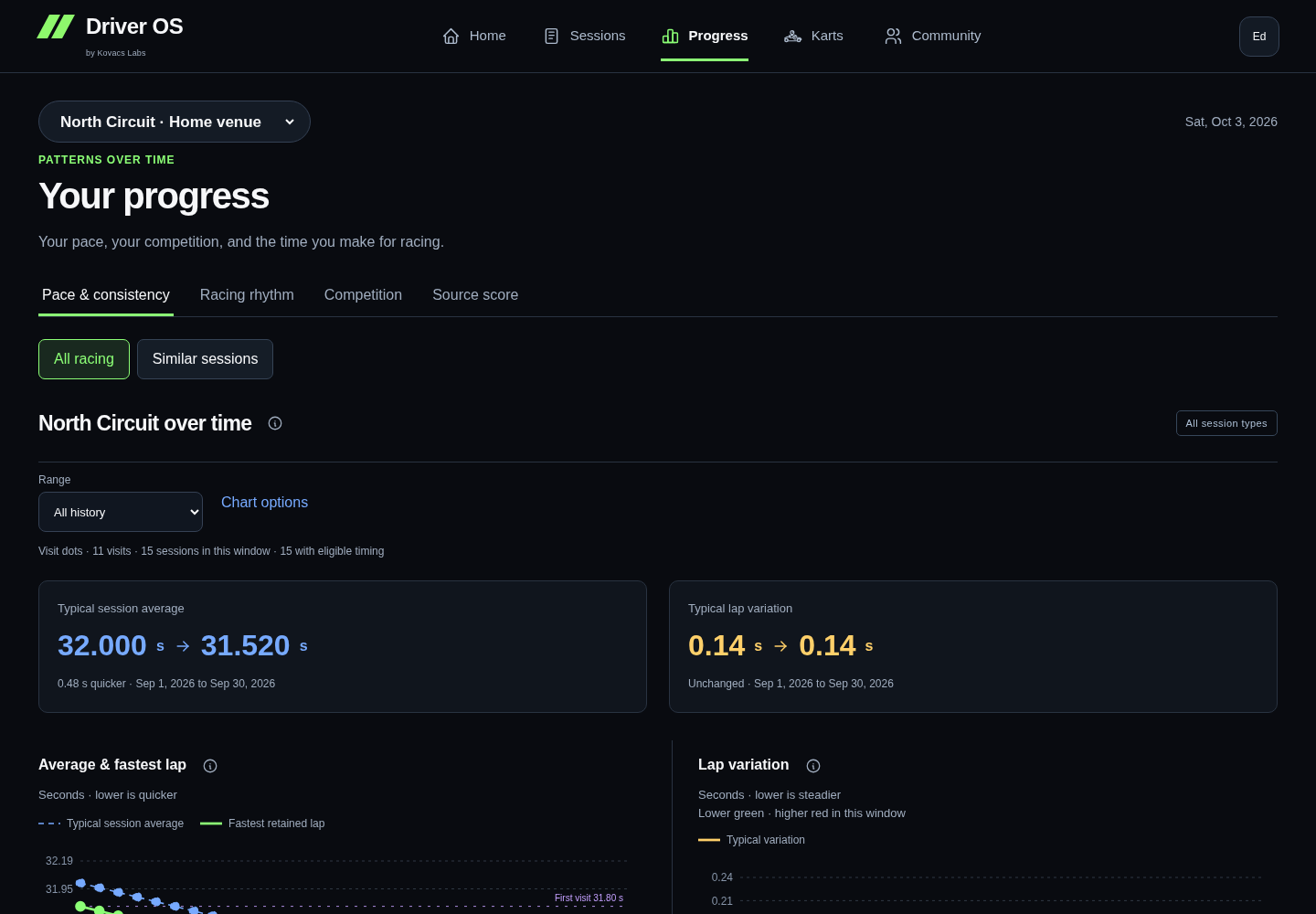 01 / 03CONFIRM THE SCOPE
Check the range and the sessions included in the comparison.
Read the demo transcript
- CONFIRM THE SCOPE: Check the range and the sessions included in the comparison.
- READ THE PATTERN: Use representative pace and variation together instead of chasing one lap.
- CHECK THE SUPPORT: Confidence and unavailable states tell you when another comparable session is needed.
What the common states mean
- Not enough comparable evidence means the honest next step is another similar session.
- Overall pace direction counts first-to-latest changes inside each repeated track. Each line uses a percentage from that track's own best representative pace and is never joined to another track.
- More repeatable means lap-time variation narrowed after it was normalized by representative lap time at that track. It does not automatically mean the fastest lap improved.
- Current peaks counts repeated tracks where the latest representative pace matched that track's best. It does not compare lap seconds between tracks.
- Experience built summarizes visits, races, tracks and retained laps without treating volume as improvement.
- Baseline means that track has one visit, or not enough representative evidence, so it is kept visible without claiming a trend.
- Milestone marks a durable event in the saved record, not a prediction.
When real lap seconds appear
Choose an exact track in Driving View to switch Progress to its real best-lap seconds and same-track variation. Vehicle or fleet views also use real seconds when all matching history belongs to one comparable track; if they span multiple tracks, they stay normalized.
The optional saved AI analysis remains a separate same-track interpretation. It does not explain or replace the deterministic overall chart.
What to do with a pattern
Choose one observation you can act on. If the evidence is thin, make the action about collecting a cleaner comparison. If the pattern is stable, carry one focused target into Coach.
Review the supporting session Choose the next action Understand the calculations
Saved page layouts
In the wide review, expand Saved layout & optional Progress widgets, then choose Customize Progress to show, hide or reorder the existing observations, pace trend and route to Coach. These optional widgets preserve your saved choices and their existing calculations. The wide review’s main review, comparison evidence and retained coaching focus remain available. Save the layout to your account, or reset to default and save. A layout choice never changes a calculation or enables raw-time comparisons across different tracks.
Placements and field context
Competition shows recorded positions with field size, separated by purpose, layout, class, vehicle and ranking basis. One race is your baseline. Open the qualifying or practice group to follow those results too. Browse Events opens the same Event review available under Sessions → Events & session setup in C.
A result such as P9 of 12 is its imported placement. How results are counted explains any missing ordering method. K1 driver ratings are separate from result positions; anonymous ratings can describe an observed field but do not establish finishing order. Unconfirmed positions do not become wins or podiums.
Field + Time opens the most recent comparison group. Use its visible Compare sessions selector to switch groups on that page. Results stay within each group; limited or missing evidence remains labeled.
Review recording-start kart numbers
Matched recordings contains automatic time matches and explicit confirmed links. Expand it to inspect the race and original recording. For a time match, Review or change match → Confirm kart link retains the chosen association in your account. Automatic matches are recalculated from loaded history; opening the page does not save or change your records.
When a match needs your help, use Choose the race to link, select the official result and choose Confirm kart link. The picker shows date, venue, time and any unavailable-choice reason. The result can already have purpose/Event context: confirming the kart preserves that context, its notes and the original recording. Existing conflicting kart decisions are protected. A failed save keeps the picker open with an error; success shows Confirmed recording link.
Recordings within 45 minutes of a reported timing result appear first for review. The check uses recorded clock offsets and venue timezones, including daylight-saving changes. Same-date evidence with an unknown clock is labelled separately and never auto-matched. Automatic matching requires a unique recording within three minutes and no other result within eight minutes.
No timing day found is collapsed automatically. It means no matching day was found in loaded history, which can be incomplete; the recording is retained. If you recognize a test, choose Dismiss as test. Dismissed recordings → Restore to review reverses this. Dismissals are saved for this account in this browser; they do not delete the recording or raw evidence, and do not sync to other devices. Confirmed saved links are not dismissible as tests here; review their kart decision in the session.
Recording details opens the original record. This is separate from confirming the kart against official timing. A Watch/phone selection not yet delivered to the cloud cannot appear in this review. Selecting a kart without starting telemetry follows the native Quick Kart path, separately from saved recording context.
Relevant history filters
Venue and the core driving purposes stay easy to reach. More filters offers Track / layout, Vehicle / fleet and Timeframe when relevant. Timeframe ends on the newest recorded date in the selected driving history: choose All history, Last 30 recorded days, Last 90 recorded days or Latest recorded year. Undated records remain in All history. Event membership appears directly when your loaded history contains Events or an Event filter is selected; otherwise it is under More filters. Unused Endurance filtering is also available there. Recorded or selected specialist purposes remain accessible, including when a selection has no matching results. All-history views still include every driving context.
The two Home history charts
On Home, Beyond the last session pairs representative pace with lap variation for the same comparison group. Pace uses a zoomed scale; lap variation bars start at zero, with lower values meaning tighter lap times. Both use existing session medians for each recorded date. Open Values & calculation for the numbers and limitations. Missing values stay unavailable, and a single date stays a compact baseline. Changes in conditions or karts are not controlled, so the charts alone do not establish why a result changed.
Choose one useful next action
Use Home, your private goal and Coach to make the next visit purposeful.
Use Home for the next useful step
Home brings together your recent driving, current focus and private plans. With no results yet, the useful next step is to connect or forward a result. With history, start from the evidence actually shown.
Keep one practical goal
Open the floating Coach, review the selected evidence and choose a goal you can use at the next visit. Save it deliberately. Marking a goal achieved is your assessment; it does not turn an unmeasured driving change into a verified result.
Completed and archived goals stay saved; choosing a fresh focus creates a separate goal. Saving a preference does not erase the evidence or history attached to your goal.
Switching venue does not rewrite a general saved goal. Notes and goals belong to your account; follow the save status before leaving the page.
Make a private plan
A visit plan is a reminder for you. It is not a booking, ticket purchase or message to a venue or another driver. Suggested practice, qualifying or race roles are editable planning choices, not a promise about an event's format.
Public event information is a dated reference. Check the official venue source before making travel or attendance plans.
Review after the visit
Open the new session, check its evidence and add the observation you want to remember. Use comparable visits to assess pace; use your notes to remember what you tried.
The floating Coach's calculated guidance does not require a model request. Separate AI tools have explicit request controls and availability limits. Understand Coach and AI.
Open Home ↗ · Review a session
Record a trial separately from a rating
A helpfulness rating rates the suggestion; it does not mean you tried it. Choose Try this to keep a trial, then I tried it to record an optional date, outcome and personal note. Wait for the saved confirmation. Failed saves retain your choice and use the account retry flow. Earlier trials remain available when new recorded visits refresh the suggestion. A trial never silently changes your goal or visit plan.
Your next planned visit appears once in the featured banner. View plan opens its existing editor; Add another plan creates a new private plan. Remove plan asks for confirmation. Other plans remain below, and removing a plan never changes recorded results or venue bookings.
Previous interface referencePreserved guidance · 2026-09-28
A private goal and next visit in the notebook
The floating Coach follows the selected venue, day or session. Its deterministic guide explains available timing and lets you keep a private goal. It cannot infer a driving cause from lap time alone. You can mark a goal achieved; Home says that you marked it and lets you acknowledge it. After acknowledgement, the completion reminder retires after two weeks while the goal stays in Coach.
Add plan keeps a private visit, optional time, note and session format. A dated official event may supply starting details, but saving never books or shares attendance. The next planned visit supplies Home's countdown. Goals and plans follow your account only after confirmed saves; the floating conversation is temporary.
The sections below describe established coaching priorities and planning in More tools. Existing saved actions remain available independently of the notebook goal.
Start with one grounded observation
Open Coach after reviewing Sessions and Progress. A Coach link from a selected day, session or comparison group carries that evidence into main Coach. Navigation does not save an action. Choose one observation supported by the saved evidence, then turn it into a target you can recognize during the next drive.
Home keeps its seven history totals alongside the recent-activity bars: timed sessions, other sessions, recorded dates, Events, laps, venues and tracks. The filters narrow this view; counts and activity describe recorded experience, not improvement.
Your saved coaching priority stays compact and visible. Latest driving day and Worth a closer look come before the broader venue history so the next review is easy to find. Venue history starts with the places you visit most, with other venues still accessible. Each venue preserves its separate comparison contexts; a single recorded date is a compact baseline rather than an oversized one-point chart. Repeated comparable dates can show a small trend with a link to Progress. Raw lap times from different contexts are never joined together.
Suggestions and your priorities
Coach offers a few suggestions from journal-based rules. They are not AI-generated and are not saved until you choose Add to my priorities. That saves the exact target shown. Your first priority appears on Home; choose Make Home priority on another saved action to change it. Not for me hides a suggestion, and Restore dismissed suggestions brings it back.
A suggested sub-27 target counts separate Nashville visit dates, not individual laps. After two dates, the rule may propose three. Once saved, that target stays at three; new evidence updates its progress without moving the goal. Choose Mark completed to retain the outcome in History, or Archive to stop showing an action as active. Session planner remains available for a target you choose yourself.
Create a useful action
- Name the next visit or session you are preparing for.
- Choose one focus that can be repeated or checked.
- Keep the target specific enough to review afterward.
- Save it so Home can keep the next step visible.
Good actions describe behavior you control, such as holding a clean five lap block within a chosen range. Weak actions only say “go faster” without defining what a better run looks like.
A synthetic Coach and Home loop showing how a grounded observation becomes a retained action.
- 01 / 03OBSERVATION
Start with a pattern supported by saved comparable evidence.
Read the demo transcript
- OBSERVATION: Start with a pattern supported by saved comparable evidence.
- ACTION: Turn the observation into one behavior you can repeat or check.
- FOLLOW THROUGH: Home keeps the action visible until the next drive gives you an outcome.
Completed pace targets
A repeated lap-time target can count practice, qualifying and race sessions on the same layout, class and vehicle context. Several sessions on one date count as one visit. Home celebrates a completed target with a graphic using the existing achievement count. Got it clears the celebration; otherwise it lasts seven days from the first display in this account and browser. The achievement remains available in Progress and a saved coaching priority is not completed, archived or replaced automatically. Another browser has its own acknowledgement state.
Keep reminders useful
Timing-review cues offer a direct route to a flagged session and Mark reviewed once you have inspected it. The session's Mark date review reviewed action clears the same reminder for that date and comparison. Undo or Show again restores it. Clearing a cue does not remove evidence or mean its cause has been explained. Your retained coaching action stays visible until you manage it in Coach.
After the drive
When Home shows a new Race Day Review, open it for the complete post-visit story. Its Save focus to Coach action keeps you at the focus and confirms the save in place. You can inspect the supporting Session or open the relevant Track before deciding.
Return to Coach and record the outcome. Complete the action when the evidence supports it, mark it missed when it did not happen, or keep a short note when the session could not test it fairly. The outcome stays connected to the supporting session.
Where AI fits
Driver OS calculations and saved actions do not require AI. Eligible drivers may request a clearly labeled explanation of prepared evidence, but AI cannot change measurements, import a result or silently rewrite a plan.
What success looks like
Home shows one current action rather than a pile of generic advice. After the next drive, Coach preserves what you tried and what the evidence showed.
Review Progress first Read the AI boundary
Make the page work for you
On Home, expand Saved layout & optional Home widgets, then choose Customize Home. The optional widgets keep their existing calculations and saved visibility/order from your saved layout; The wide review’s main history, next review and retained coaching priority stay available. Coach keeps Customize Coach on its Overview. Show or hide the approved optional sections and use Move up or Move down to order them. Select Save layout to keep your choices in your account across browsers and devices. After the save succeeds, the editor closes and returns you to the updated page. Cancel leaves the saved layout alone.
Reset to default restores the recommended arrangement in the editor; choose Save layout to keep the reset. Your current journal or current action and essential evidence context always remain available. Missing evidence is explained in the list, and at least one optional section stays shown.
Remember your kart. Review it later.
Save a number at the track, confirm its session and explore the history behind it.
Save a number at the track
- Open the blue Quick Kart button.
- Choose Arrive & drive, or the session type you are driving: Practice, Qualifying, Heat, Race, Final or Endurance stint. For an event today, explicitly choose your private event plan. It stays visibly active across captures and reloads. Use Leave event when the event ends; Arrive & drive stays separate. Each session type is your explicit choice; the app does not guess a race sequence.
- Enter the kart number and save it. Wait for confirmation that the capture was saved to your account.
A capture remembers the number, selected session type and device-local time zone. There is no venue selector; a safely matched or confirmed result supplies its venue. New prestart captures are checked when you open or refresh the signed-in app. Narrow, unique matches carry your recorded session type and explicit event choice. Ambiguous evidence and existing imported kart decisions remain for review. The app must be open to perform this check; browser-closed matching is unavailable. A private event plan is applied only when its date and venue agree with that result. The choice expires at the end of its venue-local day. A changed, cancelled or rescheduled plan requires a fresh selection before another capture; saved captures keep their original choices. A planned visit does not establish that the event happened. It does not claim that a result has arrived or that a session has been matched. If confirmation is unavailable, the capture may or may not have reached your account. Keep the original attempt until you have checked your saved captures.
The small Quick Kart view shows up to three recent captures from today or yesterday. Open Karts → Review kart numbers for the full review.
Recover a save
If the number was saved but the account view could not refresh, the confirmed capture remains visible. Use Reload saved data; this reads your account without saving another capture.
If delivery could not be confirmed, Quick Kart keeps the original number, session type, optional event choice and capture time on this device for your account. Reload saved data and choose Retry original capture. Closing and reopening the dialog or reloading the page does not change that time. No retry runs automatically. Review saved captures before discarding an attempt or starting another one. If browser storage is unavailable, nothing is sent until the original attempt can be kept safely.
Retry protection uses the retained capture history: unmatched captures have a 14-day review window and the standard view shows up to 60 entries. The separately controlled durable-storage pilot retains its archive; that pilot is not enabled for every account. Very old attempts may need manual session review instead of retrying. A sign-in or permission error keeps the number recoverable; reconnect your account before another attempt. A save that succeeded before sign-in refresh failed is still a saved change—reload it without repeating the save.
Confirm the exact session
Review the suggested choices using the venue-local time and the session evidence. Confirm only the session you actually drove. If a confirmation is interrupted, its original session stays reserved; reload saved data and confirm that same session to finish. Choosing a different session is blocked until the original decision has been reviewed. Nearby times or matching numbers are clues, not proof; the app does not silently attach an ambiguous capture or replace a number already assigned to another choice.
Unmatched captures remain reviewable for 14 days. Previously matched captures stay available in their expandable history. If the session number saves before its type or capture history finishes, the message names what remains. Reload and confirm the original session to finish; do not create another capture. Conflicting recorded types or events require review instead of being overwritten.
Read your kart history
The main Karts view groups recorded use in its relevant venue and comparison context. Open the sessions behind a pattern. A rental number may be reused or moved; it is not a permanent identity for one physical kart.
Don’t remember leaves the session number blank and removes its reminder. Review skipped numbers only displays those saved unknowns; it does not restore the reminders. If a number comes back to you, open its session and add it.
A quick lap in kart 12 does not prove kart 12 caused it. Traffic, conditions, driving and missing context can all limit the comparison. Keep observations such as “felt slow” in notes rather than treating them as measured performance.
Open Karts ↗ · Review saved numbers ↗ · Review a session
Practice in Demo
Quick Kart and missing-number edits save privately inside the fictional Nashville scenario. A capture uses the current time; it will not match an older fictional visit just because the kart number is similar. Use the session’s missing-number control when completing its fictional history. The new session-type capture selector is unavailable in Demo; number-only capture remains available.
Choose a kart-history layout
Karts offers Cards and List. Cards is the starting layout, and your choice saves to your account. Both show the same venue-scoped history. Filter repeated, all or single-use numbers and sort by uses, latest use or your fastest retained lap. Open a kart for its source sessions.
Usage counts include every bound session at the venue, independently of timing eligibility. Unknown numbers are separate; they cannot establish which kart was used. A personal fastest lap is an observed retained value, not a mechanical rating. Shared-date comparisons keep the existing recorded context rules and appear only when enough evidence exists.
The venue kart library starts on All and displays every observed number. Purple marks the fastest observed retained lap and red the slowest of the recorded kart bests within matching context; faster-than-median observations may be green. One use can supply an observation. These are your recorded results, not an intrinsic kart advantage.
Kart history highlights observed retained minima across practice, qualifying and race purposes within one recorded venue, layout, version and class context. Purple marks the fastest displayed minimum; matching displayed times are ties. The card background follows the same subtle color. Mixed or unresolved contexts keep their values but show no rank. All, Repeated and Used once filters never change the comparison pool. These observations do not establish an intrinsic kart advantage.
Earlier captures and existing events
Earlier captures keep their original purpose, time and recorded event choice, including a choice that was left blank. They are not retroactively treated as new prestart captures. Historical grouping needs a separate reviewed decision for the exact existing event; sharing a calendar day does not establish membership. A guarded existing-event choice preserves the original capture and result-ranking interpretation. Conflicting or incomplete evidence remains for review.
Previous interface referencePreserved guidance · 2026-09-28
Quick Kart in the new notebook
In /driver, the floating Quick Kart control is available on desktop and phone. Your home K1 is selected first; change the venue when racing elsewhere so the capture uses the right local time. Enter the number and save while safely stopped. The current time is recorded automatically. Wait for the confirmed account-save message. This action needs a connection; the notebook does not claim an offline or simulated save.
Quick Kart shows up to three captures from today and yesterday. Choose Review captures & missing numbers in Karts for the full review, or open Karts → Review kart numbers. Unmatched captures remain available for 14 days; retained matched captures have their own expandable history. After a result arrives, choose the exact owned session and confirm it explicitly. Already-assigned sessions cannot be overwritten here. A browsing venue or nearby date alone does not establish a match. A capture is separate from a journal assignment until confirmed; incompatible, expired or conflicting evidence cannot become a successful match. You can correct a known session's kart directly in Sessions.
The sections below describe the existing web and native Quick Kart workflows in More tools, including their separate local-delivery and automatic-matching behavior.
Save and find a number
Open Karts in the desktop menu or More → Karts on a phone. Home also shows recent numbers for the current venue with Full kart history, Save kart number and Review saved captures. These actions use the existing Quick Kart sheet; saving a number never starts telemetry. The selected browsing venue does not assign an unmatched capture to a venue.
The floating Quick kart button is shown on a handheld browser with touch as its primary pointer and a screen at most 1024 pixels wide. It stays hidden on an ordinary mouse-based desktop browser. Native Driver OS capture is unchanged.
At the venue
- Choose Save kart number on Home or Karts, or open the handheld Quick Kart shortcut.
- Enter only the kart number you can see.
- Save it before the run or when you are safely parked afterward.
- Read the save status, then close the sheet when you are done. Saved on this device, cloud delivery and session matching are separate states. Offline delivery waits for a connection; an ambiguous match needs your review after results arrive. If the browser cannot retain the capture, the sheet reports that instead of claiming it was saved.
Never use a phone while driving. Quick Kart is designed for the moment before or after the run, not during it.
When the result arrives
Driver OS compares the saved kart-selection time with the venue race time. Where venue timezone evidence is available, the comparison uses absolute timestamps, including seconds, across timezone and midnight changes. Clearly supported matches attach automatically. If timing or order leaves a choice, the capture stays available for your review.
Matching rules
- A complete set of selections and races from one known visit can match in order when their times support it. Equal counts alone are not enough.
- With missing selections, only a clearly closest, noncompeting race can match automatically. The matcher leaves the missing race empty instead of shifting later kart numbers.
- A proposed match never overwrites a kart number entered directly on a race or a kart assignment you explicitly cleared.
- Ambiguous or competing captures stay unmatched. A conflicting venue kart number also needs review.
- Unmatched or test captures are removed on the first sync after 14 days.
- A confirmed kart number becomes part of the race journal.
The selection timestamp describes when you pressed Save Kart. It is not a lap-crossing timestamp. A venue result that supplies only minutes cannot establish second-exact alignment, even when the kart capture contains seconds.
What success looks like
The matched race shows the kart number in Sessions, so later comparisons can keep the machine context visible.
If no match appears
Open Quick Kart → Review unmatched kart captures after the results arrive. Each saved selection shows its capture time and nearby races, including the venue timezone and time precision. Choose the race you recognize and press Confirm race. Nothing is preselected. Reconnect first if you are offline.
The race records this as Driver-confirmed Quick Kart, preserving the original selection timestamp. Assigned or explicitly cleared races cannot be overwritten here; correct them directly in Sessions. If you forgot to save a selection at all, set the kart directly on the known race in Sessions.
The latest-capture card lasts four hours; unmatched captures remain available for review for 14 days. Native phone/Watch selections use the same time-and-order matching rules through their separate private delivery path. Matching retries when verified K1 results arrive and when the companion syncs. If a native selection still needs review, set the kart on the known race in Sessions; this web review does not recreate a missing native ledger entry.
A kart recovered from a verified Watch recording is labeled Verified Watch capture context. Its capture-start timestamp is distinct from the original selection time, which may be unavailable. Editing or clearing that kart in Sessions replaces the old attribution.
A saved number is missing from kart patterns
Open Karts → Saved kart recordings (the existing Progress → Karts by venue link still works) to inspect numbers retained with phone/Watch recording context. A unique eligible time match is labelled Recording time match; opening the page does not save a link. For other nearby recordings, Link to official timing → Confirm kart link retains the result you recognize. Existing conflicting kart decisions and links stay protected. A date alone does not establish a match.
Review recording matches and limitations
The separate phone/Watch selection inventory, where available, shows retained quick selections and their matching status. A selection still on a device is not visible in the cloud inventory until delivery completes. Missing from a pace chart does not by itself mean a kart number was lost. Only an actual timing-linked assignment contributes to that venue's pace comparisons.
Review the matched session Open troubleshooting
Is this a good or bad kart?
Open a number’s All recorded uses to inspect your result against each session’s recorded field, including the gap to the field’s fastest lap when supported. A complete anonymous field-rating snapshot may add context; it is not an expected finish or a calibrated field-strength score. Pace, consistency & comparisons retains exact-context personal comparisons and shared-date evidence. Missing or conflicting field evidence remains unavailable.
These observations help you decide what to investigate on a future visit. They cannot separate the kart from your driving, traffic, opponents, conditions or maintenance. A rental number may be reused or reassigned; it does not guarantee the same physical kart over time. Driver OS does not rank best or worst rental karts.
A little friendly perspective
The optional adult friends pilot, with separate choices for participation, recorded statistics and personal milestones.
An adult pilot, with a private starting point
Community is an optional adult friends pilot. The steps below apply when Community is enabled for your account; otherwise the page shows Coming soon. The first pilot is for approved Real accounts aged 18 or older. Teen accounts keep their private driving features; creating an account does not grant permission to share activity.
Join and build your circle
- Open Community and review the separate participation choice. Joining is optional.
- Choose whether accepted friends may also see your driver name. Your username is the default; your email and home location are not a social profile.
- Create a temporary connection code and give it directly to someone you know, or enter a code they gave you. Driver OS does not send an invitation for you.
- Review and accept a request to become friends. Both drivers must agree before the connection is mutual.
A driver who uses your code, or receives your request, can see your username before acceptance. There is no searchable member directory in this pilot. Creating a code is not permission to share timing statistics.
A one-way founder welcome
When available, Your circle includes Zoltan · Driver OS founder as a welcome entry, separate from your friends. It does not join Community for you, create a mutual friendship, or share your profile, sessions or activity with the founder. Friend requests and sharing choices remain separate.
Only founder content explicitly published for Community belongs in this entry. There is currently no all-Community publication source, so the welcome honestly shows no published updates; private or friend-only results are never substituted.
Choose Remove to permanently dismiss the welcome for this account. The saved choice applies across devices and survives leaving and rejoining Community. A failed save asks you to reload and confirm the server state. Download Community data includes your own founder-welcome removal choice when the service is available, alongside the existing export.
The Privacy Notice includes the founder welcome supplement dated October 6, 2026. Removing the welcome saves an account preference and removal time, included in your Community export, that remain until your account is erased.
Encouragement without messages
Accepted friends can choose from the fixed kudos: Cheers, Well done and Keep going. There are no free-text posts, comments or direct messages. Kudos are encouragement from a friend, not verification of a result or an earned award.
Choose statistics separately
Joining the circle does not enable statistics sharing. Review its separate consent, choose the venues you want to share and choose the offered categories, such as pace, progress or personal milestones.
Sharing enabled confirms that your permission is saved. You do not need to tick the consent box again when reopening the page. Editing venues or metrics shows Unsaved changes and asks you to confirm the updated choices before saving. Until the save succeeds, your previous choices remain active.
An empty chart does not turn sharing off. Each chart explains the evidence it needs. Your recorded venue score and session milestone can appear even when lap-based charts need more sessions or months.
Only mutually accepted, eligible friends can see the summaries you allow. Private notes, raw lap and session records, exact visit times, email, home location, sensor recordings and media are not shared by these summaries. Your home-K1 preference does not prove attendance or automatically select history for sharing.
Your GP and venue observations
Community opens with same-day comparisons, then Recent kart pace and When laps clicked. Your circle contains accepted friends, comparison selection and connection codes. Privacy shows saved choices and the active sharing preview. Empty and incomplete states show the evidence needed, without invented results.
GP comparisons require a new, separate permission to share eligible session dates, track context, best laps and retained averages with accepted friends who also opt in. Existing statistics consent never enables this permission. Raw laps and exact session times remain private. These are same-day recorded comparisons, not official GP standings or adjusted ability.
Venue contributions are another separate choice. Only opted-in members' own results enter anonymous kart and time-of-day samples; imported opponents never enter Community. Each displayed group needs at least five drivers and ten sessions in matching context during the previous completed calendar month. The representative value is the median of each driver's median session retained average, giving drivers equal weight. Kart numbers belong to the recorded fleet and month, and conditions may differ.
Saving one permission preserves the others. Visiting these pages, installing an update or joining Community never enables the new permissions. Turning one off stops future reads from including its evidence. Existing recorded progress and statistics remain available below the main comparison.
Read comparisons in the right context
Choose a recorded venue to see its K1 score and session milestone, then a recorded track group for pace and monthly progress. K1 scores and the ten-session milestone do not require lap timing or a track revision.
Lap summaries keep different recorded tracks, revisions, classes, purposes, event formats and rental fleets separate. Some K1 results do not supply a track revision, class or event format. These can form an explicitly labeled unknown group; unknown values never match a known value. Matching recorded fields does not prove equal class, configuration, track conditions or kart performance. Being an adult Community member does not establish the class of a recorded session.
Gray or unavailable values can mean the category is private, the context does not match, or there is too little qualifying evidence. They are not zero scores and do not mean a friend is slower. Read the stated reason.
How qualifying statistics and personal milestones are calculated
The window is the current calendar month plus the previous 23 months. For lap-based charts and milestones, only retained competitive laps count. A session needs at least 5 such laps; a track group needs at least 3 qualifying sessions. Venue scores and session-count milestones have their own rules below.
- Recorded best: the lowest retained lap in that exact context and window. It is not a lifetime record or an official venue record.
- Representative pace: the median of the qualifying sessions' mean lap times. Variation is the median of their population standard deviations.
- Monthly progress: a month needs at least 3 qualifying sessions. A trend needs at least 2 qualifying months; monthly pace is the median of session means.
- Improvement milestone: the last qualifying month's pace is at least 0.5 seconds quicker than the first qualifying month's pace in the same context.
- Consistency milestone: at least 3 qualifying sessions, with every qualifying session's population standard deviation at or below 0.2 seconds. The displayed milestone value is the largest of those session deviations.
- Recorded K1 score: the latest recorded US K1RS score at the selected venue, compared only within the same system and score year. The recorded session date and time determine order, not when a result was edited. Ambiguous conflicting scores are unavailable. No lap minimum is required.
- Ten-session milestone: at least 10 recorded sessions at that venue in the window. This count does not require retained laps or track metadata.
These are personal milestones calculated from recorded history, which can change when its evidence changes. They are not official trophies, verified race wins or provider awards. No award date or precise visit schedule is shared.
Change your mind at any time
Turn off a category or remove a venue to stop sharing those summaries. Turning off statistics sharing does not require leaving your circle.
Remove ends a connection. Block also prevents new requests and kudos between you. Leave Community ends participation, connections and kudos; your private driving history stays with your account. Rejoining does not restore old friendships, and unblocking does not send a new request.
Use Download Community data in Privacy for your own Community choices and activity records. The download is created only when you request it and does not include friends' private histories or connection-code secrets.
Failed connection-request fingerprints are kept for 7 days; operation records and closed or expired connections have a 30-day retention window. Daily maintenance removes eligible records. Active connections, blocks and consent records remain as described in the Privacy Notice.
Revocation and data-export controls remain available when sharing is turned off. Leaving is not the same as deleting every account or Community record. Use Privacy & account for the separate account-data and deletion support route.
See current availability · Understand the numbers · Open Community ↗
Private Demo practice
In the focused Demo experience, eligible adults can try the same Community controls with two fictional friends and a pending fictional request. The page identifies the simulation. Comparisons use invented records; sharing-off and sparse-data states explain what is unavailable. Connections, fixed kudos and sharing choices stay inside your own Demo account. They never reach real members, send notifications or create genuine consent grants. Teens cannot bypass the adult Community boundary by using Demo. Demo Community export is unavailable.
The Community tab opens first. Your circle and Privacy remain available alongside it. This navigation change does not join Community or change any sharing permission.
Manage your account in one place
Your driver profile, result emails and privacy choices are in the account menu.
Open your account menu
Select your avatar or initials. Profile, Settings, Help and Sign out are together here. Profile and Settings open as full pages; Help opens in a separate tab.
Profile: your name and home K1
Edit your driver name and choose your home venue, then save. Your username is permanent and displayed for reference. Your home K1 helps the app start in a useful place; it does not reassign old sessions or stop you browsing other venues.
Changing these choices does not replay completed setup.
Settings: connections and privacy
- Connections: set up result forwarding and review received emails.
- Privacy & account: review verified account details, required acknowledgements and optional sensor choices.
- Help & support: find this guide or contact support when the available recovery steps do not solve the issue.
No Community sharing is enabled by choosing a home venue or opening Settings. The adult Community pilot requires its own participation and statistics choices. Community data can be downloaded from its Privacy & sharing tab; whole-account export and deletion keep the support route below.
Understand the two sensor choices
Sensor Data consent and private native cloud delivery are separate. Neither is required for your K1 email results.
Consent recorded for native cloud delivery describes your saved choice. Uploads still require an eligible account and device. This label is not proof that a device is collecting or uploading data.
Withdrawal requires an explicit confirmation. A cleanup marked pending or failed is not finished deletion; use the offered retry or support route. Native cloud withdrawal and the broader Sensor Data withdrawal have different scopes, described before you confirm. Device copies, Sensor Logger recordings and account deletion are separate concerns.
Saved changes and account access
Your supported profile changes, notes, plans, goals and kart records save to your authenticated account. Browsing filters and temporary Coach conversation are not the same as saved driving evidence.
If a save fails, keep the draft and read the recovery message. Explicit reload can discard unsaved edits. If one part saved and another did not, the message identifies the partial result; do not assume the whole change succeeded.
Sign out does not delete your account or driving history. Deactivated access is also not deletion. Eligible privacy cleanup remains reachable even when access to driving history is blocked. Use the privacy and support contact for account-data or deletion requests.
Open Profile ↗ · Open Settings ↗ · Open Privacy & account ↗
Demo reset and conversion
The focused Demo saves supported annotations, kart assignments, plans, goals and simulated choices privately. A fixture update does not erase current testers' edits. Only the owner can reset Demo data, restart onboarding or review a conversion to Real.
Conversion requires explicit target confirmation and verified removal of the registered synthetic footprint. Unexpected real resources stop the operation. Your verified account, permanent username and required legal/audit records stay; fictional history, Demo goals, home-venue choices and simulated sharing do not carry into Real use. Sign in again and complete Real setup before operational result forwarding becomes available.
Feedback during early access
Feedback is available only when the owner enables it for your account. It is independent of Community, and works for enabled Demo and Real testers. Use Feedback in the header or Feedback about this inside an open dialog. Choose Bug, Question, Improvement / idea or General feedback, then describe what you noticed. Bugs can include what you expected.
The report remembers the page or section where you started. Choose a section identifies a chart or registered area without activating the controls underneath. Review the included page reference, app version, device capture time, browser family, viewport and Demo/Real origin before sending. Routes do not include personal record IDs or query strings. Notes, account credentials, result files, recordings and diagnostic dumps are not collected automatically.
Images are optional and off by default. Choose your own image, crop it and cover private areas, then review it. Only those reviewed pixels are sent; the original file, filename and metadata are excluded. You can remove the image and send text only.
Cancel keeps the draft in this tab. Navigation does not change its captured context. Closing the tab or signing out discards the draft. If confirmation is lost, Retry same report recovers the same submission. If access is switched off, submission stops and you can copy or discard the draft.
Submitted feedback is private to the owner and is retained separately from fictional driving data. Demo reset and conversion preserve it. Reports are kept for 365 days and images for 30 days, with expired content removed by the daily retention job. Account erasure removes associated feedback. Contact support for a data request.
Owners can enable Feedback when inviting someone, manage it in Owner → Accounts, and review reports in Owner → Feedback. Complete means Resolved; Decline means Not planned; Reopen returns a report to New. These actions retain the report. Opening a report does not mark it read automatically. Private owner notes and read state have explicit controls.
Export loaded reports previews Markdown or JSON for manual download and upload to Codex. It states how many matching reports are loaded; use Load more if needed. Images and private notes are excluded by default; saved owner notes require a separate choice. Downloads are outside Driver OS retention. Nothing is sent to Codex or an email provider automatically.
Owner invitation cards
When card invitations are enabled, eligible owners can open Owner → Accounts, review the exact batch count and confirm generation. New codes appear once. Print two-up cards opens the browser print dialog with two half-page cards on each Letter sheet; the last sheet can have one blank half. Keep printed copies private. Hiding codes, leaving Owner or reloading removes the printable codes. A lost generation response must be checked as the same request before creating another batch.
Card rows identify the claimed account and whether registration is complete. Registration delivery status distinguishes an email accepted by the provider from its confirmed delivery. Refreshing this status makes no invitation or email request.
Reviewed receipt recovery
Eligible owners can open Owner → Email review → Prepare receipt recovery for an explicitly enabled receipt. This workflow is unavailable to ordinary accounts and Demo. Recovery stays off until the operator enables the reviewed receipt.
Preparing a plan needs your consent and a click. Review its source verification, proposed race and raw-lap counts, expiry and exact action before deciding. Preparation does not save recovered results. Confirmation is a separate step: type the displayed plan ID and digest, give fresh consent and press Confirm reviewed recovery. Source placing, scores and raw laps are preserved; no kart or session stage is inferred.
An expired or superseded initial plan cannot start recovery. The app distinguishes saved canonical results from pending anonymous field completion and pending analysis. If it offers a recheck, approve only that same plan explicitly; opening the page or waiting never retries or replays recovery. An uncertain outcome needs review before preparing a replacement. Reloading or leaving the page discards the in-memory review, so do not assume an unresolved operation never started.
Reviewed historical matching
Owners can open Owner → Email review → Historical private matching to preview a reviewed source bundle. The preview reports private observation counts and sources without a recorded visit. It does not save matches. Download review results for the separate operator approval step; the download excludes original emails and opponent names.
Apply approved matching requires exact server approval for each source. Processing stops at the first conflict; earlier confirmed results remain saved. These tentative observations do not establish a person's identity, merge different visits, create Community connections or change sharing preferences. Canonical sessions, laps, exclusions and settings remain unchanged.
Private race-video metadata
Race-video review is an owner pilot inside Sessions. Video files, thumbnails, local filenames and device paths stay on the device. Explicit Save stores only the private review metadata described in Review a session. It is not shared with Community or sent to Coach. Reselect local footage when reopening. Deleting the owning account or race removes its review metadata.
Previous interface referencePreserved guidance · 2026-09-28
Your Driver OS account
The /driver experience uses your authenticated account's results. Driver name, home K1, confirmed notes, private plans and goals follow the account after saving. Temporary browsing and the floating Coach conversation remain separate. Changing your home venue never moves or relabels sessions.
Open the avatar menu for Profile, Settings, Help and Sign out. Profile is a full-width page for driver name and home K1. Your permanent username is shown as text. Completed setup is not repeated; an old setup link returns to Profile. Help opens in a new tab.
Settings → Privacy & account shows your verified sign-in details, age range and recorded notices inside Driver OS. Optional sensor collection and native source backup remain separate consent choices. A recorded cloud-storage choice is not proof that a device can upload; the backend checks current eligibility for each upload. Withdrawal opens a confirmation explaining its scope; cleanup may remain pending, and a retry is available when appropriate. Deactivated drivers can reach their own privacy and cleanup status from account recovery without loading racing history. Whole-account export or deletion remains a support request, not a self-service delete button.
Save failures and conflicts stay visible. Reload saved data (discard unsaved edits) replaces unsaved changes with the saved account state. Refresh uses a neutral loading shell while verifying the account. No private cached results appear before that check, and a denied access check clears the private view.
Community · Coming soon enables no live directory, friends, statistics sharing or messaging. The site owner's separate Owner workspace uses server authorization; a displayed name or email never grants access. Opening Owner does not modify race or kart history.
Other supported account experiences
The sections below document the earlier web interface and the native companion where those features remain available. Their layout, setup and browser-preference controls are not part of the new /driver Settings page; use the native Profile and Settings directions above for that experience.
Use a verified email to sign in. Your profile, imported results, manual journal context, saved plans and supported saved analyses follow the authenticated account.
The native app and browser keep separate sign-in sessions. Opening the browser from the native app does not copy the phone's refresh credential. Sign out retains its existing account-wide behavior: other sessions can require sign-in when they reconnect. Do not use sign-out to troubleshoot an offline recording; preserve its local evidence first.
Demo Tester accounts
The persistent Demo data indicator means driving records, vehicle examples, source summaries and saved coaching are fictional. Your sign-in, username and profile remain genuine. Demo Testers have no functioning inbound results address, raw telemetry upload, analytical sync or paid/live AI. Connections and Discover show simulated states, and synthetic sensor summaries never become accepted evidence.
The owner can reset the demo scenario while preserving sign-in, or reset onboarding and the scenario so you can repeat setup. An onboarding reset clears the driver name and home location; it preserves the verified email, username and legal acknowledgements. A reset also invalidates older tabs' saved work so they cannot restore the previous scenario. Reconnect and refresh if a reset occurred while you were away.
Deactivation preserves authentication but blocks access to the private demo. There is no casual Demo-to-Real switch. Conversion requires removing and verifying deletion of every synthetic record before real capabilities can be enabled.
Sensor storage boundaries
- Sensor Logger files are cached in the importing browser and retained in private account storage until that recording is deleted.
- Older native raw iPhone and Watch files stay in protected local application storage, are excluded from device backup, and survive sign-out until their exact cloud receipt is verified and receipt-first cleanup removes that device copy.
- The native cloud flags are false in the checked-in build. Only the explicitly signed Owner Internal archive may override private cloud delivery; analytical accepted-slice sync remains off.
- When private cloud delivery is enabled with separate consent, a private cloud copy can be retained for analysis and research even if its evidence is rejected or ambiguous. Delivery receipt, race relationship and quality remain separate facts.
Expanded internal recordings remain in private local storage. New eligible recordings can use expanded private cloud delivery when it is separately enabled for both your account and native build. Older full recordings need explicit authorization tied to the exact source and current consent; enabling future delivery does not authorize all retained history. Full iPhone copies remain retained after verified cloud recording; cloud deletion does not delete that local copy. Watch-to-phone transfer requires the same authorized account and a verified phone receipt. Review, export and exact local deletion are available in Advanced → Recording information. Signing out does not delete retained local recordings. These recordings are not accepted analytical data.
Deletion and consent are distinct
Deleting a local native file removes that device copy. Deleting an uploaded native record is a separate cloud action. While cloud deletion is pending, Driver OS hides that source from analysis but does not claim that retained database or storage objects are gone; use the available retry control or contact support if cleanup cannot finish.
Deleting one cloud recording targets that exact displayed source; a paired badge or race candidate never expands the deletion scope. Withdrawing private cloud delivery consent stops new source uploads and deletes or hides all uploaded complete native sources and their cloud metadata, while accepted slices remain unchanged. Withdrawing the underlying Sensor Data consent stops all native sensor processing and deletes or hides accepted artifacts, projections and complete native-source uploads. Neither withdrawal deletes Sensor Logger recordings, and whole-account deletion also requires separate storage cleanup.
Age boundaries
Self-service accounts are for people 13 or older. Teen Sensor Logger use is limited to motion-only files after the required attestation; a file classified as location or heart-rate is rejected as a whole. Native capture and sync are not offered as a teen workflow in the current internal build.
Saved page layouts
Home, Sessions, Progress and Coach layouts are saved separately to your authenticated account after you choose Save layout. They survive sign-out, browser restarts and signing in on another device. These preferences contain only approved section names, their order and visibility, plus update and revision metadata. They contain no race evidence, competitor names, AI output or behavioral click history. Signing out clears the layout from app memory; deleting the account also removes its saved page preferences. Reset each page with Reset to default, then Save layout.
Saved Race Day Review coaching
Where enabled for the owner, Race Day Review saves the validated analysis, its cited source relationships, model and version details, and saved time to that account. A prior answer remains marked outdated when evidence changes. Deleting a contributing source or the account removes its dependent saved analysis; operational usage metadata follows the separate private usage retention policy. Provider response storage is requested off, but provider security and abuse controls can still apply.
Account access
The owner can deactivate app access for Demo and Real accounts. Your sign-in, profile and retained records are preserved; access removal is not account deletion. New protected requests are denied after deactivation. Reconnect or refresh to see the current access status. Content already viewed, cached or downloaded cannot be recalled. Real access can be restored by the owner without changing the account type or granting new AI or native permissions.
Setup choices and recovery
Profile → Your driving choices reopens driving interests; Optional setup contains sensor and AI interests. Continue saves setup progress to your account. Unfinished choices also survive leaving and returning in this browser. When revisiting setup, Close setup returns to Profile and keeps those choices here without changing your saved profile. Your home city is used for suggestions without requesting a street address. Demo data-only resets preserve completed choices; onboarding resets repeat setup while keeping the existing username and legal requirements.
Local experience and review preferences
History filters, the simple-navigation preference, achievement acknowledgement and reviewed timing cues stay with this account in the current browser. They are presentation preferences, not changes to results, achievements, Event context or saved coaching actions. They do not sync to another device. Clearing browser storage can restore the reminders; a signed-in device starts its own seven-day achievement celebration when it first displays that achievement.
The separate Save layout controls remain account-synced. Home, Sessions and Progress expose them in Saved layout & optional widgets panels using your existing optional widgets and saved choices. The wide review’s required history, evidence and retained focus stay available. A local reminder acknowledgement does not save a page layout.
Home track and starting view
The optional home track and starting view are saved for this account in this browser. They are separate from your home city, temporary venue browsing and account-synced page layouts. Remove browser preference restores the existing opening behavior without changing your current view or driving history. Choose Home track or All venues for new tabs; existing defaults stay unchanged until you choose. Reload retains the current tab’s browsing context where browser storage is available. Preferences do not transfer between Dev and Production or to another browser or device.
Finding Profile settings
Profile groups settings into Identity & driver profile, App preferences, Connections & result emails, and Privacy & account data. App preferences contains navigation, driving interests, the tour, and the optional home-track starting view. Home city and home track remain separate choices. Saving a browser preference does not change the history you are currently browsing.
Know what Coach and AI each do
Measured facts, calculated guidance and AI-generated explanations have different roles.
Start with the floating Coach
The green Coach button stays beside the current page. Its compact goal card keeps your current focus and observed progress visible. Ask a question directly below it. Open Goals, history & tools for goal suggestions, saved analysis, the recorded timing guide and completed goals. Goal changes and marking a goal achieved remain explicit actions. Where private Coach history is enabled, confirmed conversations are saved for your account in the current environment.
This calculated guidance is not a model-generated answer. It does not infer a driving line from lap times or establish why a kart or visit was slower.
Choose a measurable focus
When your history contains different comparison contexts, choose one in Coach. The timing guide still summarizes the recorded sessions while you choose. A pace proposal uses a stated retained-average baseline and asks for at least nine retained laps in one session on a later matching visit. Provider all-lap averages do not count toward this target.
Proposals are calculated from your journal and do not call a model. Review suggestion lets you review and edit the title and target before Accept as Home focus saves it; your previous goal remains in history. Completed goals stay completed. Review observed progress and explicitly mark the new goal achieved when appropriate.
Automatic Coach for eligible accounts can read your active goal and its observed progress, completed goals, upcoming plans, relevant private notes and recorded trial outcomes. Saved notes are observations, not verified causes. A plan is not a booking. Saved legacy Session planner forecasts remain a separate feature.
Open saved analysis when you need more
Open saved analysis & AI tools opens the full page for saved Session and Progress analysis. Choose the evidence you want to review. Saved session analysis does not yet support some Event-linked or classified session contexts. Coach chat uses its own eligibility check. This context limit is separate from account access; choose another supported session or use the timing guide. A context that cannot be verified stays blocked until it can be checked again. A saved answer can be read without generating another one; older evidence is labeled so you can see when the answer needs updating.
AI access is limited to eligible accounts. Use the visible Generate, Update or Ask Coach control to request an answer. Opening a page, changing venue or reading a saved answer does not start a paid model request. No general availability or pricing is promised by this guide.
Read the origin label
An AI-generated label identifies content actually produced by a model. Read its source references, date and limitations. Deterministic summaries and fictional Demo examples should be labeled for what they are, rather than presented as generated AI.
A model may explain prepared evidence. It does not replace measured lap times, change eligibility, fill missing data, certify a result, or silently save your goal. A session called Race or a recorded P1 still needs a known ranking basis before it can support a win claim.
Keep your own judgment
Check an explanation against its cited sessions. Treat causes without supporting evidence as unknown. Saving a suggested action is a separate choice, and you can keep using the timing views when AI is unavailable.
Complete raw email and sensor archives are not the prepared coaching evidence. Provider response storage is requested off, but provider security and abuse controls can still apply. See account and privacy for the separate storage and consent boundaries.
Choose a useful next action · Understand the numbers
Prepared Demo examples
The focused Demo labels its prepared coaching examples. They are illustrations grounded in fictional timing, not a claim that AI just generated an answer. Demo never calls a paid model. You can keep supported private goals and notes without enabling real AI access.
Ask a follow-up
For eligible accounts, ask in plain language and use Send or Enter. Coach automatically selects bounded relevant account history for day, progress, kart, field, goals, notes and next-race questions. Factual questions receive recorded facts without requiring a coaching suggestion. Advice questions separate suggestions from measurements. Two named dates or karts can be compared, with source-backed kart labels and admitted-evidence counts. Follow-ups use up to six confirmed messages plus separately checked recorded-source references; a new topic resets the scope. Anonymous field summaries compare like metrics and show coverage counts, with up to six sessions listed together; missing or omitted summaries are labeled. They do not supply competitor lap sequences or identify opponents. New replies scroll into view when you are at the bottom. If you are reading earlier messages, use New reply to jump to the answer. The four suggested questions send immediately when clicked. A question with an ambiguous kart venue asks for clarification. Shift+Enter adds a new line. Live chat can use your AI allowance only when you submit; opening the guide or typing does not request an answer. Coach separates general preparation advice from recorded evidence and limits. Up to six recent confirmed messages provide follow-up context. History selection examines at most 200 results and includes at most six visits and 100 drives. Explicit dates are filtered before this limit; otherwise the newest results are examined. Kart-only questions search the newest 200 account results; older uses can be omitted. Previous-visit kart questions show dated observations from up to six matching visits rather than guaranteeing a pair. Trial notes are labeled when drawn from the whole notebook. Omitted history is not proof of absence. If evidence cannot be verified, your question stays available to retry and no answer is invented. Access readiness is checked separately from question-specific evidence. Chat does not save a goal or action; acceptance remains a separate choice.
For preparation and best-lap questions, the main recorded evidence is the calculated minimum of the admitted selection, not an arbitrarily selected session. Its dates, source session and coverage stay visible. A six-visit minimum is not labeled as your lifetime best; explicit dates and selected sessions keep their own scope. Where private history is enabled, reopening Coach loads your confirmed conversation across devices in the same environment. DEVELOPMENT and PRODUCTION histories are separate. History offers older conversations, New chat, Export and confirmed Delete. Questions show accepted, answering, complete, failed or outcome-unknown status. Refresh status only checks saved status; Retry is an explicit action that can use allowance. Unknown does not mean unbilled. Revoked access clears the visible conversation. Old temporary chats are not automatically imported. If generation is disabled, saved history remains readable and exportable; sending is unavailable.
Broad best-lap questions use a complete recorded-history snapshot when supported, with venue and coverage shown. Unsupported average, date-window, kart, layout, class or other qualifying conditions ask for clarification instead of presenting an all-time minimum.
Previous interface referencePreserved guidance · 2026-09-28
Coach in Driver OS
The floating Coach is a deterministic guide to selected evidence. It explains supported pace, variation, kart-use and field observations and lets you edit a private goal. Its conversation stays in the current tab. It does not infer a racing line from lap times or turn a note into a verified cause.
Open saved analysis & AI tools opens a native full-width page. Choose a recorded session to read its saved analysis, or use Progress analysis. Current saved answers restore without a model request; older evidence and versions are labelled. Source links, insights, limits and AI provenance remain visible. Eligible Generate, Update and Ask Coach buttons use the existing protected service and allowances only when clicked.
Plan explanations and Coach recaps remain separate requests and require supported evidence. They are not presented as durable saved history. Other historical detailed-tool and Race Day workflows described below remain preserved at their existing routes, but are not links from the new interface. No backend record or saved analysis is removed.
Floating Coach
The floating Coach stays beside the page while you navigate. Its calculated quick questions and matching saved AI do not trigger a new model request. On a phone, the panel can minimize so navigation remains reachable.
For the authorized owner, choose a Chat session, Check AI access, type a timing, consistency or result question, then Send to Coach. Chat stays pinned to that recorded session even if the page changes. Every question is independent; no conversation is saved. Only Send can use the existing shared monthly allowance. Broader progress, kart-cause, technique and unrelated questions receive bounded guidance. Sources, limits and AI provenance remain visible.
In the wide review, Follow the evidence → Saved analysis & session notes reads an existing Session answer in place. It keeps the whole source-session scope, source references, generated time, model, versions and current/stale status visible. The availability check only reads authorized saved information; expanding the evidence does not call the model. Notes and tags remain driver observations, not new AI conclusions.
Controls for requesting or refreshing saved Session/Progress analysis remain in the named detailed tools. Opening these tools does not grant AI access or expand the account allowance.
Selected evidence in main Coach
Opening main Coach from a day, session or Progress comparison keeps that selected evidence visible. It does not save a plan, complete a priority or submit a paid question. The floating Coach has its own explicit Chat session selection, which stays pinned while you navigate.
Start with Driver OS evidence
Lap times, representative pace, lap time variation, comparisons, plans, eligibility, confidence and timestamps come from deterministic Driver OS code. Review those values and their sources before asking for an explanation.
When an AI action appears
Model backed access is limited to explicitly entitled accounts and is not a general early access capability. Session and Progress tools run only after their visible request action. Opening Home, Sessions or Race Day tools does not start a new analysis. Race Day coaching requires its explicit Generate or Update action.
Every complete model answer carries an AI-generated label, evidence references and limitations. If those elements are missing, do not treat the text as a Driver OS AI explanation.
Temporary questions
A temporary protected question may include a bounded amount of selected session context, including a note when that context is part of the chosen request. The answer is not saved as Driver OS product data, although operational usage metadata is retained.
Saved Session and Progress analysis
Saved analysis uses a narrower prepared fact packet and saves the validated answer, evidence references, audit fields, version fields and model usage metadata to the account for that exact evidence.
If the evidence changes, the earlier result remains visible as stale until you explicitly request an update. An unchanged current result should restore without another provider request.
All provider calls request application response storage to be disabled. Provider security and abuse controls may still apply under the provider terms. Driver OS does not promise that the provider retains nothing.
Owner Race Day Review coaching
Where enabled for the exact owner account, Race Day Review shows AI coaching analysis inline. In the wide review, opening these tools reads an existing saved answer without a new model request. Choose Generate coaching analysis for a missing answer or Update coaching analysis for changed evidence. The official results must have settled for 30 minutes after their latest import or update, or the venue-local day must have ended. Opening early still shows the complete timing review immediately.
All six coaching sections expand into the page. Read the analysis, evidence links and source details using normal page scrolling.
The analysis is saved for the evidence it reviewed and restored on return without another model call. New results preserve the earlier analysis as outdated. Driver OS offers an explicit update after the next quiet period. A failed attempt does not retry automatically; Retry coaching analysis lets the owner try again within the same limits.
Each analysis must fit a maximum $0.02 reservation and accepted cost, a $1.00 monthly Race Day Review allowance and the existing account limits. If access, budget or provider availability prevents analysis, the deterministic review stays complete. Model, saved time, cited evidence and limitations remain visible. Saving the suggested focus is a separate action controlled by the driver.
What AI never replaces
AI does not receive complete raw email, complete sensor archives, GPS routes, heart rate or raw sensor channels. It cannot import or repair results, certify records, invent measurements, validate a weak sensor signal or silently change a plan.
Ranking facts stay fixed
Coaching uses the same deterministic ranking facts as Sessions and Progress. Session purpose, optional Event membership and ranking basis are separate. A numeric P1 or a session named “Race” cannot establish a win. Unknown basis remains explicit, and the model selects prepared claims rather than rewriting measurements.
Qualifying position does not establish the starting grid. Net positions gained needs the recorded start and classified finish in that race; it does not count overtakes or explain what caused the outcome. Changed ranking context makes older evidence snapshots stale. Owner-confirmed context currently uses deterministic review; it does not enable another paid coaching path.
Use the explanation well
Check every statement against the cited Session or Progress evidence. Keep one useful interpretation, then turn it into your own practical action in Coach.
Choose the next action Understand the numbers Review account and privacy boundaries
Saved Demo coaching examples
Demo Testers see precomputed, deterministic examples derived from fictional scenario records. The examples show their source references and limitations and are labeled synthetic. They do not call a model, incur AI usage or make claims about the tester's real driving. Event context preserves qualifying, race and stint distinctions; unsupported live Event AI remains unavailable.
Setup choices and recovery
The AI question during onboarding records interest only. You can change it in Profile → Your driving choices. Selecting it grants no AI access, accepts no consent, starts no analysis and creates no charge. Existing account approval, availability and usage limits still apply; pricing has not been decided.
Demo Testers with the race-day refresh can choose a suggested priority, put it first on Home, dismiss suggestions and mark priorities complete. These choices use fictional session evidence and do not call AI. Existing plans and saved work stay in place. Older Demo versions show the saved examples and Session planner while priority controls remain unavailable.
Venue context and selected evidence
The venue you are browsing limits relevant timing summaries. General saved goals remain available and are not rewritten when you switch venues. Direct Session and Event entries keep their selected evidence; a missing or unavailable session does not substitute unrelated Home history. Saved explanations must match their evidence and scope before reuse. Opening a venue, page or saved explanation never starts a paid request.
Understand pace, variation and confidence
Know what came from a result, what Driver OS calculated and what is still unknown.
Recorded, calculated and explained
Recorded evidence comes from the supplied result: laps, timestamps, ranking information and score snapshots where available. Missing values stay missing.
Calculated measures use that evidence under stated rules: pace summaries, variation and comparisons. They do not establish a cause for a faster or slower lap.
AI explanations are separately labeled model output, with sources and limitations. A fluent explanation cannot make weak evidence stronger.
Pace and variation
Best lap is one recorded lap. Representative pace summarizes the eligible retained laps; variation describes their spread. Read the measure's label and the laps behind it instead of treating these as interchangeable.
Retained and excluded laps remain distinguishable. A single comparable visit gives you a baseline. More visits can reveal a pattern, while missing layout, class, fleet or purpose can still limit the comparison.
Position and K1 score
Fastest-lap rank is not finishing position. Finishing position alone does not show overtakes; positions gained needs a known start and classified finish. Unknown ranking basis remains unknown.
US K1RS score snapshots are separate from pace. Annual resets mean cross-year values should not be joined into one continuous improvement line. Driver OS does not invent field strength when source ratings are missing.
Dates, venues and chart context
Use the venue-local date and time for session and kart review. Missing source time is not midnight. Earlier years are shown explicitly when needed so different seasons are not confused.
Home’s observed history includes all session types at one selected venue. The average line is a median of session retained-lap means; the fastest line preserves the minimum from all valid retained observations, including shorter sessions. Average and variation require at least five retained laps per session. The fastest-recorded headline uses the minimum retained lap across full venue history, including shorter recorded sessions, and stays independent of chart range. Purple dashed baselines mark the first displayed eligible period only; no later period substitutes for a missing first period. Variation colors describe the displayed range, not performance targets. Monthly points give visits equal weight and preserve the fastest valid retained lap. These observations are not like-for-like improvement claims. Progress and kart comparisons still use their selected matching contexts. Ten-row pagination limits the visible list, not the analytical evidence. Public venue times and events are dated reference snapshots, not live feeds.
Sensor estimates are a different kind of evidence
Phone and Watch signals are not official timing or calibrated vehicle telemetry. Delivery, storage, matching and analytical usefulness are separate. A saved source or moving lap illustration does not prove a measured driving line.
Review a session · See your progress · Read the advanced sensor guide
Previous interface referencePreserved guidance · 2026-09-28
Notebook evidence and public references
All recorded laps remain visible alongside the retained subset used for pace and variation. Statistical exclusions describe a calculation decision, not an observed cause. Personal comparisons require matching owner, venue, layout version, class, fleet and purpose; visit summaries do not pool unrelated laps.
Field averages require the supplied comparable metric across the complete field. They average driver summaries, not every driver's pooled laps. US K1RS/RPM snapshots stay within their scoring year; missing scores and expected finishing positions are not reconstructed.
Public K1 tables show their checked date, exact scope and observed period. A rolling “Best of Month” table need not be a calendar month; an undated track record is labelled separately. These references cannot grant an official leaderboard position to your result. Lap-duration animation is illustrative uniform motion, not measured location or speed.
The broader calculations and optional research tools below remain available through More tools.
Official result
An imported result keeps official laps and available standings context. It remains separate from any public benchmark.
Published benchmark
A static track record and rolling leaderboard are different references. Each needs an exact track configuration, class, source link and retrieval time before comparison.
Driver OS calculation
Representative pace, lap-time variation, confidence and comparisons are deterministic calculations from saved results. Raw laps remain visible when an excluded lap is omitted from representative pace.
In All driving, Driver OS first calculates a representative pace for each race day, then expresses it as a percentage from the best representative pace recorded at that same track and in the same racer class. A smaller percentage is closer to that track's best. Separate track lines share the percentage scale but are never connected.
Overall repeatability expresses representative lap-time variation as a percentage of representative pace at each track. Choose one track in Driving View when you want the original seconds. A track with only one usable visit is labeled as a baseline instead of being called improvement.
Experimental sensor estimate
Route, lap, braking and motion labels describe available device evidence. They are not official timing, calibrated vehicle telemetry or a proven cause of performance.
Race Day Review
Each review keeps one exact venue, recorded layout, class and layout version together, using venue-local dates and official timing. Long gaps or unresolved timing can split a visit or require review. Different layouts never share a lap-time calculation.
The day’s representative pace is the middle value of its available per-race competitive averages. Typical lap variation is the middle of the retained per-race variation values. The longer personal baseline uses the middle of prior comparable visit values, so one unusually long visit does not outweigh every other visit. Lower seconds mean faster pace and tighter variation.
A lap is called clean or affected only when individual-lap evidence says so. Excluding a slow lap from representative pace does not prove traffic, a yellow flag or a driver error. Full-lap spread includes all retained official laps and appears under its own disclosure. Cloud-saved conditions are contextual; device-local tags and notes are not part of this review or its AI packet.
Earlier journal results with unresolved official provenance can preserve a faster personal best, but cannot establish a new official best or fill a missing comparable visit. The review explains when this limits the history comparison.
The usual best lap is the middle of the best laps from earlier comparable visits; it is separate from your all-time personal best. Podium and win trends show the share of known finishes in each visit. Field-strength trends average the observed field ratings, giving each rated race equal weight. Fastest-lap trends appear when verified comparisons exist, include ties and leave missing comparisons as gaps. A P1 finish does not by itself prove the fastest lap; that label and a zero lap-time gap require an explicit field-best time.
Highlighted slowdowns show both the actual lap time and how much longer it was than a usual lap. Recovery shows the following lap and the reduction in time. These changes do not establish what caused them. The evidence notes are intended for every driver, including those new to racing.
Find the smallest useful recovery step
Start with the status you see. Keep your results and unsaved work safe.
I cannot enter the app
Check the message: email verification, access approval and required account acknowledgements are different steps. Use the offered sign-in or recovery route. Repeating setup does not grant approval. If access was deactivated, contact support; signing in again does not restore it.
My result has not appeared
Open Settings → Connections → Recent activity. Check whether the email was received, imported, duplicated or needs review. Only an imported result should appear in Sessions.
Confirm that you forwarded one supported original email inline from your trusted inbox. Automatic rules cover future matching messages; older history needs individual forwards. Do not keep resending an error without reading its explanation.
A session or chart looks incomplete
Check the selected venue, date, filters and list page. Open the source session. Missing lap times, clock time or ranking context may be absent from the original result, rather than hidden by the chart.
A baseline or insufficient-data message is normal when there is only one suitable point. When context is missing, keep the raw evidence; do not change labels merely to force a comparison.
My kart number is still waiting
Open Karts → Review kart numbers. Check venue-local timing and the session evidence before confirming a match. If the result is absent, resolve the result import first. Do not attach a capture to a nearby session just to clear the waiting state.
A save failed or another tab changed the account
Keep your unsaved draft. Read whether any part saved, and use the offered retry or reload. A reload can discard unsaved work; choose it deliberately. If the app requests a fresh account view, do that before making another change.
If you switched accounts, wait for the new account to load. Never use an older account's displayed content as confirmation of the new account's state.
Privacy cleanup is pending
Pending or failed cleanup does not mean deletion completed. Use the exact retry action in Settings → Privacy & account, or contact support. Do not infer that a cloud action removed a local phone copy.
AI is unavailable
Saved evidence and calculated guidance still work. Read the stated access or availability limit. A failed AI request does not silently retry, and reopening a saved answer should not generate another one.
Open Settings ↗ · Contact support
Demo changed or needs an owner refresh
An older Demo pack stays intact until the owner reviews a reset. A new fixture release does not silently replace your notes or choices. After a reset, access change or conversion, reload the current account before continuing; drafts from the previous Demo generation are discarded. Conversion requires a fresh sign-in and Real setup, with an empty driving journal. It does not carry fictional results or sharing permissions into Real use.
Quick Kart and partial session corrections
Keep an unconfirmed Quick Kart attempt and retry its original number, time and choices after reloading saved data. A second successful new capture records a new time. An ambiguous result remains in Karts for exact-session review; opening or refreshing the signed-in app checks eligible new captures. Checks do not run with the browser closed.
If Session context is confirmed saved but ranking was not saved, your purpose/event change remains saved. Ranking input stays available for review or a ranking-only retry. Missing ranking capability or changed evidence stays explicit; repeating the whole context save is unnecessary. Earlier event grouping is a separately reviewed operation, not an automatic same-day repair.
Previous interface referencePreserved guidance · 2026-09-28
Reconnecting Driver OS
Refreshing /driver shows a neutral loading shell while the account and saved results are checked. It does not replay onboarding or show another account's cached data. If the check fails, Try again reconnects; Account & privacy remains available for your own consent and cleanup status when driving access is paused.
Save errors stay visible. Reload saved data (discard unsaved edits) replaces the current draft with saved account data, so copy unsaved notes you need first. A partially saved username is permanent; follow the recovery message instead of choosing another.
Use Settings → Result email connections for email setup, activity and received history; Settings → Privacy & account for account choices. Help opens a new tab. An empty history is normal for a new Real account; missing lap, field or score evidence is not filled with invented values.
The sign in email did not arrive
Confirm the address, wait a moment, check spam and request one fresh email. Use only the newest secure link or one time code. Older messages stop being valid after a new request.
The secure link expired or opened on the wrong device
Return to the sign in page and request a new email. If you are signing in from an installed Home Screen app, enter the newest one time code shown in the email.
The native email link or web handoff did not complete
Use the newest email on the iPhone that requested it, then choose Open Driver OS if offered. The email code is still a fallback. Do not reinstall, sign out or delete recordings to fix a connection problem. Wait until any recording or recovery has finished before trying to change accounts.
For a native-to-browser link, reopen it from the native app if it expired. Check the account shown before continuing. If the service is unavailable, use the ordinary web link and sign in there as usual; the phone keeps its session and recordings.
I verified my email but still see approval status
Driver OS is invite-only. A verified account without an active owner invitation cannot open private data. Use the public interest signup if you have not been invited. If the owner already invited this exact email, refresh or sign in again; one Demo Tester or Real Tester invitation is sufficient. Repeating signup does not add approval.
Home says my profile is incomplete
Open Profile and complete the required driver name and home location. K1 forwarding and Sensor Lab are optional and should not block the core journal.
A forwarded result is not visible
Open Connections → K1 Email, check the delivery/save status, then check the date and venue filters in Sessions. Use Report a problem if the result is still missing. A processing delay is a reason to investigate before forwarding again; earlier history is not automatically reprocessed.
A manual import failed
For an interrupted new upload, select the same file again. Driver OS does not retain the raw upload, and a completed matching result is reused. If the import says Needs review, use the private problem report; repeating an unsupported file does not repair its format.
Progress is empty
Open Sessions and confirm you have comparable saved evidence for the selected range and scope. One isolated or unrelated result may be correctly insufficient for a trend.
Quick Kart did not match
Confirm that the result has arrived and that the capture time is close to the intended race. If several races are equally plausible, enter the known kart number directly on the correct race.
In the wide review, also check Progress → Karts by venue → Unlinked recordings. A recording-start kart number can be retained in a standalone session context without a known venue or official-result link. This account-wide inventory remains visible under venue filters. Open its editor and inspect the saved context before linking a result. The app cannot safely assign a venue or race using only a date or a familiar kart number.
Retained phone/Watch quick selections appear in a separate inventory where available. A cloud inventory failure is not proof of missing device data. Do not delete or recreate recordings to make a pace chart look complete.
A Sensor Lab chart is empty
Read the chart’s empty state. It distinguishes a missing channel, unavailable retained source, failed quality check and a lap whose timestamps do not overlap the signal.
I cannot find a phone or Watch race
For expanded recordings, open Advanced → Recording information in the iPhone app. Complete local copies stay retained. Eligible new recordings and explicitly authorized older full recordings appear in web Sensor Lab only if separately eligible for expanded private cloud delivery and fully verified. Uploading and Verifying cloud recording are not completion. For an interrupted upload, return to the iPhone app when connected and use Retry if offered; the full local source remains retained. If the Watch has not transferred its source yet, keep both apps on the same authorized account and reconnect normally. Do not sign out, reinstall or delete evidence to force recovery.
For older cloud-backed recordings in Sensor Lab, use Driver OS iPhone, Driver OS Watch or Paired sources, then check the page range and use Next for older recordings. A source with a supported official-time association has Open race or Open race windows. The Race-linked session selector includes native sources even when their quality is rejected or unproven. Standalone bench tests, missing official timing and competing race intervals do not receive a race association.
Native quality reviews are temporary in this release. Reloading clears the review result, not the cloud recording or official race; select Review quality to calculate it again.
A native upload or deletion is still pending
Keep the signed-in companion open with a usable connection. An interrupted or unverified upload remains on that device for retry. Receipt verified means the exact private cloud record and object are durable; it does not mean the source passed quality review, matched a race or became analytical evidence.
If Sensor Lab says source deletion is still finishing, the private cloud source stays hidden from analysis while cleanup is pending, but deletion is not yet complete. Use Retry source deletion when it is offered. If the state persists, use the support, privacy and legal contact route.
The route is beside the visible lane
The route is an unsnapped GPS trace. Normal device accuracy and indoor reception can move the line by several feet or meters.
The journal looks stale
Open Profile, then Data and Sync, and refresh. If offline, the last account bound saved journal remains readable until the connection returns.
A Help link opened the wrong topic
Use the topic navigation or a stable article URL. Legacy #topic links and the complete guide’s ?all=1 route remain available for compatibility.
Saved page layouts
On Home, Sessions or Progress, first expand that page’s Saved layout & optional widgets panel to find Customize. If a layout says it could not be loaded, open Customize and choose Load saved layout before editing. If another device changed that page, load its current layout and make your choices again. A failed save never claims success; the page keeps its last confirmed layout. A freshly signed-in device loads the account layout, and opening Customize refreshes it. Cancel discards an unsaved draft.
An edit loses its place
Tags, notes and local display controls should keep their surrounding section open and remain in view. Background updates preserve unfinished fields for the current account and screen. Opening another race or navigating to another page starts that screen’s normal state. A validation error may move focus to the field that needs attention.
If a control still jumps away, use Support to name the page and action. Do not include private notes, recordings or sign-in details.
Account access is deactivated
The owner has removed this account’s app access. Your sign-in and saved records are preserved. Contact the owner if you need access. Signing in again does not bypass deactivation.
Setup choices and recovery
If setup cannot save, check your connection and retry. Back, refresh and signing in again preserve this account’s saved steps. No fictional history should appear in a Real account. If a Demo scenario cannot finish preparing, use the existing Refresh access control; do not request another invitation or reset the account yourself.
K1 import status checks
Use the paginated K1 email activity table to scan received times and statuses, then expand a row’s Details before choosing its result link or Report a problem. The owner’s authorized import and private-report queues are separate paginated tables; parser, adapter, generation, reason and alert details remain available per import. On smaller screens, scroll within the table to see all columns.
Connections → K1 Email separates delivery, complete saving and display for new imports. Earlier imports retain their history and are labelled accordingly. A format, venue or local-time warning requires reviewed evidence, not a guessed value.
If a result is saved but has no display confirmation, open its Sessions lap view and check the date, venue and current filters. Display confirmation only records that the expected lap component rendered. If the result is still missing, use Report a problem and consent to sharing its diagnostic metadata. The owner receives only the report and linked import information. Background checks create in-app health alerts; real email notifications and original-email reporting uploads remain disabled.
A session says Unclassified, or its day colors differ
Select the session in C and choose Set session purpose to enter known context. Unclassified means the purpose was not recorded; it does not mean lap timing is missing. Do not choose Race just because the timing provider calls every run a race.
Select Arrive & drive for an ordinary visit with no Event. Select Practice for practice within a chosen race-day Event. These are separate choices. When a timing result is selected, known name/date/location details are prefilled; you can save only the context you know and return to C. An older saved Practice role without an Event displays as Arrive & drive; an absent role remains Unclassified.
Purple and amber can describe observed best laps within a visit even when matching purpose/class is unrecorded. Read the scope note. Green needs eligible recorded result context and does not appear just because a session has the quickest lap.
Open detailed tools provides additional editing and comparison tools. Return to review restores your selection. The earlier experience switcher is retired; remembered A and B choices open the wide review without resetting saved filters or widgets.
A reminder disappeared, or reappeared on another device
Got it hides an achievement celebration, while Mark reviewed hides a timing cue. The achievement and original sessions remain available. Use Undo immediately or Show again in the reviewed-cues section. An achievement celebration also expires seven days after its first display in that browser/account. These states do not sync across browsers; new evidence can create a new cue.
Inside a flagged session, use Mark date review reviewed. It clears the same reminder as the overview action, for that date and comparison. The timing details remain expandable and offer Show date review again.
Home seems to omit a familiar venue or session type
Check the venue, Event and purpose filters first, then More filters for exact track/layout, vehicle/fleet and timeframe. Clear those selections for all history. The Home history preview starts with frequently visited venues and keeps the rest accessible. Within a venue, expand its other contexts to find Practice, Qualifying, Race or ordinary visits when those purposes are recorded. Distinct layouts, classes, fleets and purposes cannot share one pace line. One-date groups stay compact baselines rather than claiming a trend. Progress retains the full eligible history.
Saved session evidence opened another layout
In the wide review, expand Follow the evidence → Saved analysis & session notes to read existing evidence on the same page. Source/session scope, limitations and saved AI provenance remain visible. Open detailed tools provides additional editing and comparison tools, with Return to review to restore your place.
What is available and what is still being built
The current private driving experience, with clear boundaries for Community, AI and sensors.
Available in the current experience
Approved Real accounts use Home, Sessions, Progress and Karts, with Quick Kart and the floating Coach. Profile, Connections and Privacy live in native full-page Settings. Supported private changes save to the account; an empty history remains empty until real results arrive.
Invited Demo accounts use the same K1-focused pages with a private fictional Nashville scenario. Forwarding, prepared coaching and adult Community are explicitly simulated. Notes, goals and supported choices save privately; synthetic results are never evidence of the tester’s real driving. Live imports, uploads, paid AI, Community export, Garage and sensors are unavailable in this focused Demo. Existing testers keep their current scenario until an explicit owner reset.
Community adult friends pilot
Community is an optional adult friends pilot for approved Real accounts aged 18 or older. Availability appears in the app. Joining never happens automatically and does not enable statistics sharing.
Connect through private codes and mutual acceptance, compare selected recorded summaries at matching venues, and give preset kudos. There are no free-text posts, direct messages or other written communications. There is no searchable directory. Read the adult pilot guide for separate sharing choices, personal milestone criteria, revocation and Community data export. Teen accounts keep their private racing features.
Feedback for selected testers
The owner can enable Feedback for individual Demo or Real testers when inviting them or later in Accounts. Feedback is private, optional and separate from Community. Reports remain available to the owner through Demo reset or conversion. Read the feedback guide for context, image review, retention and recovery.
AI is limited, not automatic
Model-backed explanations require explicit eligibility and a visible request action. Generated output is labeled AI-generated. Calculated guidance and fictional examples remain distinct. Pricing and general AI availability have not been announced here.
Advanced and internal tools
Sensor Lab, Race Fusion and the native iPhone/Watch companion have separate research, account and build boundaries. The native companion is not a public release. A sensor source can be retained while remaining rejected, ambiguous or unsuitable for analysis.
The deeper guides and earlier interface reference remain available below and in the Help menu. They preserve context without making those workflows part of the simple K1 setup journey.
Driver OS is independent and is not affiliated with or endorsed by K1 Speed, Sensor Logger, Apple, Google, or the venues and timing providers represented in imported data.
Previous interface referencePreserved guidance · 2026-09-28
The Real driving notebook
The /driver notebook provides Home, Sessions, Progress and Karts with a floating deterministic Coach and Quick Kart. It reads owned evidence and saves supported private notes, plans, goals and preferences. Existing onboarding eligibility still applies; the home-venue path does not require a city.
Community is visible in the main menu and marked Coming soon. The authorized site owner has a separate Owner entry for the existing protected admin controls. Public venue and leaderboard references are dated snapshots. Lap replay is illustrative motion derived from durations. Model-backed AI, imports, native tools and broader features remain in More tools, with the boundaries below unchanged. Demo accounts retain their separate fictional experience.
Available in early access
Approved accounts can use the private journal, supported result imports, Sessions, Progress, Garage, Tracks, Quick Kart, Discover and deterministic Coach foundations.
Still being tested
- Sensor Lab and Race Fusion are source-neutral, read-only research surfaces and do not overwrite official results. Rejected and ambiguous sources remain visible but non-analytical.
- The native iPhone and Watch companion remains internal-only. The checked-in native cloud flags are false; only the explicitly signed Owner Internal archive may override private cloud delivery, while accepted-slice sync remains off. This is not a public native release.
- Expanded internal recordings can be inspected in Recording information. Expanded private cloud delivery requires a separate native-build and account enablement for new recordings or explicitly authorized older full sources; it defaults off and retains the full iPhone source. Analytical promotion and Health access remain off. Per-race setup remembers phone/Watch defaults. Updated captures distinguish the shared race stop from acquisition end and report phone non-contribution when known. Original recordings remain unchanged. Physical battery, long-duration continuity and transfer performance are still being tested.
- Sensor-derived scores and automatic conclusions are not treated as settled product behavior.
- Model-backed AI is limited to explicitly entitled accounts and runs only after a visible request.
- Some provider connections remain unavailable until a dependable, authorized path exists.
Driver OS is independent and is not affiliated with or endorsed by K1 Speed, Sensor Logger, Apple, Google, or the venues and timing providers represented in imported data.
Driver OS releases
Meaningful production milestones appear here. Development previews and small polish are not separate releases.
0.19.0 · Recorded starting grids and clearer Racing comparisons
Sessions can retain a starting position you record, with separate provenance and edit history. Save, edit or clear it within the source field; your observation never replaces imported placing, confirms an official finish or supplies places gained.
Racing shows evidence-backed best starts and classified finishes across your retained linked GP history at the selected venue. Qualifying runs and recorded races stay separate in timing comparisons. Position charts show the recorded field, while missing evidence stays out of the main metrics.
0.18.99 · Clearer GP evidence and qualifying timing
Racing keeps every recorded qualifying run visible, with a separate personal best across runs that never supplies an official qualifying result or starting grid. History comparisons count GPs rather than runs. A compact GP picker, clearer field timing and a dismissible latest-race view make the recorded evidence easier to review.
0.18.98 · Racing history and founder welcome
A dedicated Racing page brings explicitly recorded GP stages and comparable history together, with qualifying timing and race placing kept in their own context. Community offers a one-way founder welcome that you can remove permanently; it does not create a friendship or share your driving history.
0.18.97 · Single-use beta invitations
Eligible owners can review a card batch, print newly shown codes two per page and see the account that claims each card. An interrupted generation returns to the same request after reload. Verified ordinary drivers finish setup before a registration notification is queued; provider acceptance and delivery remain separate. Cards and notification processing stay unavailable until their secure rollout gates are opened.
0.18.96 · Review the whole GP
Sessions keeps your GP chronological, leading Race and Final with recorded placing while preserving unknown ranking basis. Qualifying keeps supported rank beside lap timing. Compare with a previous explicitly linked GP; missing or repeated stages stay unavailable. Actual grid and net places appear only with verified result evidence, and DNF, DNS and DSQ stay visible throughout Competition.
0.18.95 · Explicit review before receipt recovery
Eligible owners can prepare and review a plan for an explicitly enabled receipt, then separately confirm its exact ID, digest and action. Saved results, anonymous field completion and pending analysis have distinct states; any offered recheck requires fresh approval for the same plan. Recovery remains off by default and never starts automatically.
0.18.94 · Safer Quick Kart association and event choices
New prestart Quick Kart captures are checked when you open or refresh the signed-in app. A narrow, unique result match carries the purpose you recorded and your explicitly selected event; ambiguous evidence remains for review. Your active event stays visible across captures and reloads, with Leave event to end the choice. Browser-closed matching is unavailable.
Existing captures keep their original times, purposes and event choices. Historical event grouping still needs a separate guarded review; this release does not repair earlier records automatically. Session corrections report a saved context separately from an unavailable or failed ranking save, preserving your choices for review or retry. Result-ranking editing remains unavailable where its backing capability is absent.
0.18.93 · More complete K1 result imports
Supported US K1 emails can include signed timing gaps. Driver OS now retains those standings rows, preserves the source placing and score, and keeps ambiguous driver matches under review.
0.18.92 · Accurate timing scope and kart highlights
Coach preparation and best-lap answers lead with the calculated minimum for the selected evidence, with dates and coverage clearly stated. Individual session examples cannot replace that minimum. Home’s fastest-lap chart now includes valid short sessions, matching its observed-best card; average and variation keep their separate minimum-lap requirements.
Kart timing highlights compare observed minima across session purposes on the same recorded layout and class. Mixed or unresolved contexts remain unranked, ties match displayed precision, and filtering never crowns a different fastest kart.
0.18.91 · Simpler race context and comparisons
Home aligns paired history charts and shows your featured private plan once, with its management actions still available. Sessions and Competition share All visits and Race days filters based on recorded context. Day rows highlight observed fastest and slowest laps.
K1 history uses one personal score line per year, with a dashed comparison to other drivers only where a complete, verified same-result field exists. Competition keeps per-session evidence with larger, directly labeled comparisons.
0.18.90 · Clearer K1 score history
K1 scores now use evenly spaced recorded points, with explicit long gaps between recorded scores. Source labels distinguish US K1RS from older records whose system was not recorded, while annual scoring periods stay separate. Original scores, dates and benchmark eligibility are unchanged.
0.18.89 · Clearer days, progress and kart history
Review every session together in the day overview, with directly labeled personal and field comparisons. Session detail keeps chronological lap bars and one entry for kart and note edits. Possible repeat opponents show compact, tentative observations with source evidence.
Home and Progress offer simple history ranges, including year to date. Active private plans appear on the calendar without changing recorded performance. Karts shows every observed number, with context-specific timing highlights and sparse evidence kept clear.
0.18.88 · Private race evidence and local video review
The owner pilot shows possible repeat opponents within a recorded visit, with coverage and uncertainty kept visible. Matching names never establish identities or connect Community friends.
Race session detail now supports local video playback, manual alignment, bookmarks, private observations and selected passage comparison. Only explicitly saved review metadata reaches your account; video stays local and must be reselected when reopening. Different footage requires an explicit replacement decision.
Field-reference lines compare other drivers’ best laps and source averages, while recorded-visit spacing keeps long gaps from squeezing recent history. Actual dates and analytical calculations are preserved.
0.18.87 · Floating driving actions restored
Quick Kart and Coach remain within reach as you scroll driving pages. Their floating buttons have clear space away from recorded evidence and footer links, with keyboard focus and dialog return preserved.
0.18.86 · Accurate matching review downloads
Historical matching downloads now identify Preview or Apply and include the confirmed results of that operation. If processing stops, the download preserves confirmed results and labels the incomplete run; an unanswered request must be checked before retrying. This changes audit reporting only, without replaying or expanding matching.
0.18.85 · Clearer day reviews and conversational Coach
Review the complete day before opening a session’s chronological lap bars. Compact kart and note actions, visible comparisons, clearer Progress ranges and quieter Community and Home views keep recorded evidence accessible.
Eligible Coach accounts can ask about their history without selecting a session first. Replies distinguish server-calculated facts from advice, show anonymous field coverage and retain readable follow-up context. Sending a question uses the existing access and allowance controls; opening Coach never generates an answer. Goals still require explicit acceptance.
Private pattern feedback and trial outcomes show confirmed save status. Help opens with common tasks and refreshed examples. Existing goals, saved preferences and sharing permissions are preserved.
0.18.84 · Reviewed private opponent observations
Owner Email review now supports a deliberate historical matching preview from verified original results, followed by a separately approved server operation. Missing recorded visits remain skipped. Source conflicts stop processing, and completed checkpoints can be retried safely.
Matching retains tentative private observations only. It does not change session timing, connect Community friends, merge identities across visits or enable sharing. Preview and review downloads exclude opponent names and secret values.
0.18.83 · The whole day and your racing circle
Sessions opens on the complete selected day, with every session visible and compact source comparisons. Selecting a session opens its chronological lap bars; returning to the day restores the overview. Missing historical evidence and comparison-loading failures are reported separately.
Community brings race-day comparisons, venue observations, Your circle and Privacy into distinct views. Sharing session dates and contributing to anonymous venue insights require separate explicit permissions; existing preferences remain unchanged. Empty states never borrow fictional results.
Historical recovery uses verified original results and append-only field evidence. It preserves canonical sessions, laps, exclusions, kart associations and goals; missing originals remain unavailable. Private opponent matching has separate secure configuration and never creates Community friends.
0.18.82 · Session evidence and useful next steps
Sessions opens directly on the latest relevant lap chart. Compact field comparisons distinguish your retained average from the source all-lap average, while missing opponent data does not hide your own results.
Coach offers measurable goals for a chosen recorded context and preserves completed goals when you choose a fresh focus. Eligible owners can send explicit conversational questions; opening Coach or choosing a suggestion never generates a paid answer. Access, service and evidence-check failures are shown distinctly.
Available field summaries retain source provenance and anonymous opponent timing. Historical recovery and private opponent matching are separate gates; this release does not backfill earlier results or enable identity matching. Community opens on its own overview, with Statistics remaining available.
0.18.80 · Keep saved goals available
Saved goal evidence and completed-goal history remain readable across app versions. Saving an unrelated preference preserves those details, while completed and archived goals stay completed. Account access checks and concurrent-save protection remain in place.
0.18.79 · Progress across your venue history
Pace & consistency opens on every recorded session type at your selected venue, with visit and monthly timelines, average and fastest retained laps, variation and history ranges. Matched contexts remain available for stricter comparisons.
K1 score opens on all saved source history with past-month, 3-month, 6-month and year filters. Annual scoring periods stay separate. Older scores without recorded scoring-system metadata appear as labeled legacy history and remain excluded from US benchmarks. Existing scores, session classifications and kart bindings are preserved.
0.18.78 · Clearer laps and kart history
Sessions opens with horizontal retained-lap bars, keeping excluded and unclassified laps available in All recorded laps. Average markers, fastest/slowest highlights and the observed venue record retain their source evidence. The day table highlights its lowest and highest recorded session best laps independently of stricter comparison-context personal bests.
Set day type previews eligible ordinary or unknown sessions together, protecting recorded event sessions and reporting conflicts or partial completion. Kart history offers Cards and List views with the same venue-scoped counts, filters, sorting and source uses. Cards is the default; your layout choice is saved to your account. Compact capture and unknown-number review stays separate from recorded kart uses.
0.18.77 · Full-history fastest lap
Home’s fastest-recorded-lap card now shows the minimum retained lap across the selected venue’s full history, with a link to its source session. It stays independent of the chart date range. First-period baselines are always visible in purple when eligible; variation lines and dots use descriptive green-to-orange/red colors within the displayed window.
0.18.76 · Complete venue history and a quieter Home
Home now includes every recorded session type at the selected venue, including arrive & drive, race-day practice, qualifying, races and unknown types. Retained-lap averages, fastest laps and variation are recomputed from source timing; stored classifications and stricter Progress comparisons are preserved.
Recent visit dots and monthly overviews keep longer histories readable. Monthly averages and variation give visits equal weight, while the fastest line preserves each month’s quickest eligible lap. Optional first-period baseline lines are historical references, not targets. Information controls beside headings explain the measures without long paragraphs on the page.
Dismiss the latest-day summary and restore it when needed. This account-and-venue preference syncs safely across browsers; new recorded days reappear automatically. No sessions or kart numbers are removed. Existing no-Event Practice sessions display as Arrive & drive using the established session contract.
0.18.75 · Clear lap times and saved unknown kart choices
Home groups typical average and fastest retained lap under Lap times, with a dashed blue average line and solid green fastest line. Consistency pairs typical variation with the lowest eligible session variation across the selected venue’s history, including a link to its source session. Visit and history scopes stay visible.
Reviewing skipped kart numbers now keeps “don’t remember” choices saved. Refresh and queued saves preserve independent choices from another browser. Existing race and kart bindings are preserved.
0.18.74 · Session types at capture and clearer history
Quick Kart records the number, time and your chosen session type without a venue selector. Arrive & drive is the starting choice; Practice, Qualifying, Heat, Race, Final and Endurance stint are available, with an optional private event plan for today. The confirmed result supplies the venue. Retries keep the original choice, and conflicts with recorded session context remain available for review.
Racing rhythm opens on the current month, with previous/next controls and a return to today. A checkered marker calls out recorded competition days. Home shows the fullest eligible comparison history alongside a separately scoped latest-day summary, keeping different fleets and session types apart. Existing history is preserved.
0.18.73 · More reliable kart saves on the web
Quick Kart keeps the original number and time when delivery needs another attempt. Confirmed saves remain saved if the latest account view cannot refresh. Sessions kart edits verify account delivery, and concurrent retries cannot assign one capture to different sessions. Sign-in problems now explain how to reconnect while keeping the number recoverable.
Mobile Safari and desktop layouts retain the same saving and review controls. This web release preserves existing race history and kart numbers.
0.18.72 · Feedback for invited testers
The owner can enable Feedback while inviting a Demo or Real tester, or change it later in Owner → Accounts. Enabled testers can report a question, bug or idea from their current screen or an open dialog, choose a section and optionally attach a cropped, redacted image. Nothing is captured or sent automatically.
Owner → Feedback keeps reports, private notes and review status together, with Complete, Decline, Reopen and reviewed Markdown or JSON exports. Feedback is separate from Community and survives Demo reset or conversion. Reports expire after 365 days; images after 30 days.
0.18.71 · Invited Demo in the K1 experience
Invited Demo testers now use the same K1-focused Home, Sessions, Progress, Karts and account pages with a private fictional Nashville journal. Safe notes, kart assignments, goals and preferences save to the Demo account. Forwarding, first-result recognition and prepared coaching are clearly simulated; Demo cannot receive real results, upload files or use paid AI.
Eligible adults can practice Community with fictional friends, fixed kudos and private simulated sharing. Owner controls add reviewed, confirmed conversion to an empty Real journal after verified synthetic cleanup. Existing testers keep their records until an explicit owner reset; account changes and old Demo tabs cannot restore fictional content after conversion.
0.18.70 · Community statistics from your recorded results
Community now shows recorded venue K1 scores and the ten-session milestone independently of lap-chart requirements. Pace and progress can use K1 results that omit track revision or class, with clear labels for missing details and separate groups for different recorded conditions. Saved sharing choices and original results are preserved.
0.18.69 · Clear saved sharing choices
Community now clearly shows when statistics sharing is enabled and saved. The consent checkbox appears when turning sharing on or confirming changed venues and metrics. Empty comparisons distinguish saved permission from missing qualifying data. Comparison rules and your saved permissions are unchanged.
0.18.68 · Your circle, shared progress and clearer Help
The optional adult Community pilot adds mutual friend connections, three preset kudos, separately chosen venue/statistic sharing, and personal progress milestones. Shared summaries keep known driving contexts together; missing context and sparse evidence remain unavailable. There are no messages, comments, searchable directory or automatic enrollments. Privacy controls include removal, blocking, leaving and an explicit download of your Community data.
Help now starts with the current Driver OS journeys and fills the available page width. The older guide remains available as a reference. Model-generated explanations carry an AI origin label; calculated statistics do not. Existing AI access and spending limits are unchanged.
0.18.67 · Settings stay inside Driver OS
Profile, privacy, result email setup, activity and received history now stay in the new interface. Email tables show ten rows at a time. The completed setup wizard and old More tools portal are removed from navigation; usernames are visibly permanent. Help opens a new tab, and Quick Kart is blue.
Refresh uses a neutral loading shell while protecting private results. Account switches and access-denied responses clear the previous private view. Saved Session and Progress coaching now have a native view; generation remains an explicit action with existing permissions and allowances. This release changes no database schema or stored driving history.
0.18.66 · A quicker kart capture and clearer review
Quick Kart starts at your home K1, records the current time automatically and shows up to three captures from today and yesterday. The full capture review now lives in Karts → Review kart numbers, alongside missing session numbers. Unmatched captures keep their existing 14-day review window, and retained matched history remains available. Exact session confirmation is still required.
Owner account actions are visible directly in each row, with the existing confirmation before destructive changes. Community uses a blue Coming soon badge. Account permissions, capture retention and matching rules are unchanged.
0.18.65 · Account pages and a clearer Owner workspace
The avatar now opens a menu for Profile, Settings, Help and Sign out. Profile has its own wider page; Settings groups connections, setup and account tools. Community’s Coming soon badge keeps the main navigation aligned.
Owner controls stay inside the notebook with grouped sections and compact, paginated invitation/account tables. Existing owner authorization, administrative actions and confirmation steps are preserved. This release changes no account permissions or database records and enables no Community sharing.
0.18.64 · Owner controls and Community navigation
The site owner can open the existing protected admin controls directly from the notebook and return with Back to notebook. Visiting Owner does not run unrelated race or kart maintenance. Other drivers do not see the Owner entry.
Community · Coming soon now appears in the main menu on desktop and phones. The page explains the planned optional friend comparisons; live discovery, connections and sharing remain unavailable.
0.18.63 · Your K1 driving notebook
The new Real-account notebook brings Home, Sessions, Progress and Karts together with clear venue context, a floating Coach and Quick Kart. Setup asks for a home K1 without requiring a city, while preserving identity, age and legal requirements. Sessions retains source laps, exclusions, result-ranking context and private notes; Progress separates comparable pace, racing rhythm, field evidence and annual K1 score snapshots.
Private plans, goals, home venue and supported notebook preferences follow your account after a confirmed save. Kart histories describe recorded uses and comparisons without claiming mechanical quality. Dated public K1 references stay separate from your own results. Community remains coming soon; no live discovery or sharing is enabled.
More tools preserves the existing detailed app, imports, native tools and explicitly requested model-backed coaching. Demo accounts keep their separate fictional experience. This release does not change ingestion or enable paid AI from navigation.
0.18.62 · Rental kart history within reach
Open Karts from desktop navigation or More on a phone. Home shows recent numbers for the venue you are browsing, with full history and Quick Kart capture available without starting telemetry. Saving, account delivery and session matching have separate states; ambiguous matches still need review.
Number histories retain dates, linked sessions and available notes. Compatible personal timing and supported per-session field context remain separate, with missing or conflicting evidence visible. Rental numbers may be reused; these observations do not establish mechanical quality or rank the best and worst karts. Existing home-track preferences, saved layouts and detailed tools remain available.
0.18.61 · Your home track, in context
Choose an optional home track and start new tabs there or at All venues. Home, Sessions, Progress and Coach keep the venue you are browsing visible, with newer away visits and direct session evidence easy to reach. Defaults stay unchanged until you choose; the preference is saved for this account in this browser.
Home groups its venue, Event and purpose controls below the heading, pairs comparable pace and lap-variation charts, and names its detailed tools where they belong. Profile groups identity, app preferences, connections and privacy across the available width. Venue changes preserve history, kart decisions, saved layouts and goals. Navigation never requests paid AI, and unavailable session links cannot substitute unrelated coaching evidence.
0.18.60 · One wide review, with your tools intact
The wide experience is now the single app view. The temporary A/B choices are retired; your saved layouts, filters and history remain. Open detailed tools for full session, Event and comparison controls, then Return to review to restore your place.
Opening a page or saved analysis never requests a paid Race Day answer. Eligible Generate, Update and Retry actions remain explicit and keep their existing access and spending controls. K1 ingestion, regional timing, permissions and stored history are unchanged.
0.18.59 · Complete tools in the wide review
C keeps your selected history and place when opening detailed tools and returning. More filters includes track/layout, fleet and recorded-history timeframes. Events setup, selected-session coaching and saved optional widgets remain accessible without switching experiences.
Day/race navigation preserves the selected session and expanded details. Saved analysis is reused; eligible whole-day AI actions in C require an explicit request. A remains a temporary reference. Stored history, K1 ingestion and permissions are unchanged.
0.18.58 · A consistent wide workspace
C now uses the available desktop width across Connections, Garage, Tracks, Discover and related detail screens, with aligned headers and readable forms and instructions. Phone tables keep their own scrolling area. A remains available as a reference; K1 troubleshooting tables, Details and actions keep their existing behavior.
0.18.57 · K1 troubleshooting tables
K1 email activity and owner import review use paginated tables with received times, statuses, result links and private-report actions. Expand Details for explanations and technical diagnostics. On smaller screens, scroll within the table to see every column. Paging changes only the view; ingestion, permissions and saved history are unchanged.
0.18.56 · Follow K1 results from delivery to display
Connections distinguishes a received email, a complete saved result and laps actually displayed in Sessions. Delayed or unsupported imports have a clear review state and a private structured problem report. The owner can investigate consented reports without seeing the original email or the driver’s other history. Real email alerts and original-email report uploads remain disabled.
New supported imports save their complete results together and reject conflicting evidence. Existing US, Canada and Canary Wharf history stays intact. A reviewed venue can be recognized on its first supported result; unfamiliar formats, locations and ambiguous local times remain for review. Opening the app no longer retries historical emails automatically.
0.18.55 · Fewer choices until you need them
Rental drivers can finish setup with fewer steps. Other driving interests, sensor and AI interests, vehicle details and specialist filters remain available when useful. Recorded Event and non-rental context stays visible; Arrive & drive needs no Event. Existing history, vehicles, coaching priorities and statistics are unchanged. C remains the default, with A available as a temporary reference.
0.18.54 · Complete evidence in the wide review
C keeps the wider Home, day review and venue-first kart notebook, with A retained as a temporary reference. Day/session colors, result-first qualifying and race cards, clear purpose choices and whole-day editing make history easier to review. Timing reminders can be marked reviewed without removing evidence or coaching priorities.
Saved ratings, day journals and analysis remain discoverable, with named routes to detailed comparison and editing tools that return to your C review. Uploaded kart recordings can be associated with uniquely nearby official timing or explicitly confirmed, while conflicting and missing evidence stays visible. Existing K1 imports and regional timing are unchanged; native standalone Watch kart delivery remains a separate deferred issue.
0.18.53 · Clearer K1 import status
Connections explains saved K1 import states, including receipts that need review or have remained pending for more than five minutes. Status checks run while the K1 email page is visible; they do not retry an email or confirm that its result has rendered on this device. Existing US, Canada and Canary Wharf support is unchanged.
Venue filters now show one choice when older and newer records unambiguously identify the same venue, keeping both sets of history visible. Distinct venues and analytical comparison groups stay separate.
0.18.52 · A clearer driving review
Version C is the default experience: Home keeps a retained coaching focus close to the current driving summary, Sessions groups the whole day with individual session selectors, and Progress separates pace/results from kart history. Compact history tables, clearer comparison charts and restrained lap/result highlights keep the evidence readable. A and B remain available temporarily in the experience switcher.
The floating Coach offers calculated guidance and already-saved analysis. The authorized owner can explicitly send a selected-session timing or result question within the existing monthly allowance. Kart associations remain descriptive; missing evidence stays unknown. London ingestion and fastest-lap ranking are unchanged.
0.18.51 · K1 Canary Wharf results
Driver OS now recognizes verified K1 Speed UK Canary Wharf Track 1 result emails through the existing private forwarding connection. London local times, daylight-saving conversion, complete owner laps and fastest-lap rankings are preserved; UK ratings remain country-scoped, and other racers' names are discarded before durable storage.
Previously held Canary Wharf receipts can be recovered through the existing account-scoped retry path without creating duplicate races. Unfamiliar UK venues, layouts or changed formats continue to require review rather than being guessed.
0.18.50 · A complete Demo race day
Demo Testers receive a fictional four-session GP: practice, two qualifiers and a race, with an explicit P11 start and P9 finish in a field of 12. Review the whole Event and each session, follow placement in Progress, and choose, prioritize or complete Coach targets for Home. Every example stays visibly fictional; unsupported ratings remain unavailable.
Existing Demo history and saved work are retained. The addition arrives during normal account sync; no account reset is needed. Real driver history is unchanged.
0.18.49 · Race days, results and chosen priorities
Sessions now keeps linked Event sessions together, with clear Sessions and Events tabs and individual practice, qualifying and race views. Progress shows recorded placements over time and offers a visible comparison selector for Field + Time. Fastest-lap rankings, finishing-order awards and unknown ranking evidence keep separate meanings.
Coach distinguishes suggestions from saved priorities. Choose a focus for Home, try another suggestion, and retain completed work; saved numerical targets stay fixed. Demo Testers can explore the updated screens using their existing clearly labeled fictional history. Expanded Demo result scenarios remain a later data update.
0.18.48 · Private cloud recordings for analysis
Eligible native recordings can be stored privately for research and reviewed in Sensor Lab with exact-source verification, channel diagnostics and full-source downloads in supported desktop browsers. New recordings show the saved race window separately from full acquisition; older recordings keep their original timestamps. Cloud storage, race links and analytical acceptance remain separate, and local source copies are retained.
0.18.47 · Easier access browsing
Owner invitations and user accounts now have separate 10-entry pages, with invitation drafts kept while browsing. Driving and sensor filters follow the dark app theme, including when the browser uses a light appearance.
0.18.46 · A clearer start
Set up Driver OS one choice at a time, with saved progress and optional K1 forwarding, sensors, Garage, nearby places and AI coaching interests. Review your choices before finishing, then take a short tour of Home, Sessions, Progress, Coach and Connections. Revisit interests and replay the tour from Profile or Help.
Unfinished setup resumes when you return in the same browser; Continue saves account progress. Interest choices keep access and consent separate. Real accounts start with their own evidence, while Demo Testers receive clearly labeled fictional examples after setup.
0.18.45 · Keep expanded recordings private
Help now explains where expanded internal phone and Watch recordings stay, how to inspect channel quality, and why a limited preview cannot stand in for the full source. Magnetic readings, location quality and movement context remain research evidence; they do not change official timing or become coaching measurements. Heart rate remains unavailable in the internal companion.
0.18.44 · Open the web app on Home
The general web-app button in native Build 27 opens Home after account confirmation. Links to Sessions, account settings and specific Events or sessions still open their named destinations. Existing Build 26 links remain compatible.
0.18.43 · Native sign-in continuity
The internal native companion can return from its email sign-in link to the iPhone app, with the email code retained as a fallback. Eligible native accounts can continue into the web app after confirming the account, using a separate browser session. Availability depends on the enabled authentication service; expired links and unavailable connections retain the ordinary sign-in path. Recording and account recovery remain protected during these transitions.
0.18.42 · K1 result coverage and recovery
K1 result imports now recognize the published United States and Canadian location catalogue with location-specific timezones and numbered layouts. This fixes Boston results being held for review and improves retry and duplicate handling across forwarded email and original-file uploads. Exact sender verification and private result minimization remain enforced; unfamiliar or conflicting formats stay visible for review.
0.18.41 · Owner access controls
Manage invitations and user access in one Owner section. Revoke an unused Demo or Real invitation, explicitly re-invite the same person, or deactivate an existing account while preserving its data. Real access can be restored after review. Protected owner accounts, exact-person confirmation and safe retries help prevent accidental access changes; Demo resets stay separate.
0.18.40 · Events and private Demo testing
Group individual qualifying runs, races and endurance stints into optional Events. Rental, Garage and temporary/team vehicle context stays distinct, and every session keeps its own timing, notes and evidence. Event reviews and session-role filters help compare similar driving without changing existing history.
The owner can invite Demo or Real Testers. Demo Testers complete normal verification and onboarding before receiving a private fictional scenario across the app, including saved coaching and simulated sensor evidence. Demo data stays visibly labeled; real imports, uploads, analytical sync and live AI remain unavailable. Owner controls reset the demo, repeat onboarding or deactivate access while preserving authentication.
0.18.39 · Race Day Review
A dedicated review brings each completed visit together: race-by-race pace, consistency, exact-layout history, anonymous field context, useful laps and one focus to save into Coach. Home introduces the newest review. Color-and-text comparisons show changes from your last and usual visit. Follow race-by-race charts, compact finish cards, podium and field-strength trends, and inspect lap moments with clearly labeled times. Improvement arrows point up; the personal best leads your visit comparisons. Results update as they arrive, and unavailable or ambiguous evidence remains visible.
The owner-only coaching debrief can appear automatically inside an eligible settled Race Day Review, with saved evidence, cost limits and no automatic retries. All six coaching sections expand into the page so you can read them with normal page scrolling. Availability depends on the enabled environment; ordinary early-access accounts keep the complete deterministic review.
0.18.35 · Stay with your edit
Changing race tags, saving notes and adjusting local controls keep the relevant section open and the control in view. Background updates preserve the current account’s unfinished fields, expanded details and focus. Validation points to the field that needs attention, and returning from a nested view restores the parent context.
0.18.34 · Runtime URL hardening
Server request handling now uses the standard URL parser consistently, removing a security-related legacy-parser warning found during Production verification. Account content, permissions, saved data and normal Driver OS workflows are unchanged.
0.18.33 · Security maintenance
Authenticated location and map responses now explicitly remain private and uncached. Reviewed web and Edge Function dependencies are aligned to current patch releases, and the automated supply-chain and release checks are stronger. Account content, permissions, sensor evidence and normal Driver OS workflows are unchanged.
0.18.32 · Repository hygiene
Removed unused historical copied K1 benchmarks and their source-only comparison code. Official K1 map and leaderboard links remain external-only. Imported results, personal history and sensor evidence are preserved.
0.18.31 · Your layout, across devices
Home, Sessions, Progress and Coach now offer simple account-saved layouts. Show or hide approved sections, move them up or down and reset each page to its recommended default. A successful save returns you to the updated page. Essential context stays visible, and conflicting changes on another device require review before saving.
This release also strengthens competitor-name privacy in United States and Canadian K1 imports, replaces embedded K1 content with clearly labeled official links, and makes recent Home progress and race-day timing easier to inspect. Official timing, anonymous field evidence and existing calculations are preserved. Sensor research and request-only owner AI keep their existing boundaries.
0.18.30 · Race timing and kart attribution
Quick Kart preserves complete visit order and leaves missing selections for time-based matching or explicit race confirmation. Native kart matching also retries after verified K1 results arrive. Supplied race-time seconds are preserved, conflicting reimports require review, and Race Fusion distinguishes venue-clock precision, recording time and kart provenance. Indoor sensor usefulness remains unresolved; new telemetry charts and core integration stay on hold.
0.18.29 · Browse recordings and native race windows
Sensor Lab now shows six sources per page and includes iPhone and Watch evidence in the same race and session selectors as Sensor Logger. Continuous recordings can expose separate, noncompeting official race windows without duplicating the source. Native quality review adds per-lap coverage and more conservative gap checks while staying temporary, private and research-only.
0.18.28 · Unified private Sensor Lab
This release unifies Sensor Logger, Driver OS iPhone and Driver OS Watch recordings in one private Sensor Lab library. Source filters and separate storage, receipt, race-relationship and quality facts keep backup or pairing from being mistaken for analytical acceptance. Race Fusion can show bounded native official-time candidates while rejected and ambiguous evidence stays visible for research only.
0.18.27 · Overall driver progress
Progress now opens with an all-driving view that compares improvement within each track instead of comparing raw lap seconds between tracks. Track filters restore real lap-time progress, while Current Peaks and Experience Built add a concise view of current form and the evidence behind it.
0.18.26 · Verified K1 Speed Canada results
Driver OS now supports verified K1 Speed Canada result emails from Toronto Track 1 through the existing private forwarding workflow. The Gmail setup downloads separate exact-sender filters for United States and Canadian results, keeps Canadian K1RS comparisons country-scoped and sends unverified Canadian formats to review instead of guessing.
0.18.25 · Garage vehicle management
Owned vehicles can now be edited without breaking their session links and deleted with a clear confirmation when no sessions are attached. Garage also blocks accidental exact duplicates by vehicle name and type.
0.18.24 · Animated previews and runtime maintenance
The public product previews now show purpose-built animated Driver OS concepts for Home, Sessions, Progress and Coach. Runtime alignment now keeps local development, continuous integration and Vercel on Node 24 LTS with reviewed dependency verification.
0.18.23 · Help root compatibility
The bare Help address now opens the guide while preserving complete-guide queries and legacy topic links.
0.18.22 · Onboarding and mobile Help
Help now begins with a clear first-drive journey from joining early access through reviewing a Session, understanding Progress and choosing one useful Coach action. Sixteen focused topics, four accessible synthetic walkthroughs and refined phone navigation make the guide easier to follow at the track or at home.
0.18.21 · Help entry fix
The Help link and the bare Help address now open the Driver OS guide instead of the public website.
0.18.20 · Public website and Help
The public Driver OS story now opens with the approved cinematic motorsport experience, clearer interactive product previews and a focused beta-interest invitation. Help is now built from one reviewed source into complete, addressable articles with clearer navigation across desktop and phone.
Alpha 1 · August 2026
The historical Alpha 1 release established the private Driver OS journal, supported result imports, responsive Home/Sessions/Progress/Coach journeys, Quick Kart, Garage and Tracks, research-only Sensor Lab and bounded request-only AI foundations.
Development previews, internal native builds and small polish changes are not separate production releases.
Places, machines and earlier tools
Home K1 and venue browsing are part of the current experience. The earlier Places and Garage guide is retained below.
In the current K1 experience
Choose your home K1 in Profile, and use the venue selector to explore your own history elsewhere. A saved home venue and the venue you are currently browsing are different choices.
Venue catalog information and public event or timing references are dated snapshots. Follow their official source before making travel plans. A listing does not promise result-email support, booking availability or a current leaderboard.
Earlier Places and Garage tools
The reference below preserves the earlier Discover, Tracks, Garage and machine workflows. These are deeper tools, not required steps in the current K1 journey. Their availability depends on the interface and account you are using.
Detailed previous guidePreserved guidance · 2026-09-28
Venue context in the notebook
Your account's home K1 and the venue you are browsing are separate choices. Venue details shows saved catalogue information, reviewed names, timezone and official links. Viewing another venue does not change your home preference. A listing does not guarantee opening hours, all configurations or every email format.
Public location and track references are dated snapshots. Follow the official link before a visit. Garage, track following, owned vehicles and broader discovery remain in More tools, as described below.
Find somewhere to drive
Use Discover with your saved home area for nearby options, or switch to Trip mode for a temporary destination. Follow a place you want to keep without pretending you have already driven there.
Always confirm hours, booking requirements, age or height rules and track availability with the venue before traveling. A directory result is not an endorsement or a promise that an event is available.
Keep places in Tracks
Tracks combines followed places and venues from your saved driving history. When the first supported result arrives, Driver OS should update the existing place rather than create a duplicate. In the wide review, View sessions opens that exact track/layout’s history; the selection remains visible under More filters and can be cleared for all history.
For recognized K1 tracks, View official track map opens the verified official track page in a new tab. Separate View weekly best times and View 30-day best times links appear only when the exact venue, layout and racer-class page is known. Otherwise, the card explains what is unavailable and retains the official directory link where known.
These are external K1 pages. Driver OS does not load K1 track artwork or leaderboard results. K1's current layout or lists may change; your saved official timing, history and personal best remain in Driver OS. An automatic source connection remains disabled pending written permission or a supported connection.
Optional home track
Driver OS offers Home track & starting view in Tracks and Profile. Choose a track from your recorded venues and optionally start new tabs at Home track or All venues. Until you choose, Driver OS keeps your existing view. Your home city remains a separate Discover preference.
The Venue control carries the browsing context across Home, Sessions, Progress and Coach. Summaries and evidence suggestions use that context; newer visits elsewhere remain linked. Direct Session and Event links open their own evidence. Saved coaching priorities remain available across your journal. Venue changes do not rewrite history, goals or your opening preference.
Driver OS saves the opening preference for this account in this browser only. Reloading keeps the current tab's view when browser storage is available. It does not sync between devices, and clearing browser data removes it. Layouts, class and purpose still determine which results can be compared.
Keep machines in Garage
Use Garage for owned karts, cars and other machines that belong to your driver record. Rental fleet activity stays connected to the venue and should not appear as an owned vehicle. Opening a vehicle or fleet’s history in C keeps that vehicle/fleet selected; clear it under More filters to return to all driving.
In session setup, expand Change vehicle context to choose between Rental vehicle, an account-owned Garage vehicle, and a Temporary/team/borrowed vehicle for the individual session. A temporary vehicle does not enter Garage automatically. Its description may initially be unknown; optional car number and team details can be added later.
If a temporary vehicle later belongs in your permanent Garage, open its details and explicitly choose Save to Garage with a Garage name. This creates one permanent entry without rewriting the context of earlier sessions. Synthetic Demo vehicles cannot use this conversion path.
Use Edit to correct an owned vehicle's name or type without changing its existing session links. Delete requires a separate confirmation and is available only when no session still links to that vehicle. If a vehicle has linked history, open its linked sessions and reassign them first.
What success looks like
Each session keeps the correct venue, layout and machine context. You can move across rental karting, karting, sim racing and track activity without comparing unrelated raw lap seconds.
If a place or machine looks duplicated
Check the exact venue, layout and ownership type before changing anything. A followed destination, a venue from imported results and an owned machine represent different kinds of context.
For two accidental copies of the same owned machine, keep the one with linked history and delete the unlinked copy. Driver OS also blocks a new owned vehicle when its name and type exactly match one already in Garage.
Prepare the next action Review a session
Setup choices and recovery
Setup can suggest a few existing directory places after you choose a city and interests. No match does not block setup. Owned karting and car interests can add one optional vehicle at Finish using the same Garage as the rest of Driver OS. Rental drivers can skip Garage. Later preference edits do not recreate deleted vehicles or restore places you unfollowed.
Choose the optional sensor workflow
Advanced sensor guidance is separate from the K1 results journey. It is not required to use Driver OS.
Optional advanced guidance
You do not need a sensor recording to import K1 results, read Sessions or understand Progress. Official timing remains the authority for laps and results.
Sensor Logger, native Phone and Watch recording, cloud delivery and analytical sync are separate workflows with different consent and availability requirements. The native companion remains internal-only; this guide is not an offer of public native access.
Use Settings → Privacy & account to review the consent choices available to your account. A recorded cloud-delivery choice is not proof that collection or upload is enabled on a device.
Open the detailed reference when you need it
The preserved guide below covers setup, safe recording, local storage and internal-build boundaries. Confirm that its described workflow matches your account and app before using it.
Privacy and consent · Interpret sensor evidence · Return to K1 results
Detailed previous guidePreserved guidance · 2026-09-28
Open More → Connections. If Sensor Lab is not already visible, expand Optional tools and choose Open on Sensor Lab recordings. Existing recordings, saved sensor interest or consent keep it directly visible. Sensor interest is also available in Profile → Optional setup; interest does not grant consent.
Sensor Logger file import
Secure the phone or Watch before driving and start or stop only when parked or outside the vehicle. Export one Zipped CSV recording at a time. The selected file is cached in this browser and retained privately in account storage until you delete that recording.
Location supports route, speed and repeated-loop estimates. Accelerometer and gyroscope channels provide relative motion only. Heart rate is optional and is not required for driving analysis.
Choose the Sensor Logger recording mode that matches the devices you secured before the session:
- iPhone Only Mode records the mounted phone channels.
- Phone & Watch Mode combines the mounted phone with a worn Watch in one integrated workflow.
- Watch Only Mode records the worn Watch when no phone recording is available.
Keep the exported channels together. Driver OS uses their timestamps and device metadata to distinguish phone, Watch and combined recordings; it does not treat one device as if it measured the other.
Driver OS native companion
The iPhone and Watch companion is internal-only. Private cloud delivery requires an enabled internal build, account eligibility and separate consent. It is the destination for complete recordings used in analysis. Native release defaults remain off. Only the explicitly signed Owner Internal archive may enable the private cloud delivery override; accepted-slice sync remains off. This is not a public native release.
Older native recordings retain their existing private cloud delivery behavior. Private cloud storage has its own consent. When that consent and the Owner Internal override are enabled, a new raw phone or Watch source may be retained privately for analysis and research even when it is rejected or ambiguous. Cloud delivery does not accept the source, link it to a race or turn it into an analytical slice. Idle, walking, stationary, removed-Watch, unusable and ambiguous recordings do not become accepted analytical evidence.
For those older recordings, the companion keeps a local copy until the private cloud receipt is verified. Only then can receipt-first cleanup remove that exact device copy. If upload or cleanup is interrupted, the local copy remains available for retry; unrelated recordings must remain untouched.
Expanded internal recordings
Expanded internal builds record supported motion, magnetic field, compass, attitude, altitude and movement context in a private local recording. Race telemetry controls motion collection; Location is separate. Heart rate is unavailable and Driver OS does not request Health access. A missing or denied individual sensor does not stop the other available channels.
Use Start race, Stop race, optional Kart number, and Cancel recording while safely stationary. Open Advanced → Recording information on the iPhone to verify retained observations and inspect channel availability, permissions, sample rates, gaps and errors. The view can prepare a private export or confirm deletion of that exact local recording.
Each new Start opens Recording setup on the device you use. Review the remembered phone and Watch choices, adjust placement, wrist, motion or GPS if needed, then choose Confirm & start. Your confirmed choices become the next defaults and stay attached to that race. Canceling the review starts nothing and keeps the previous defaults. The receiving device uses the same confirmed setup without a second prompt. Update both apps and open them once before using this setup together; remembered compatibility allows later offline use.
Turn both motion and GPS off for a device you want excluded. Selecting both devices requests both sources; verify their actual recording state before locking the phone. A force-closed or unavailable app may not contribute sensor data. Recording information distinguishes verified saved files from sensor quality and reports invalid sample timing without changing the original observations. Updated internal recordings preserve the actual acquisition end and the shared race stop separately. Full-source diagnostics include the complete recording; the recorded race overlap is a separate derived view. A late or failed phone start can produce an explicit no-contribution result.
Expanded recordings stay local unless expanded private cloud delivery is separately enabled for the native build and your account. A Watch recording must first transfer to the paired iPhone and receive its exact verified receipt. That phone receipt proves transfer to the iPhone; a separate receipt verifies cloud storage. New eligible, finalized recordings then upload through the iPhone. An older full recording requires explicit authorization for that exact source under the current consent. Limited previews remain excluded.
Ready to upload, Uploading and Verifying cloud recording are unfinished states. Stored in cloud requires every part and the exact final receipt to be verified. Interrupted uploads remain local and can retry when the iPhone app is available again; background completion is not guaranteed. Expanded local copies remain retained after verification. Cloud delivery makes the full source available for analysis. It does not promote the source into accepted telemetry or enable accepted-slice sync.
In the compact native Sessions screen, choose the optional Event, Session type and vehicle for the next recording, or create an Event. Open full Sessions in Driver OS uses the existing signed-in web handoff for history, edits and comparisons. Finish the active recording before opening the web app or changing its context. Event selection and recording remain available offline; web handoff requires connectivity.
Indoor metal and motors can distort compass readings. Calibration and heading accuracy remain visible; a repeated shape is not proof of kart heading, steering, a racing line or lap timing. Walking and step information describe device movement, not race performance. Actual channel support and continuity still require physical testing.
Safe operating boundary
- Mount devices before moving.
- Never interact with a phone or Watch while driving.
- Treat routes, speed, braking and motion labels as estimates.
- Official timing remains authoritative.
Using the companion at indoor K1 races
Continue using it for kart context and optional recording when that is convenient. Save the kart number while safely stationary before each race, wear the Watch, and identify whether the phone is mounted, carried, stationary or excluded. Check the assignment in Sessions after the official result arrives.
Recording every indoor race is not required for official-timing analysis. Current native motion evidence has not established a useful lap-performance measurement, and a stationary phone does not measure the kart. More ordinary recordings can document delivery reliability, but they do not replace independent lap-crossing timing and separately labeled idle, handling, staging and racing intervals. A controlled validation visit remains a separate decision. Outdoor GPS has its own future accuracy and reliability gate.
Setup choices and recovery
Onboarding saves sensor interest only. It never turns on sensor processing or private cloud delivery. Review their separate consent controls in Connections → Sensor Lab. The native companion remains private testing with no public download; web eligibility does not guarantee a TestFlight invitation. Accounts aged 13–17 cannot use native capture.
Read the source library and Race Fusion carefully
Advanced evidence reference: storage, delivery and analytical usefulness are separate facts.
Start with the source and its limits
A recording can be stored successfully without being usable for analysis. Delivery receipt, session relationship, data quality and analytical acceptance are separate facts.
Sensor Lab and Race Fusion are advanced research views. Rejected or ambiguous sources remain non-analytical. Phone and Watch signals are not calibrated vehicle telemetry, and weak signals must not become confident driving advice.
Read the deeper reference
The preserved guide below explains retained sources, timing relationships, quality gates and accepted slices. It is separate from the everyday Sessions → Progress → Coach path and does not change official results.
Understand the numbers · Sensor setup reference · Privacy and deletion
Detailed previous guidePreserved guidance · 2026-09-28
Source library
Expanded recordings remain available in the native app’s Recording information view. When expanded private cloud delivery is separately enabled for your native build and account, verified complete sources appear here for analysis. Older full sources require explicit authorization for that exact recording under the current consent. Review quality retrieves and verifies each chunk, then reports the existing channel availability, permissions, rates, gaps and errors. For recordings with a separate race-stop boundary, a derived interval excludes observations outside that boundary while the full source stays unchanged. An older source without that boundary does not receive an invented race window. Expanded review does not calculate official-lap sensor coverage or establish telemetry usefulness. Download full recording saves a verified archive in desktop Chrome; channel review is also available on phone. Local native copies remain retained.
A limited compatibility preview is not a full source and cannot be used for quality analysis or accepted telemetry. Older native cloud recordings and Sensor Logger files retain the library behavior described below.
Sensor Lab keeps each physical source visible: Sensor Logger, Driver OS iPhone and Driver OS Watch. Use the source filters to show any one of those sources or Paired sources. A paired badge means two same-account sources overlap in the same visit; it is not a quality decision or analytical acceptance.
The library shows six physical sources per page, newest first. Previous and Next keep the list manageable; the range and total show how much is available in the chosen filter. Changing the source filter starts at page one. Opening a recording or race and returning with the page's Sensor Lab link preserves the filter and page during that browser session.
Storage, delivery receipt, race relationship and quality are separate facts. A native source becomes an official-time candidate only when its absolute timestamps sufficiently overlap an authoritative race window. One continuous recording can span several separate official races without becoming several physical sources. Competing or insufficient official intervals remain unresolved. Rejected, ambiguous and not-reviewed sources remain visible for research, but they do not produce telemetry insights or change the journal.
Quality review is temporary in this release. Reloading Sensor Lab or opening it in another browser returns native candidates to Not reviewed until a later release adds durable review state.
Race Fusion
Start with the official result-sheet laps. Saved Sensor Logger race links and query-time native official-time candidates are shown as distinct relationships. Race Fusion adds sensor context only when timestamps, quality and the selected race support the comparison; a delivery receipt, paired badge or time overlap alone is not acceptance.
The same Session, race and recording selectors now include Sensor Logger, iPhone and Watch sources. Choose a race to see its official lap story and only that race's native evidence. Open race in a native source card goes directly to its official window. Existing Sensor Logger recording links still work.
Opening a recording restores a temporary analysis view without upgrading its saved summary or uploading another archive. Explicit recording actions remain separate from browsing. A native review whose official timing, lap boundaries or evaluator changed is withheld until you review the current evidence again.
For older native formats, quality review reports coordinate-free coverage and continuity by official lap. Recording-interval overlap is not sample coverage: sample count, whole-window rate and gaps show where data is actually missing. Leading and trailing gaps count, and malformed motion cannot be classified as stationary. These diagnostics remain research-only, do not establish racing activity, and never infer vehicle speed, racing line or calibrated kart G.
Accepted native slices
An accepted slice is interval-trimmed, compressed, account-bound and visit-bound. It is not a complete cloud recording. Analytical accepted-slice sync is disabled in the current checked-in native build, so accepted slices remain local.
Sensor Lab research gate
The research gate shows what is already useful as bounded context, what still needs a controlled test and what should not be collected routinely indoors. Its next batch uses paired, phone-only and Watch-only captures across several visits. Unusable captures still count, and shuffled or ambiguous controls must pass.
A passing gate keeps that result inside Sensor Lab first. It does not move telemetry into Sessions, Progress or Coach, accept a complete cloud recording or change official timing.
Reading the signals
- Route, GPS speed and repeated-loop detection are estimates and may degrade indoors.
- Braking, rotation and incident cues are not pedal data, calibrated vehicle G or crash detection.
- Compare motion only across similar placements and environments.
- Empty states distinguish a missing source from evidence that failed a quality or time-overlap check; the source itself can still remain visible in the library.
- Sensor Lab does not replace official timing and does not use AI to decide whether a signal is valid.
Read the source and metric definitions
Race timing and sensor alignment
Venue race time, official lap duration and recording time describe different things. A result can provide lap durations to milliseconds while reporting the race time only to the minute. The email's delivery time cannot fill in the missing race-start seconds.
Race Fusion shows the venue time and its precision, the embedded recording start, and any recorded kart provenance. A kart time match helps identify a race; it does not prove where lap one begins in the recording. Sensor patterns fitted to official lap durations remain research alignment until an independent crossing reference validates them.
Indoor official-timing analysis, indoor motion usefulness, outdoor GPS telemetry and motion supporting outdoor GPS have separate evidence gates. An inconclusive indoor motion result does not reject outdoor GPS.
Adding all official lap durations to a known first counted-lap start, or subtracting them from a known final counted-lap finish, gives a possible recording window. The timing details show both interpretations when the venue timestamp's meaning is unverified. This arithmetic cannot recover seconds missing from the original result.