
Review your first session
Sessions holds your recorded evidence: dates, laps, results and the context you add.
See the whole day, then open a session
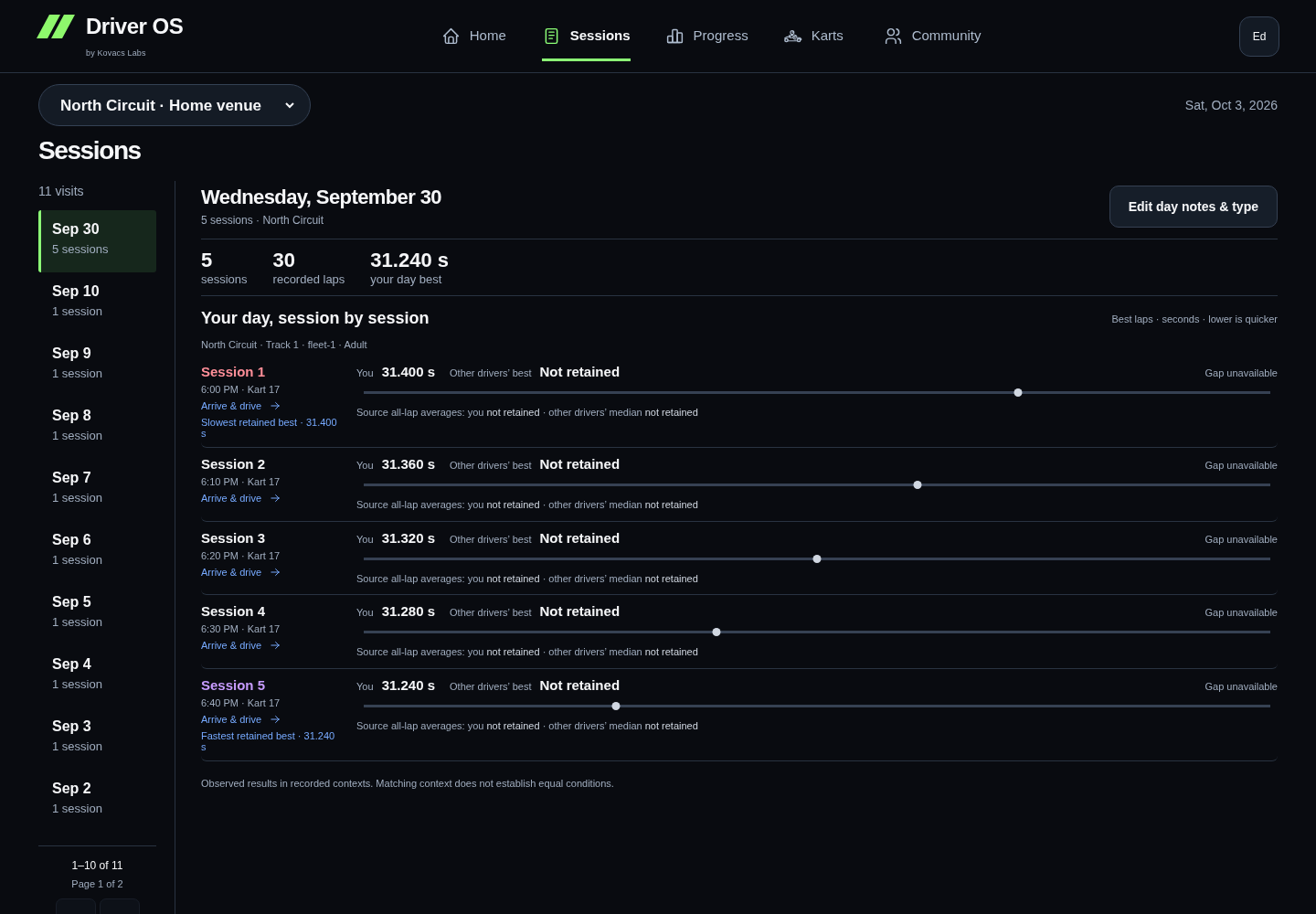
Open Sessions to see every session in the latest recorded day for your venue view. Choosing a date keeps the whole day visible. Race and Final rows lead with the recorded place and field size; unknown ranking basis stays explicit. Qualifying keeps timing and supported lap rank together. Each chronological row shows your best lap alongside the other drivers’ best where source evidence is available. The source-average line compares your provider all-lap average with the median of other drivers’ supplied averages; it is not a pooled field lap average or your retained average.
Select a session to open its lap bars. Back to the day returns to all its sessions. Previous and Next browse explicit session details. Long visit histories have a visit list; the selected day itself never hides sessions behind pagination or a session picker.
A link from Progress opens the evidence behind that view. Use its return link to get back to the selected comparison or racing-rhythm view.
Read the recorded evidence
Start with lap times, the result and its stated ranking basis. Fastest-lap rank and finishing position are different. A number such as P1, or a session titled Race, does not establish a race win by itself.
Missing laps or times remain missing. The app does not create laps to fill a gap. Check retained and excluded laps before using a pace summary; exclusion does not erase the original result. Horizontal lap bars open in Retained-lap detail. Switch to All recorded laps for excluded or unclassified timing. Dashed lines mark the available averages. Purple identifies the fastest retained lap in the session, pink the slowest lap in the displayed set, and green the observed retained-lap record at that venue. The venue record does not establish matching conditions.
Opening a session puts its horizontal lap bars first, followed by visible best-lap, source-average and score comparisons with the field. Retained and source all-lap averages stay separately labeled. Use Edit kart & note in the session header to open the existing private editor. Lime circles and labels show your times; blue squares show the other drivers’ best or median. Each metric has its own scale. Missing historical field evidence is distinct from a comparison service that could not load; your own laps stay available in both cases.
The day summary shows session count, recorded laps and your recorded best. Different contexts keep separate chart scales. Missing metadata does not hide same-race observations or imply equal conditions.
Add what only you know
Use the available session controls to record a kart number, notes or driving context. Practice, qualifying and race roles help explain what you were doing. Use Edit day notes & type on the day overview for a separate private day note or to preview a whole-day type correction. Choose which eligible sessions to update; recorded event contexts remain protected. Arrive & drive means ordinary Practice without an Event. Changes apply only after you confirm the preview. A partial save lists what completed and keeps the remaining work available for review. A note about traffic or kart feel is your observation, not a verified explanation of the lap time.
Wait for account confirmation before treating a number as saved. If sign-in fails, keep the number and reconnect before retrying. An unfinished Sessions number stays in this tab during same-account reconnection; closing or reloading the page can discard it. A confirmed save followed by a failed refresh remains saved—reload the data without repeating the save.
If you saved a number with Quick Kart, confirm its exact session in Karts → Review kart numbers. A nearby time alone is not a confirmed match.
Compare carefully
Compare sessions or visits with the same venue and compatible layout, class, fleet and purpose. If required context is missing, a side-by-side summary may still be useful, but it is not a proven pace improvement.
Opponent summaries do not contain full lap sequences. They cannot reconstruct a race replay or explain traffic and mechanical causes.
Open Sessions ↗ · Understand the numbers · See your progress
In the invited Demo scenario
Nashville sessions and events are fictional. You can save private notes and kart numbers, while ranking and event context stay fixed for the scenario. Fastest-lap rank and finishing position remain separate. Full competitor-field distributions and lap replay are unavailable in this focused Demo.
Possible repeat opponents
The owner pilot shows Possible repeat opponents within one recorded visit when retained evidence supports the comparison. A matching name is a clue, not proof of identity. Labels apply only within that visit; separate days, visits, venues and matching-key versions are never joined. Compact cards show the closest observed best-lap gap or the most shared sessions when supported; See session evidence opens the underlying links. Any displayed best-lap gap compares your source best with that driver's source best in the same session.
Coverage shows how many sessions have usable evidence. Missing, changed or ambiguous evidence stays unresolved; a lookup failure has its own Retry action. Private matches do not create Community friends, share data or reconstruct other drivers' laps.
Review a local race video
In the owner pilot, open a Race, Heat, Final or Endurance stint in Sessions, then choose Review video. Practice and qualifying do not offer a new review; an existing saved review remains accessible if its session role is corrected later. Choose helmet footage or a video downloaded from your race link. Driver OS does not fetch the race link or upload your video.
Use the native player to find a moment, then Bookmark current time and add a short private observation. End passage at current time makes a passage. Select two passages with Compare this passage, then use Review A and Review B to inspect them yourself. Use current time as lap 1 start records a manual anchor; it does not establish automatic alignment, telemetry or measured time loss.
Save review stores only notes, bookmark times, duration, the manual anchor and a sampled content fingerprint in your private account. Reopening restores metadata; reselect your local file to play it. You can edit or remove notes without that file. A different file requires an explicit empty replacement review, and existing saved notes remain unchanged until you save the replacement.
A failed confirmation may mean the save completed. Retry the same save to recover its result; a revision conflict requires reloading the saved review. Supported playback depends on your browser and codec; videos need a finite duration of up to four hours. Native iOS capture and automatic video analysis are not part of this feature.
The lap chart’s Field mean best and Field mean source average dashed lines average the other drivers’ recorded values, excluding you. A partially recorded metric stays unavailable. Values outside the retained-lap zoom are labelled; choose All recorded laps to include those references in the chart range. The recorded-lap average is calculated from your supplied laps, while the source average is supplied by the timing provider.
Home and Progress space recorded visits (or months) evenly, with real dates and long-gap markers. This display compresses empty calendar gaps; trend calculations and date filters still use actual elapsed time.
Race days narrows the day overview to recorded race context and explicitly linked practice or qualifying sessions. All visits restores the full history. An explicit session link remains available outside the filter and is labeled accordingly. Filtered session navigation keeps the same scope.
Save session context and ranking separately
Purpose, event membership and result ranking are separate choices. When available, the existing-event review names the exact recorded event; it keeps the original Quick Kart choice and ranking interpretation. A whole-day correction cannot overwrite protected captured event context.
If purpose or event context saves while an explicitly requested ranking save is unavailable or fails, the form confirms the saved context and keeps your ranking input. Reload your saved account data and retry only the ranking choice when that capability is available. Unchanged ranking needs no write. Changed source evidence requires another review. A ranking edit is unavailable where the backing capability is absent; it does not prevent an otherwise valid purpose-only correction.
Review a linked GP
The chronological day overview keeps Practice, Qualifying and Race results together with kart and timing details. Actual grid and net places appear only when verified result evidence supports them; qualifying rank never supplies a starting grid. Net places are not overtakes. DNF, DNS and DSQ retain their recorded status.
A compact Previous GP comparison uses an earlier explicitly linked GP at the same venue and layout. Multiple sessions remain separate observations rather than being paired by timing or best lap; missing stages are shown as not recorded. Incomplete or different context supports recorded facts only; two events do not establish a trend.
Starting position you recorded
In a session's evidence detail, Starting position you recorded keeps your remembered grid separate from imported results. When entry is available, enter a whole position from 1 through the source field size, then save. You can edit or clear it; the private edit history keeps revision numbers and recording times. Clearing retains earlier revisions. Deleting the owning race or account removes this observation and its history. Missing field size prevents a new entry.
Your observation never confirms an official finish or changes the source placing, scores or laps. Racing displays a current saved grid with a recorded-by-you label; net places from it require a confirmed classified finish and do not count overtakes. If the session timing or field changes, an earlier observation is labelled for review. A stale save asks you to reload; your input stays visible and is not silently reapplied. Entry is unavailable in Demo and until its persistence is enabled.
Racing overview
Open Racing overview from Sessions, or choose Racing in Progress, to review an explicitly linked GP and its recorded stages. When the latest recorded day is a validated Event day, Home shows a dismissible latest-race hero. Newer non-Event days keep Latest day, with a compact link to older GP history. Qualifying rank never supplies a race grid. Every recorded qualifier appears separately; multiple sessions never create an official combined qualifying rank or a guessed cross-GP session match.
GP histories keep venue, layout, class, revision, stage, fleet and Real / Demo context separate. Dashed timing lines link observations with explicit comparison limits. Two GPs support a comparison only; a comparable trend requires three distinct comparable GP dates. Open a source session to review its evidence or permitted local video notes. Video analysis and synchronized replay are Coming soon.
Previous interface referencePreserved guidance · 2026-09-28
Sessions in the driving notebook
Choose a recorded date, then a session. Its detail keeps the result's ranking basis, best lap, retained average and variation together. Lap evidence distinguishes all recorded laps from the retained subset. Faded exclusions explain the statistical rule or supplied reason; a slower lap alone does not establish traffic or a yellow flag.
Coherent source-supplied anonymous field data can show that session's comparisons. Unknown ranking basis stays unknown; fastest-lap rank is not a classified finish. The optional Nashville animation uses recorded lap durations and uniform movement on a sourced illustration, not measured speed, position or racing line.
Save a private note, known kart number or explicit context correction on the selected session. Original timing stays intact. Personal session and visit comparisons require matching context. Pagination changes the visible rows, not the calculation's evidence. Return links preserve your place.
The sections below describe the existing detailed review in More tools, including its additional filters, Events, saved analyses and widget layouts.
Review a whole day in C
Sessions opens with a by-day history. Select a date/venue, then use Day overview or a session selector above the evidence. Switch to the compact session table when looking for an individual record. Following evidence and returning keeps the selected context. Opening main Coach from a selected day or session carries that evidence into Coach without saving or changing an action.
Purple identifies the quickest recorded best lap in a day’s group; amber identifies the slowest. Ties remain visible. If purpose or racer class is missing, matching unknown sessions can still show these observed timing colors within that visit. The visible note explains that this does not establish comparable race performance. Known and unknown context never mix, and the colors do not change wider Progress eligibility.
Green requires a known, comparable result: recorded purpose, ranking basis and equal field size remain separate checks. Missing purpose/class cannot earn a green result highlight. A fastest-lap ranking is not a finishing position.
Qualifying and Race selectors give the recorded position and field size priority, while retaining the best lap. The individual result also leads with that placement. Read its ranking-basis label: qualifying order, fastest-lap ranking and classified race finish are different facts. A position with unknown basis stays a recorded position, not a confirmed finishing result.
Review a timing cue, then clear the reminder
A slower-session cue offers Review flagged session so you can compare the laps and recorded context together. Its short chart shows the observed differences from the displayed baseline. It is a prompt to inspect evidence, not an explanation of the cause.
Choose Mark reviewed after you inspect it. Undo restores it immediately; the reviewed-cues section offers Show again later. Only the reminder is hidden, for this account in this browser. Original sessions, chart evidence and saved coaching stay available. Changed evidence can produce a new cue.
Inside a flagged session, Mark date review reviewed clears the same date-and-comparison reminder shown on Home and in Sessions. It covers the flagged sessions for that date, not unrelated reviews. The timing review remains expandable with Show date review again, and Undo restores the reminder immediately.
Before you start
Make sure the result belongs to the expected venue, visit and race. Sessions is the evidence owner, so correct source details here before interpreting a pattern elsewhere.
Open the right session
- Open Sessions and choose the visit date.
- Review the day overview before selecting one race.
- Check the official result, lap list and available standings context.
- Confirm the venue, layout and class before comparing the result with another session.
The same synthetic session is shown in three passes so the source, race evidence and useful context stay connected.
 01 / 03START WITH THE DAY
Confirm the date, venue and race order before reading one lap in isolation.
Read the demo transcript
- START WITH THE DAY: Confirm the date, venue and race order before reading one lap in isolation.
- CHECK THE EVIDENCE: Read the official result, valid laps and representative pace together.
- ADD USEFUL CONTEXT: Keep the kart, conditions and factual notes with the session they describe.
Keep an organized Event together
Choose Events & session setup from Sessions to browse existing Events or create an optional container for related driving. This index also keeps Events without a currently loaded timing result accessible. Expand Event format & additional dates to choose Open/walk-in, League/championship, Group/private event, Endurance event or Practice/test when the type is known. Existing format values open automatically. Ordinary visits can stay exactly as they are, without an Event or a classification.
Add each individual session and choose its known purpose. Arrive & drive is a visit without an Event; Practice is practice within a race-day Event. The choices are separate. Qualifying and Race remain available, while an unknown purpose stays Unclassified. Endurance events also offer Endurance stint. Existing Heat, Final and stint records remain readable; editing other details preserves their original type. Indoor or outdoor describes the track, not a separate session type. Give it a useful name such as “Qualifying 1” or “Stint 2.” Attach the saved timing result when one exists; notes and source evidence can be added separately. Missing timing stays missing.
A linked Event appears as one visit in Home and Sessions. Open it for Day overview, then select Practice, Qualifying 1, Qualifying 2 or Race to see that session's timing and result. Repeated sessions are numbered in recorded order. This grouping does not combine statistics from different layouts, classes or vehicles, and does not establish how a result was ranked. Event details & setup keeps editing available. History is never classified automatically.
For a temporary team car, select temporary/team vehicle context. A label is enough to start. Make, model, year, car number and team can remain unknown until you know them. Each stint keeps its own timing, notes and source links.
Read the evidence in layers
For a post-racing overview, choose Review race day on Home or Review this visit within Sessions. Race Day Review follows pace and consistency through the visit, compares prior visits on the same recorded layout, shows anonymous field context and links useful moments back to their Session. Save its primary focus into Coach when you want to keep it for next time.
The summary compares today with your last and usual visit: green ↑ means faster or tighter, amber ↓ means slower or wider, and an equals sign means unchanged. The charts show race-by-race development; Race details & evidence keeps the numbers and Session links close by. Visit history and field trends use the same layout. Missing results leave gaps rather than becoming zero.
The review shows the included race count and last update time. New official results update the review. Different layouts stay separate, and conflicting identities or times require inspection in Sessions. Unmarked laps do not prove clear running; traffic and yellow flags need recorded context. Sensor evidence is optional and never changes official timing.
- Best lap is the quickest saved valid lap.
- Representative pace reduces the influence of excluded or unusual laps while keeping the raw laps visible.
- Lap time variation describes repeatability across the eligible lap set.
- Position and field context appear only when they were actually observed in the source.
Set a missing session purpose
Open a day, select the session, then choose Set session purpose. This opens the context editor with that timing result selected. Its date, venue, layout and a useful session name are filled from the linked timing when available; you can correct them before saving.
Choose Arrive & drive for an ordinary visit without an Event. You do not need an Event name. Choose Practice for a practice session within a selected race-day Event, or Qualifying or Race when those describe the session. A result can remain Unclassified until you know its purpose. Missing purpose is never filled merely because no Event exists. Save the explicit change, or return to the same review without saving. Purpose, optional Event membership and ranking basis remain separate facts; changing purpose does not certify a win or change timing.
Existing records with a saved Practice role and no Event appear as Arrive & drive; Practice with an Event remains Practice. This display distinction does not rewrite imported results.
Read saved analysis and notes in C
At the bottom of a session, expand Follow the evidence → Saved analysis & session notes. The evidence opens on the same C page. Existing notes, recorded tags and saved AI analysis retain their scope; a whole-day note or whole-source-session analysis is not relabeled as a fact about one lap.
Saved AI shows its current, stale or earlier-version status, measurements, limitations, sources, model and version information. Checking for an existing authorized saved answer does not generate a new one. Opening this section does not request AI or change an action. If no matching saved answer is available, the page says so and preserves the timing evidence.
Rating & result details shows the saved driver rating and change, gap to the field-best lap, timing timezone and verified grid/net positions when recorded. Country ratings stay separate; a field-best lap gap is not a finishing-time gap. Day overview totals recorded rating changes with coverage shown.
Day journal & comparison tools keeps existing day notes in their original track and session context. Edit notes, tags & kart opens the selected session's detailed editor; it also retains detailed result and timing tools. Reading saved analysis stays inside the review. Return to review restores your selected day/session and expanded evidence.
Add what timing missed
Save the machine or kart number, traffic or issue tags and a short factual note when they materially change how the run should be read. The note should preserve context, not guess at a cause.
Selecting or clearing Yellow, Traffic or another condition keeps the race’s Details open. You can make consecutive changes and save a note without reopening the section. These tags describe the race context; they do not change official lap timing.
What success looks like
You can return later and understand the result, the laps, the machine and the conditions without reconstructing the day from memory.
If something looks wrong
Do not edit several fields to make the summary look plausible. Check the source and import status first. A missing or unsupported value should remain unknown until you have reliable evidence.
See your Progress Understand the calculations Fix an import problem
Saved page layouts
In the wide review, expand Saved layout & optional Sessions widgets, then choose Customize Sessions to show, hide or reorder the existing race outcomes, representative pace and recorded-lap summaries. Expand a day inside that panel to inspect its optional widgets. These retain the existing saved widget choices and calculations; they are not table-column settings. The wide review’s by-day and individual-session history, selectors and evidence remain available. Save the layout to your account, or reset to default and save.
Use Events & session setup in Sessions to browse whole Events. Opening an Event from this list, a visit card or Progress leads to the same review. Main result labels show your position and field size; expand result details for the recorded ranking basis and source limitations.
Classify a whole driving day
In Sessions → By day, use Edit driving or Edit Event beside a day. The same controls appear inside the day review. The editor includes all loaded timed sessions at that venue on that date, even if the list is filtered. Unclassified sessions are selected first; use Select all or the individual checkboxes to change a different set.
Choose a purpose or Event, then Review changes. The before/after preview shows every selected session. Arrive & drive needs no Event and clears Event membership for the selected sessions. Practice requires an Event. Keeping each session’s purpose lets you attach an Event without flattening a practice/qualifying/race day into a single role.
Save only after reviewing the count and changes. Timing, result ranking, kart numbers, notes and recordings are preserved. If a save stops partway, completed sessions remain saved and the remaining selection stays available to review and retry. Changes made on another device require a fresh review.
Optional session setup
The session editor keeps purpose, official timing, kart number and venue/layout easy to reach. Arrive & drive shows No Event needed; Add/change Event stays available. Event-related purposes or a recorded Event reveal the Event picker.
Rental sessions summarize their vehicle context. Expand Change vehicle context to choose an owned Garage vehicle or temporary/team vehicle. Existing non-rental context opens automatically. More setup options on Events keeps temporary-vehicle creation available. These controls do not remove vehicles or non-K1 history.
Saved evidence references stay visible. Expand Add an evidence reference only when adding one; official timing works without sensor evidence.