
Your first drive through Driver OS
A simple path from your first recorded result to a useful focus for your next visit.
What would you like to do?
Find your way around
- Home: your latest day, or latest race when that day is a validated Event day, plus current focus and private plans for the next visit.
- Sessions: every session in the selected day, then its laps, field comparisons and notes.
- Progress: observed history or similar-session comparisons, with a shared chart range.
- Karts: recorded numbers and personal evidence. Use Quick Kart to remember a number at the track.
- Coach: ask about your driving or review your current goal. For eligible accounts, Coach selects relevant history automatically; suggested questions send when clicked.
Your account menu opens Profile, Settings, Help and Sign out. Help opens separately, preserving your place in Driver OS.
Start with what you have
One result is enough to explore Sessions. Missing timing stays unknown, and a single visit is not a trend. Choose a home venue during setup; browsing another venue never moves your results.
Use information buttons beside chart titles for definitions. Hide this day hides only that Home card; Show latest day restores it. New recorded days appear automatically.
Your goals, notes and plans stay private. Community is optional, with separate sharing choices that you control.
How the numbers work · Privacy and sharing · Open Driver OS ↗
Previous interface referencePreserved guidance · 2026-09-28
Your Driver OS
Eligible Real accounts use Home, Sessions, Progress and Karts at /driver. Community · Coming soon is visible in the menu. The blue Quick Kart button and green Coach stay within reach. A new account begins with an empty history, and every recorded result belongs to the authenticated account.
Complete the first-time profile and home-K1 steps once. The venue selector changes only the view you are browsing: choose an away venue or All venues, then return home when ready. A venue selection never moves recorded sessions.
The avatar menu opens full-width Profile, Settings, Help and Sign out. Profile changes your driver name and home K1; your username is permanent. Settings opens native email setup, compact activity/history tables and privacy controls. Help opens a separate tab. The old More tools portal and repeated setup wizard are no longer shown.
The authorized owner has a separate Owner workspace with protected operations and compact ten-row invitation/account tables. Community remains a preview with no sharing. Demo accounts retain their separate fictional experience. Older detailed workflows described below remain preserved at their original routes; they are not presented as settings in the new interface.
Historical detailed-tool preferences
Profile → App preferences lets you choose an explicit home track and whether new tabs start there or at All venues. Existing defaults stay unchanged until you save a choice. Home, Sessions, Progress and Coach share the venue you are browsing; switching venues does not save a preference or rewrite history or goals. Newer visits elsewhere remain linked, and direct Session or Event links open their own evidence. Home-track preferences stay in this account and browser; they do not sync across devices or between Dev and Production.
Where are you right now?
- I have not joined yet: Join early access and finish setup.
- I was just approved: Complete the required Profile step, then return to Home.
- I have a result to review: Bring it into the journal, then open the session.
- I am going to the track: Save the kart number or review the current action on Home.
- Something is not working: Start with the recovery guide.
Your first useful journey
- Use your owner invitation to join early access, verify the newest email and complete setup. A second approval is not required.
- Sign in and complete the required driver profile.
- Connect a supported result source or add known values manually.
- Open Sessions and check the result, laps and source context.
- Add the kart, conditions, tags or short factual note that will matter later.
- Use Progress after you have comparable evidence.
- Use Coach to keep one practical next action visible on Home.
A short synthetic walkthrough of the Driver OS loop. Press play or move through the steps yourself.
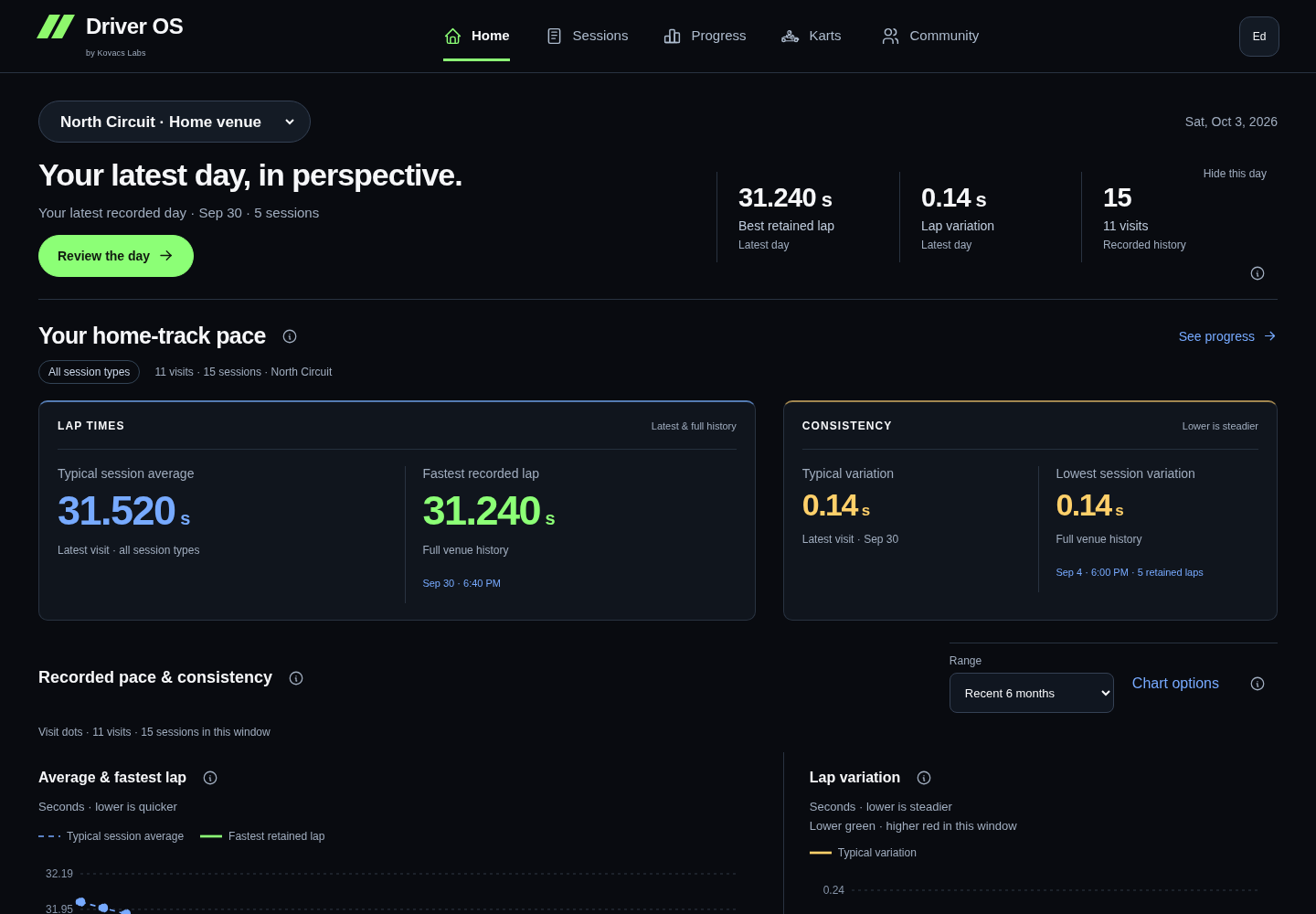 01 / 04HOME
Home keeps the current state and one next useful step visible.
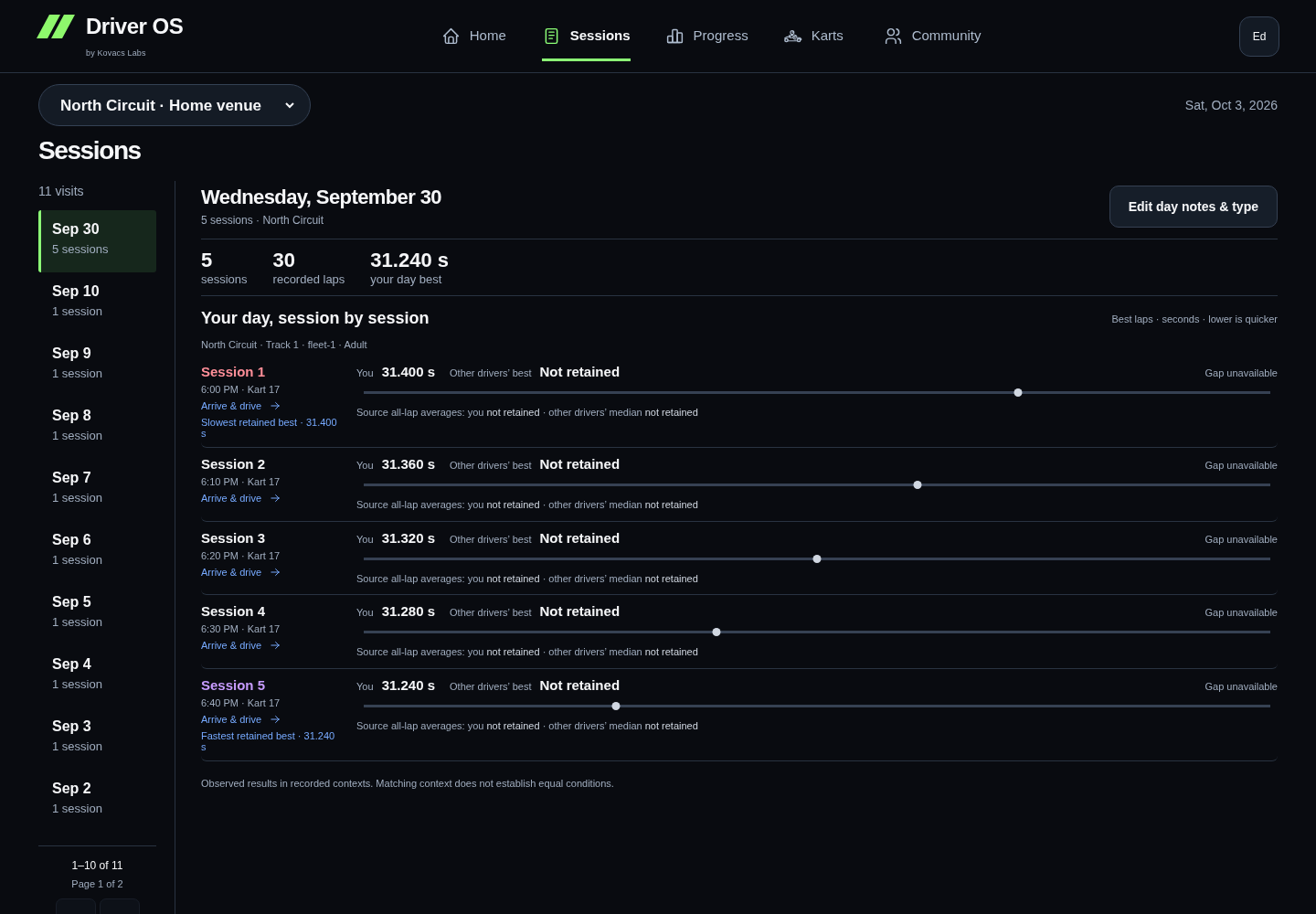
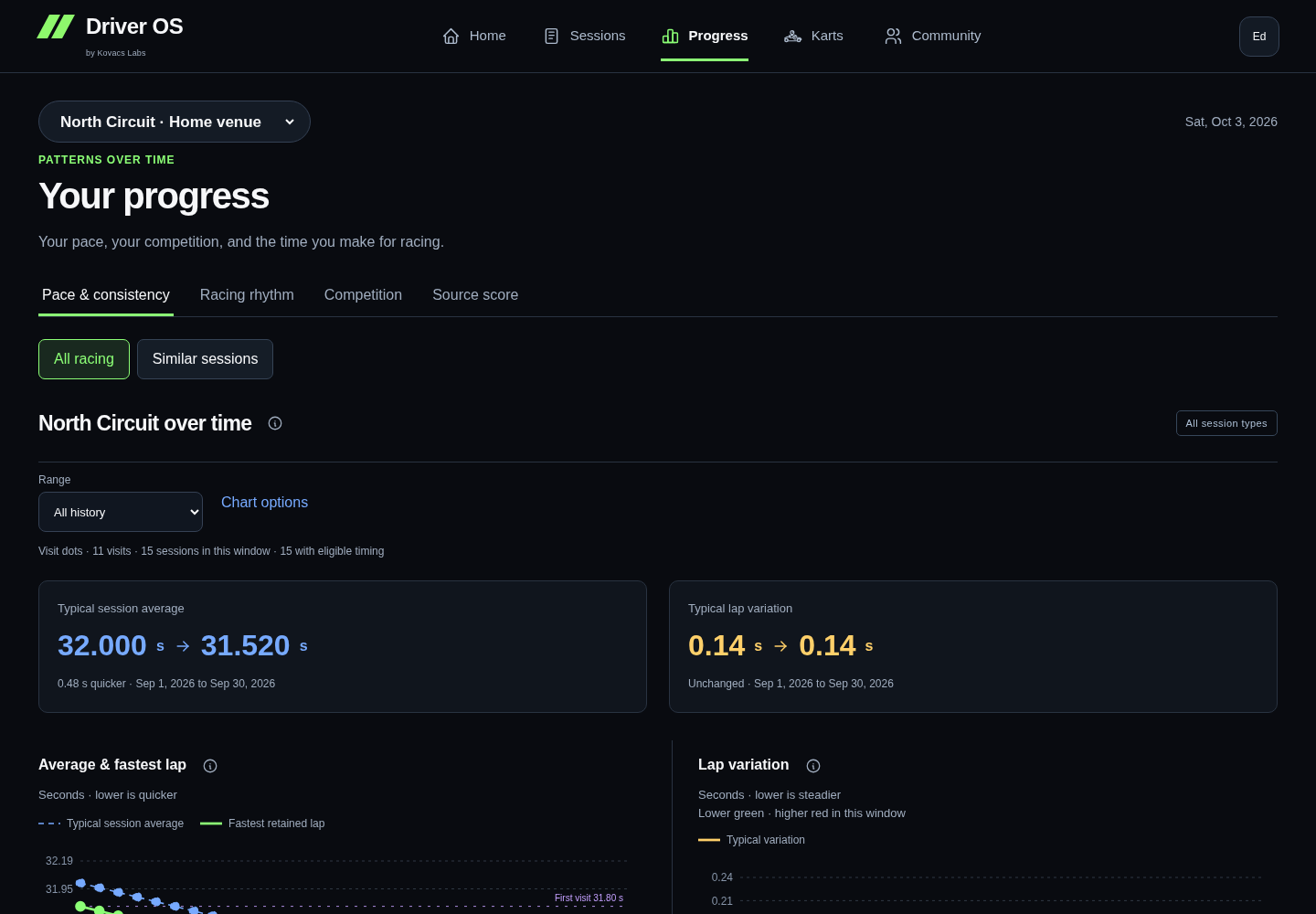
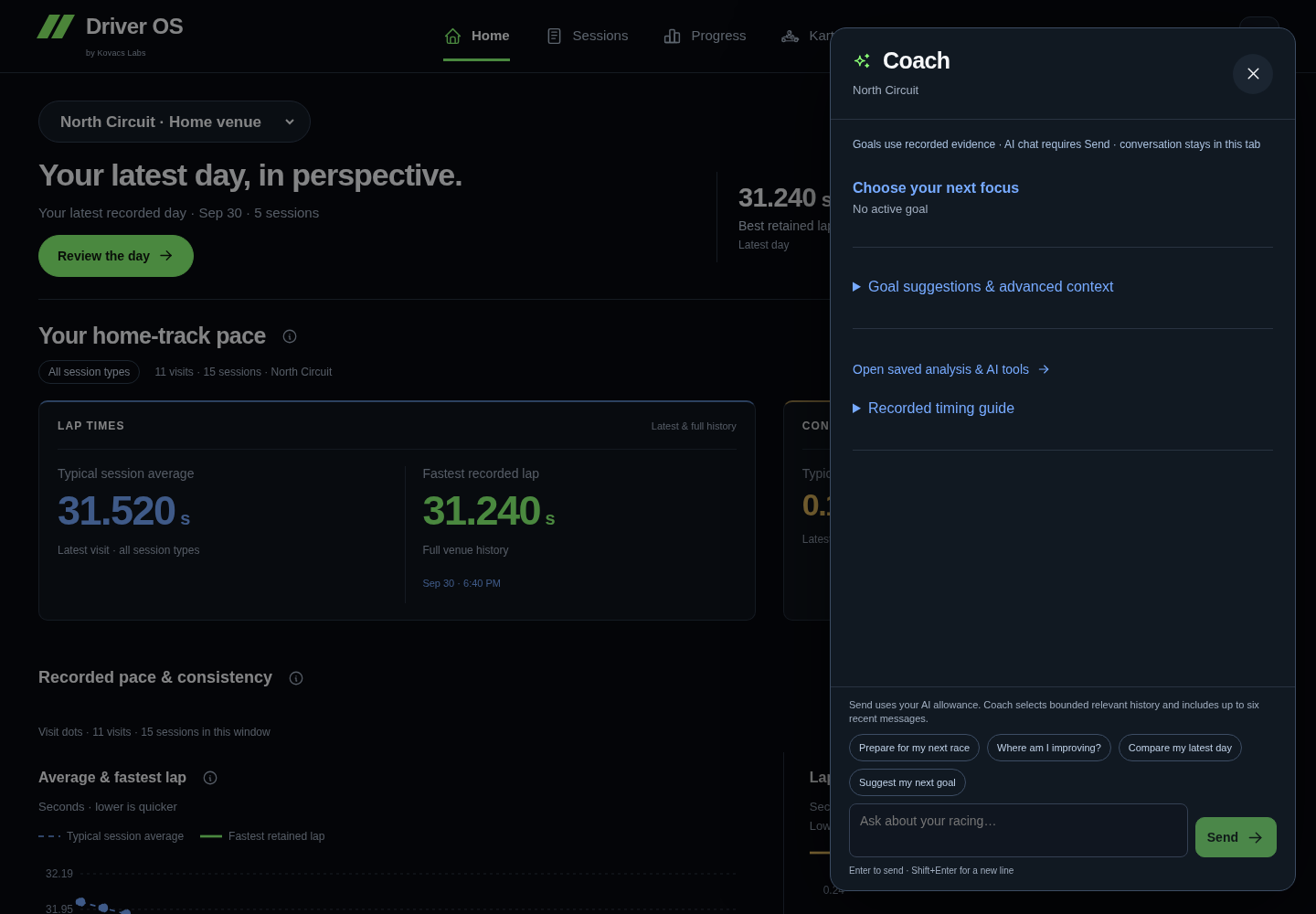
Read the demo transcript
- HOME: Home keeps the current state and one next useful step visible.
- SESSIONS: Sessions preserves the official result, laps and useful context.
- PROGRESS: Progress compares compatible evidence and shows what is changing.
- COACH: Coach retains one practical action for the next drive.
What is optional?
- Automatic K1 result forwarding saves time, but manual entry remains available.
- Quick Kart is useful at the venue, but it is not required.
- Sensor Lab adds experimental context and never blocks the core journal.
- AI explanations are limited to specifically entitled accounts. Race Day Review and other AI tools require their visible request action; opening a page does not start a paid analysis.
What good looks like
You can explain where a result came from, what changed across comparable sessions and what you plan to try next. Driver OS should make that story clearer without hiding the original evidence.
Join and set up Bring in a result Review a session
A short tour, whenever you want
After setup, you can take a five-step tour of Home, Sessions, Progress, Coach, and Connections / Quick Kart. It is optional and does not change your journal.
Replay the short Driver OS tour
Remember your rental kart
Choose Karts on desktop or More → Karts on your phone. Home shows recently used numbers for the current venue. Save kart number works without telemetry; Review saved captures opens the matching controls. History stays separate by venue, fleet and class. Save and review a number.